WeCom Integration
This document explains how to create an intelligent bot in the WeCom admin console and connect the WeCom integration in Flocks.
Use Cases
- You need to create a bot in WeCom and connect it to Flocks for message sending and receiving.
Prerequisites
- WeCom admin console access is enabled and available. The account must have permission to create bots.
Procedure
1. Open the Bot Creation Entry
In the WeCom workspace, go to Smart Office -> Intelligent Bot.

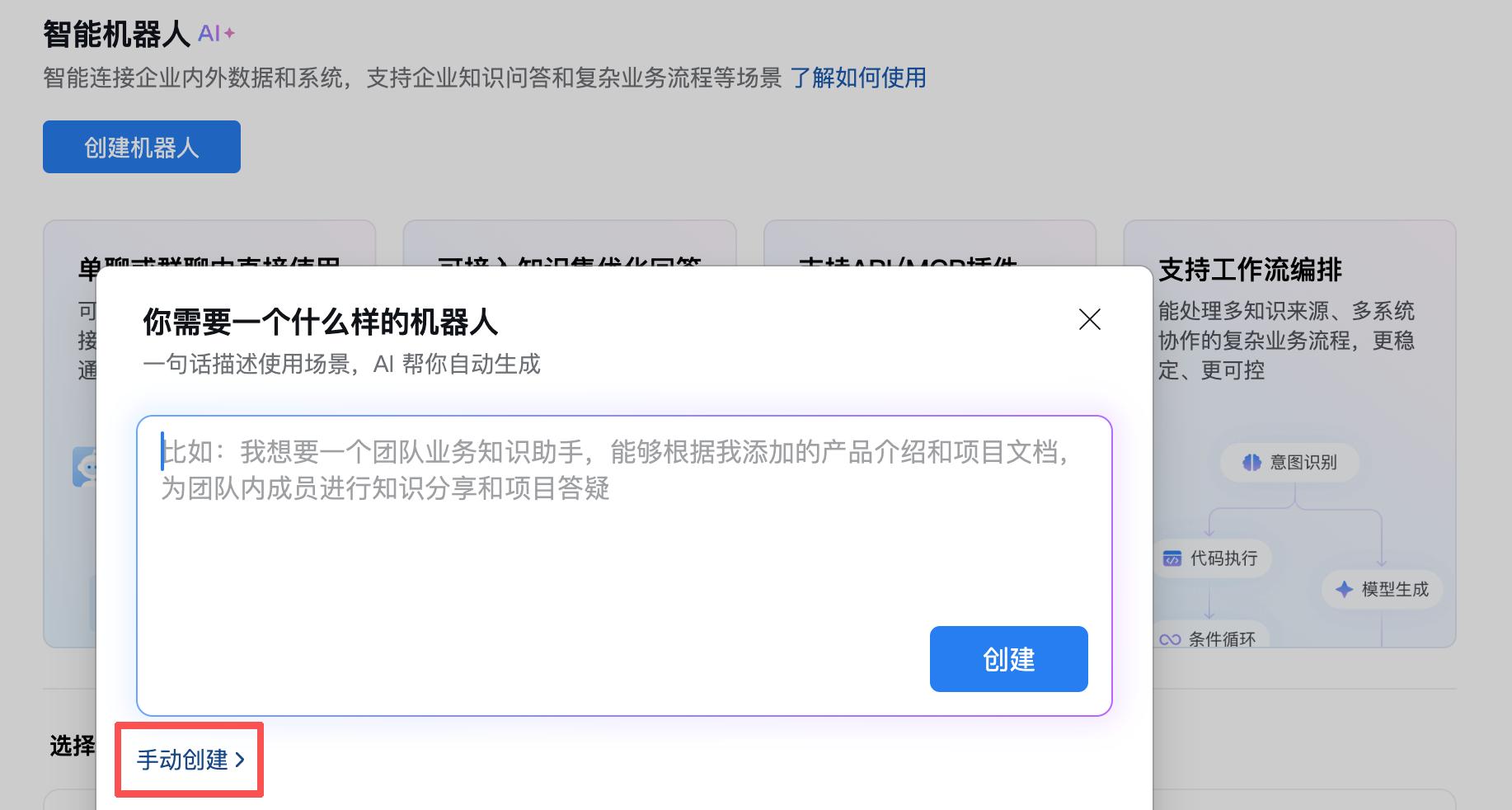
2. Create a Bot
Click Create Bot, then select Manual Creation in the dialog.
3. Select the Access Mode
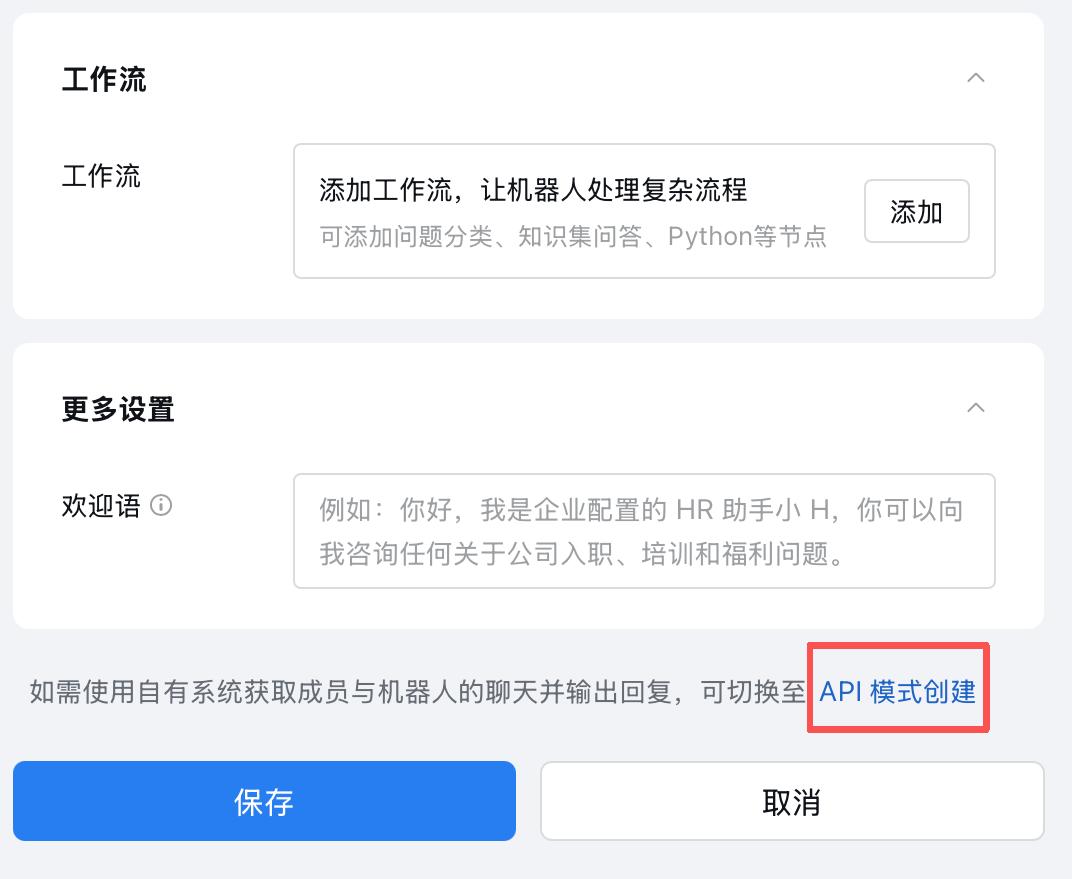
- After entering the page, you can first change the bot name. Use a business-recognizable name, such as "Security Assistant".
- Scroll to the bottom of the page and find Create in API Mode.
4. Generate and Save Credentials
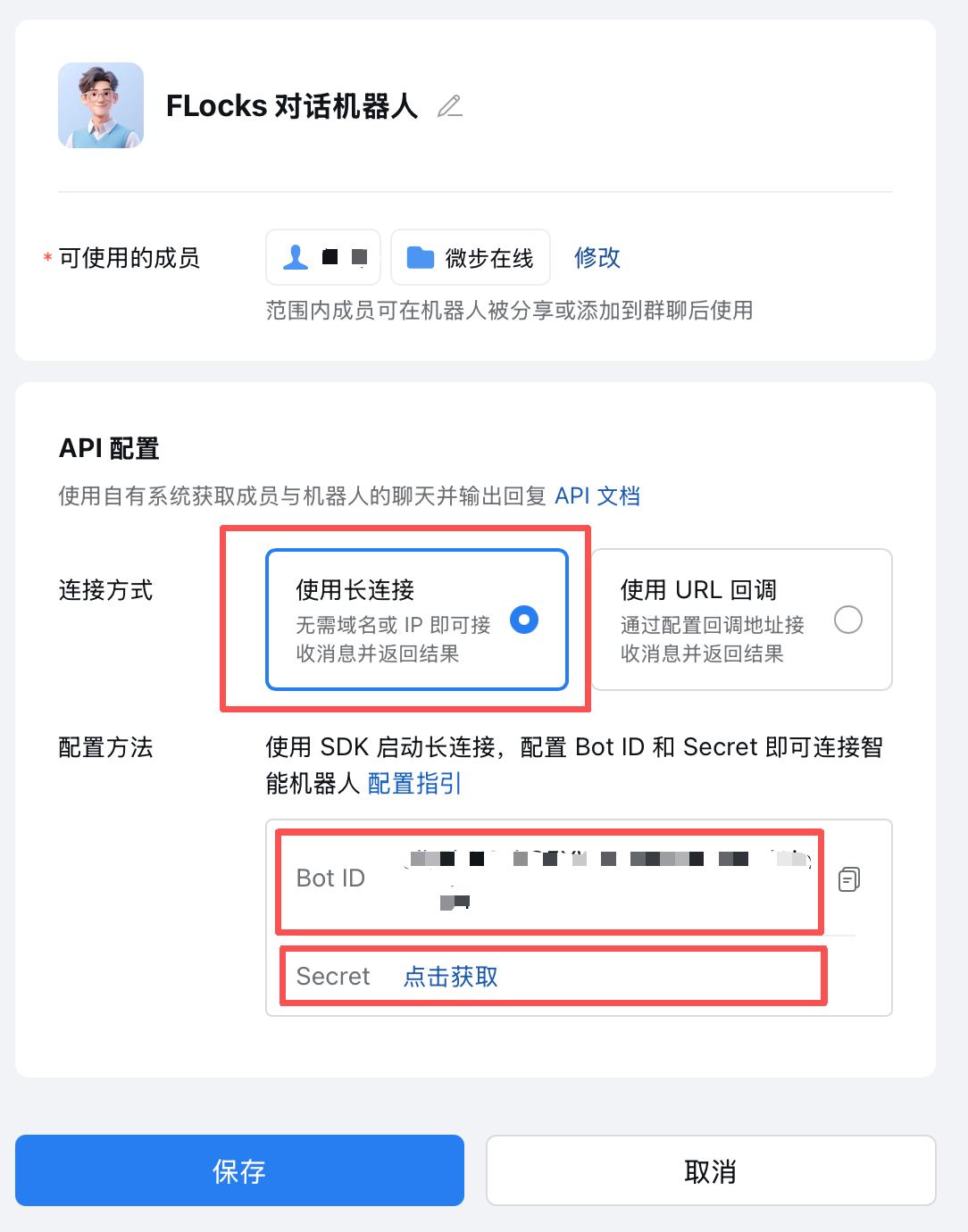
- Select Use Long Connection.
- Obtain and copy the following information:
Bot IDSecret
Store these two credentials securely. They are the "keys" Flocks uses to connect to the WeCom bot.
5. Configure Flocks
- In "Messaging Integrations -> WeCom" in the Flocks WebUI, enter the
Bot IDandSecretobtained in the previous step. - Save and enable the channel to complete the integration.
Multiple Groups and Session ID
A common question in WeCom scenarios is: "I have multiple group chats. Where will the message be sent?"
- If you have only one bot and one channel, telling Flocks to "send to WeCom" is usually enough.
- If you have multiple groups or multiple conversations, explicitly specify the
Session ID.
The Session ID tells the system exactly which conversation to deliver the message to. This is especially important for scheduled tasks: when a task runs automatically, the system needs a stable target location for sending analysis results.
To obtain the Session ID:
- Ask Rex in the target WeCom group or direct chat:
What is your session_id? - Or send
/statusto view the currently bound Session, Agent, model, and IM conversation information. - Use this
Session IDin the WebUI, another conversation, Task Center, or Workflow:
Send to session_id: <session_id>: Today's inspection is complete. Two high-risk alerts were found.Flocks automatically finds the bound WeCom conversation based on the Session ID and sends the message. Users only need to store and use the Flocks Session ID; they do not need to care how WeCom identifies groups or direct chats internally. If /new has been executed in that WeCom conversation, a new Session is rebound, and subsequent pushes should use the new Session ID.
Additional Notes
- Refer to the screenshots above for a visual step-by-step walkthrough.
Related Resources: Messaging and alerting integrations overview | DingTalk integration | Feishu integration | Slack integration | Telegram integration | WeChat integration | WhatsApp integration | Email integration configuration