Feishu Integration
This document explains how to create a custom app and bot in the Feishu Open Platform, then connect and verify the Feishu integration in Flocks to build a dedicated AI bot.
Prerequisites
- You have a Feishu enterprise account with access to the developer console
- Make sure the account logged in to the Feishu Open Platform (developer console) is the same account used in the Feishu PC client / web version (https://www.feishu.cn/)
1. Create a Feishu Custom App
Open the Feishu Open Platform: https://open.feishu.cn/app
Log in to your Feishu account.
Click Create Enterprise Custom App.
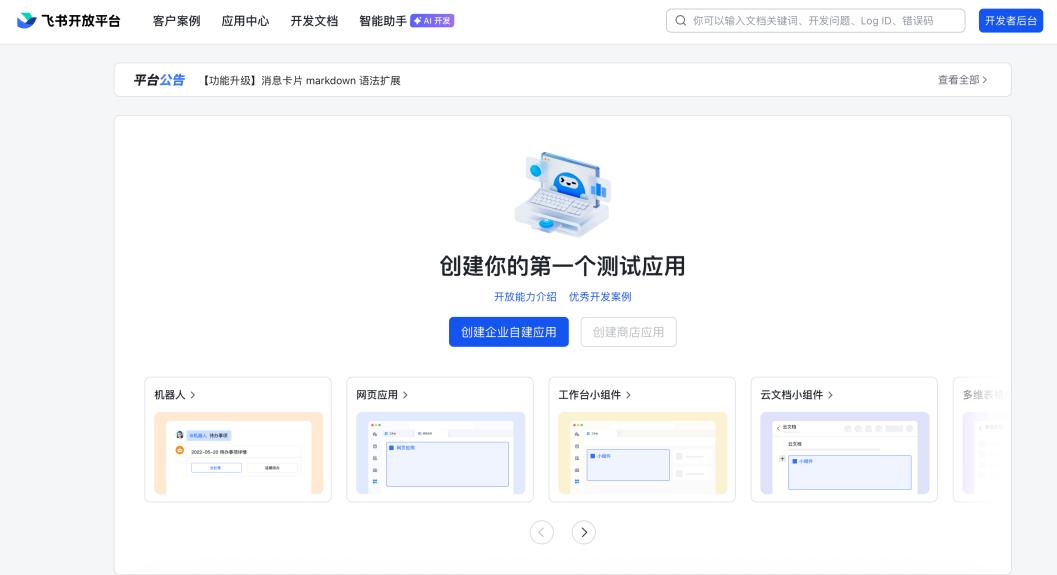
Enter the App Name and App Description, then click Create.
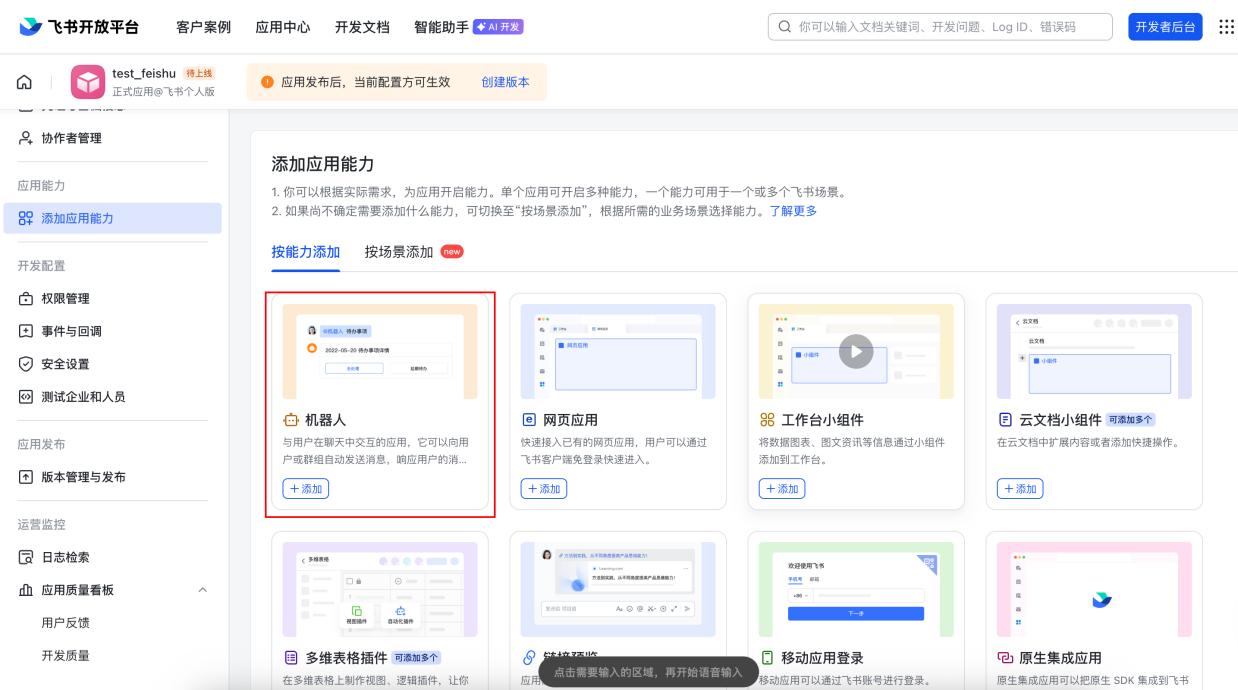
In the Add App Capability sidebar, find "Bot" and click + Add.
After it is added, the app capability list shows a new "Bot" item.
2. Configure Permissions, Events, and Credentials
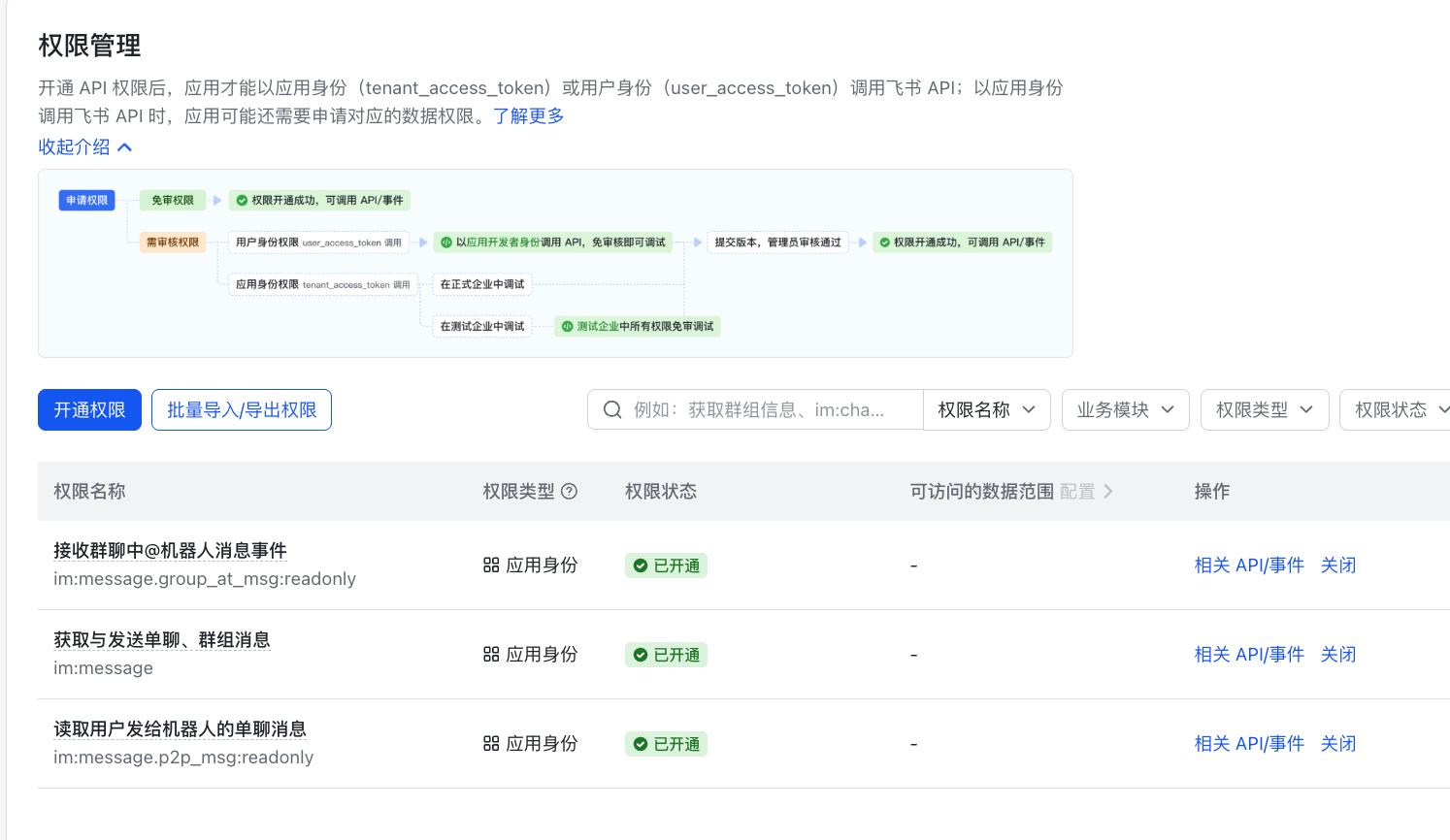
In the left menu, find Permissions Management (or Permission Configuration in Lark), click Enable Permissions, then search for and select these three key permissions related to "Flocks and Feishu bot conversations":
- Get and send direct and group messages
- Send messages as the app
- Receive message events
The exact permission names depend on the latest names in the Feishu Open Platform. Search keywords include "message" and "bot".
In the left menu, find Events and Callbacks, then subscribe to events such as bot message receipt as needed. This allows the bot to receive group or direct messages.
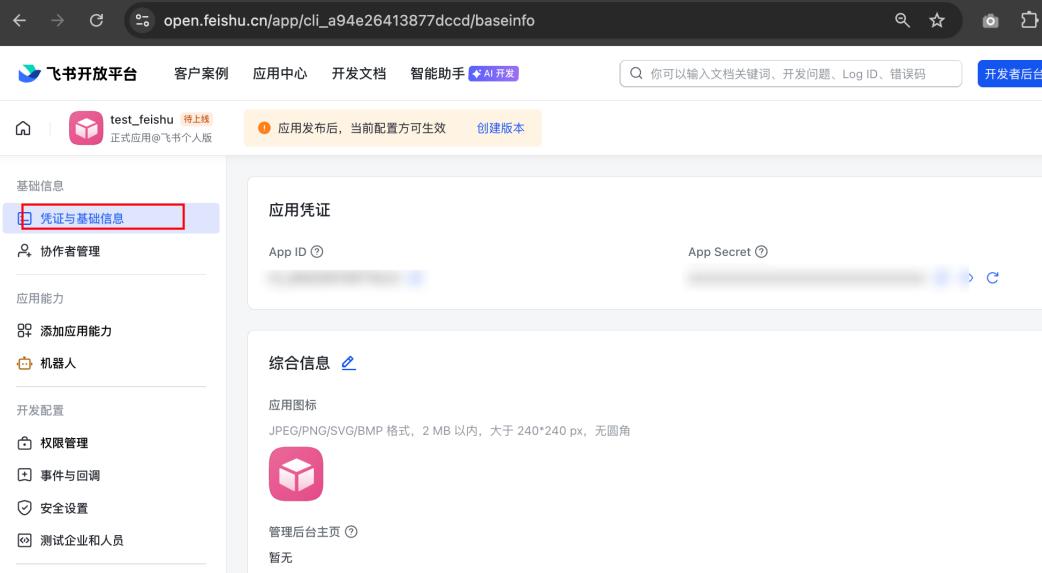
In the left menu, select Credentials and Basic Information, then obtain the app's
App IDandApp Secret.These two credentials are the "keys" Flocks uses to connect to the Feishu bot app. Store them securely.
3. Enable and Publish the Bot
- Go to bot configuration, start the Bot, and set the bot name. It is recommended to keep it consistent with the app name.
- Go to Version Management and Release, click Save, then click Confirm Release in the confirmation dialog. This completes the Feishu bot configuration.
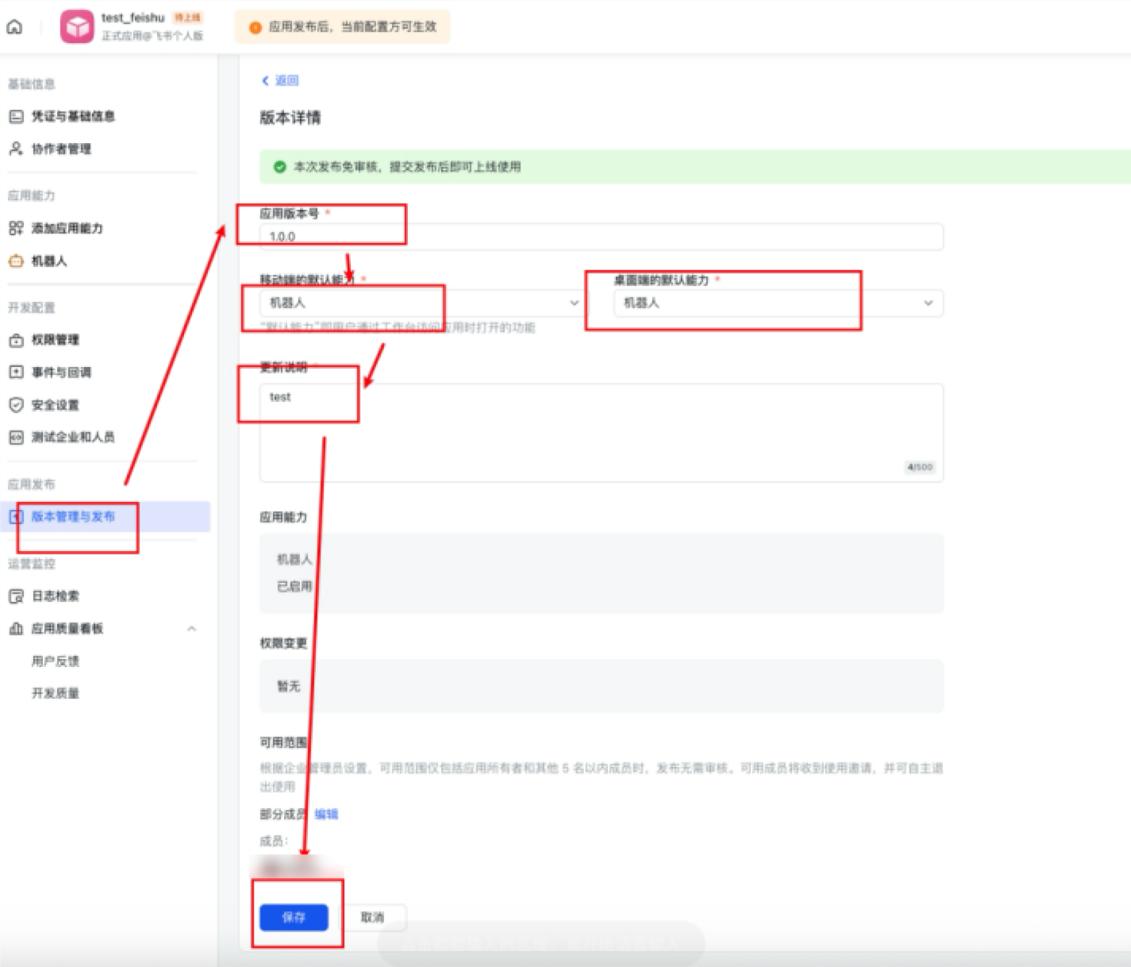
4. Connect the Feishu Channel in Flocks
- Go to "Messaging Integrations -> Feishu" in the Flocks WebUI.
- Enter the Feishu bot's
App IDandApp Secret. - Click Enable, then click Save.
- When the Feishu channel status is normal, Flocks is ready to interact with this Feishu bot.
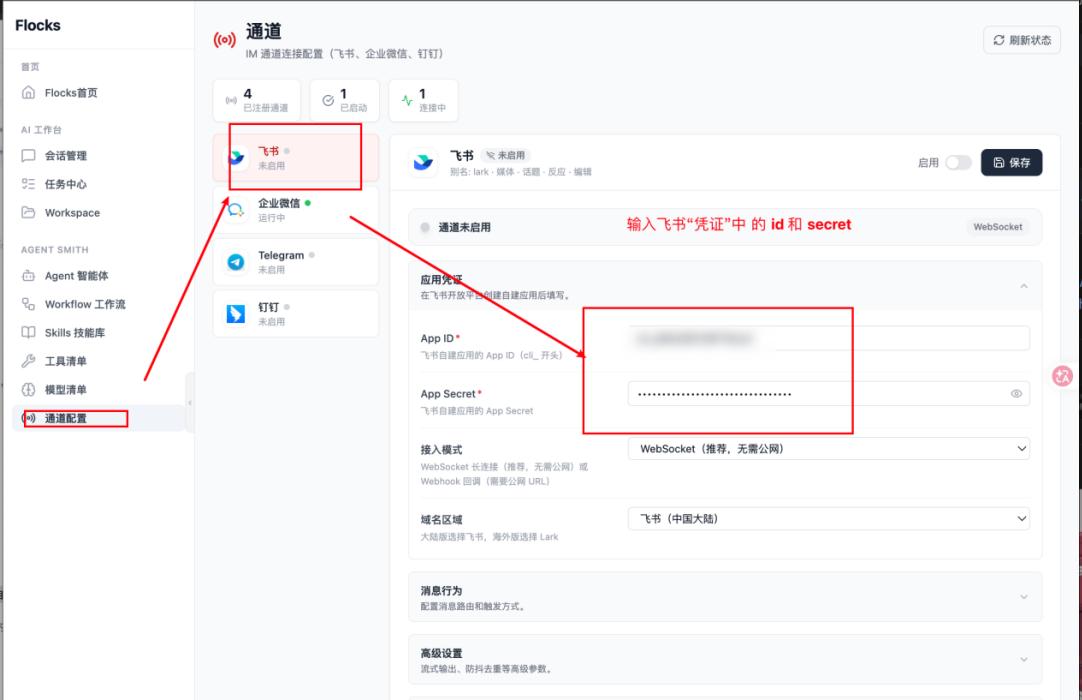
After completion, click Open App in the Feishu app or desktop client to start a conversation with the bot.
5. Additional Notes
- If the Feishu channel fails to connect in Flocks, common causes include missing permissions, unsubscribed events, incorrect
App ID/App Secret, or an app that has not been officially published. - Refer to the screenshots above for a visual step-by-step walkthrough.
Related Resources: Messaging and alerting integrations overview | DingTalk integration | WeCom integration | Slack integration | Telegram integration | WeChat integration | WhatsApp integration | Email integration configuration