Invoke Workflow
A Workflow that has been created or modified can run not only from the workflow detail page, but also be invoked by Flocks sessions and Agents. After a user states which workflow to call and what parameters to use in natural language, Rex matches the target workflow from the available workflow list and starts a workflow run. During task execution, Agents can also call Workflows as stable tool-like processes.
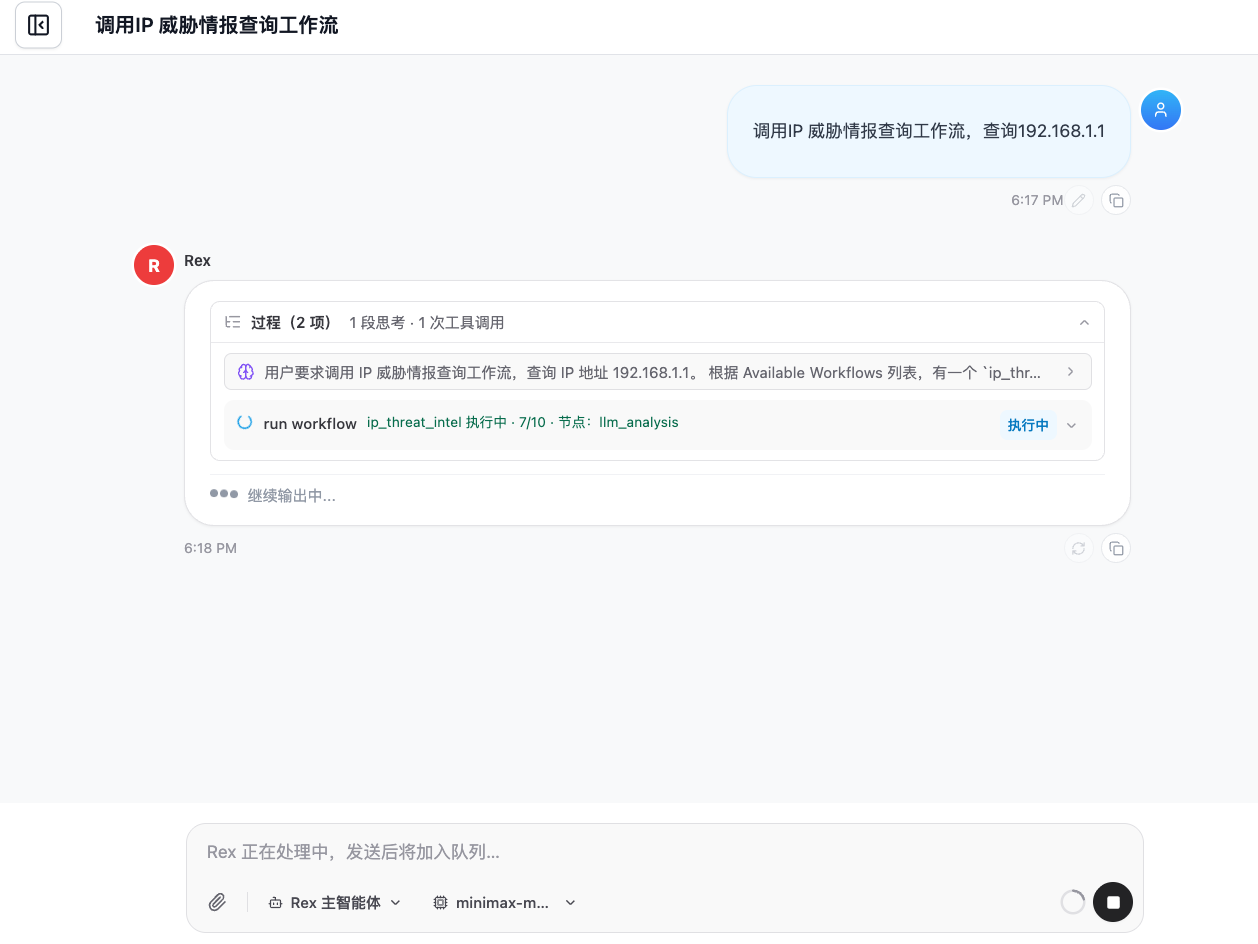
For example, if a user enters "Invoke the IP threat intelligence query workflow and query 192.168.1.1" in a session, Rex identifies the corresponding workflow and executes it.
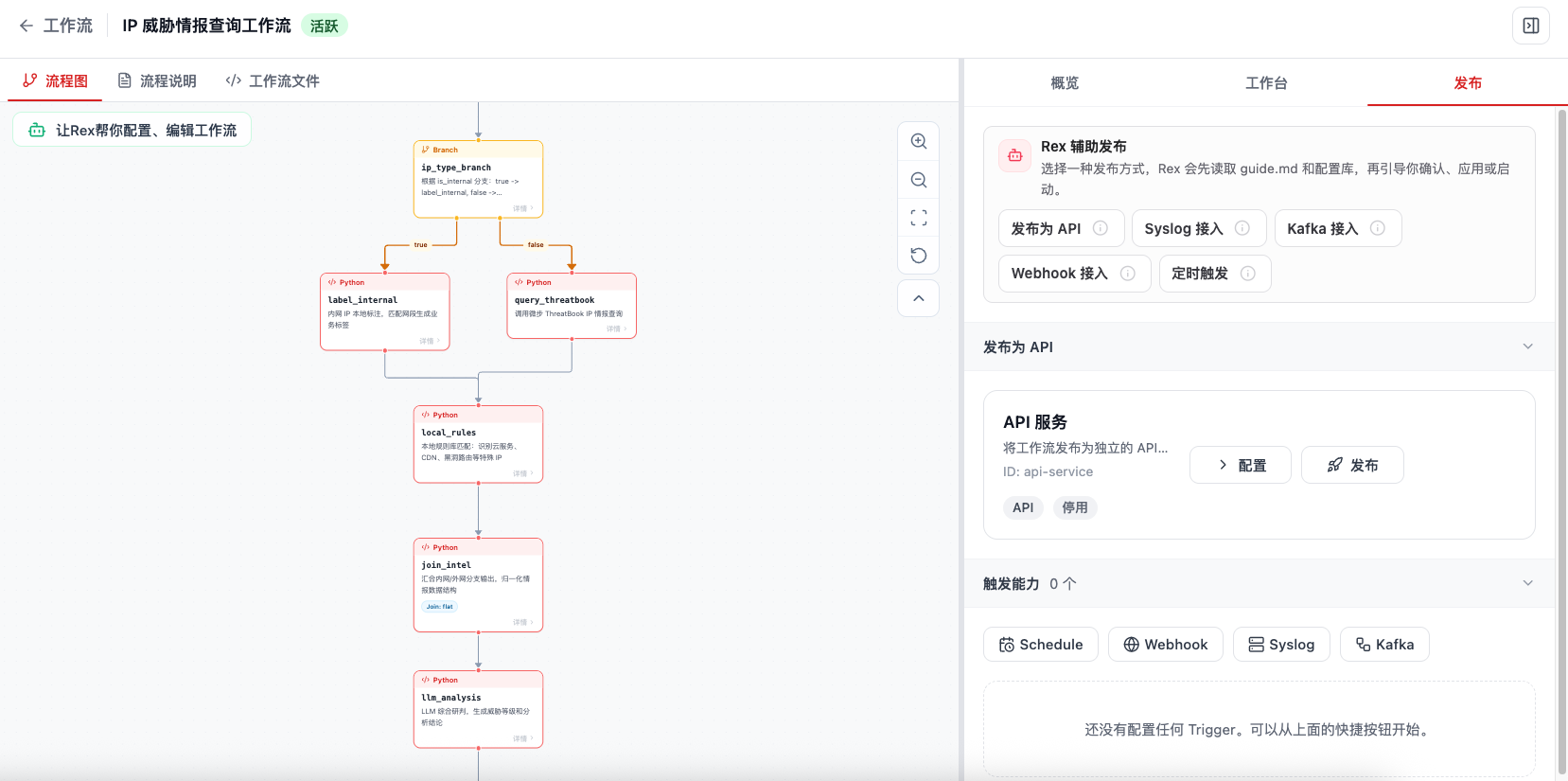
After a Workflow is generated and validated, it can also be triggered by external systems, message sources, or scheduled tasks through publishing capabilities. Publishing entry points are concentrated in the Publish subpage on the right side of the workflow detail page.
On the Publish subpage, Flocks provides Rex-assisted publishing and trigger capability configuration. Common methods include Publish as API, Webhook integration, Syslog integration, Kafka integration, and scheduled trigger.
1. Publishing Configuration Methods
There are two ways to configure invocation: let Flocks assist from the workbench, or manually configure it directly on the Publish subpage.
1.1 Flocks-Assisted Configuration
In the right-side Workbench, click Publish as API, Syslog integration, Kafka integration, Webhook integration, or scheduled trigger to enter the corresponding assisted publishing flow. All five invocation methods support Flocks-assisted configuration. Flocks reads the current workflow's guide.md, workflow.md, workflow.json, and existing publishing configuration, then interactively confirms invocation method, authentication strategy, field mapping, input samples, runtime mode, and whether to enable immediately through dialog.
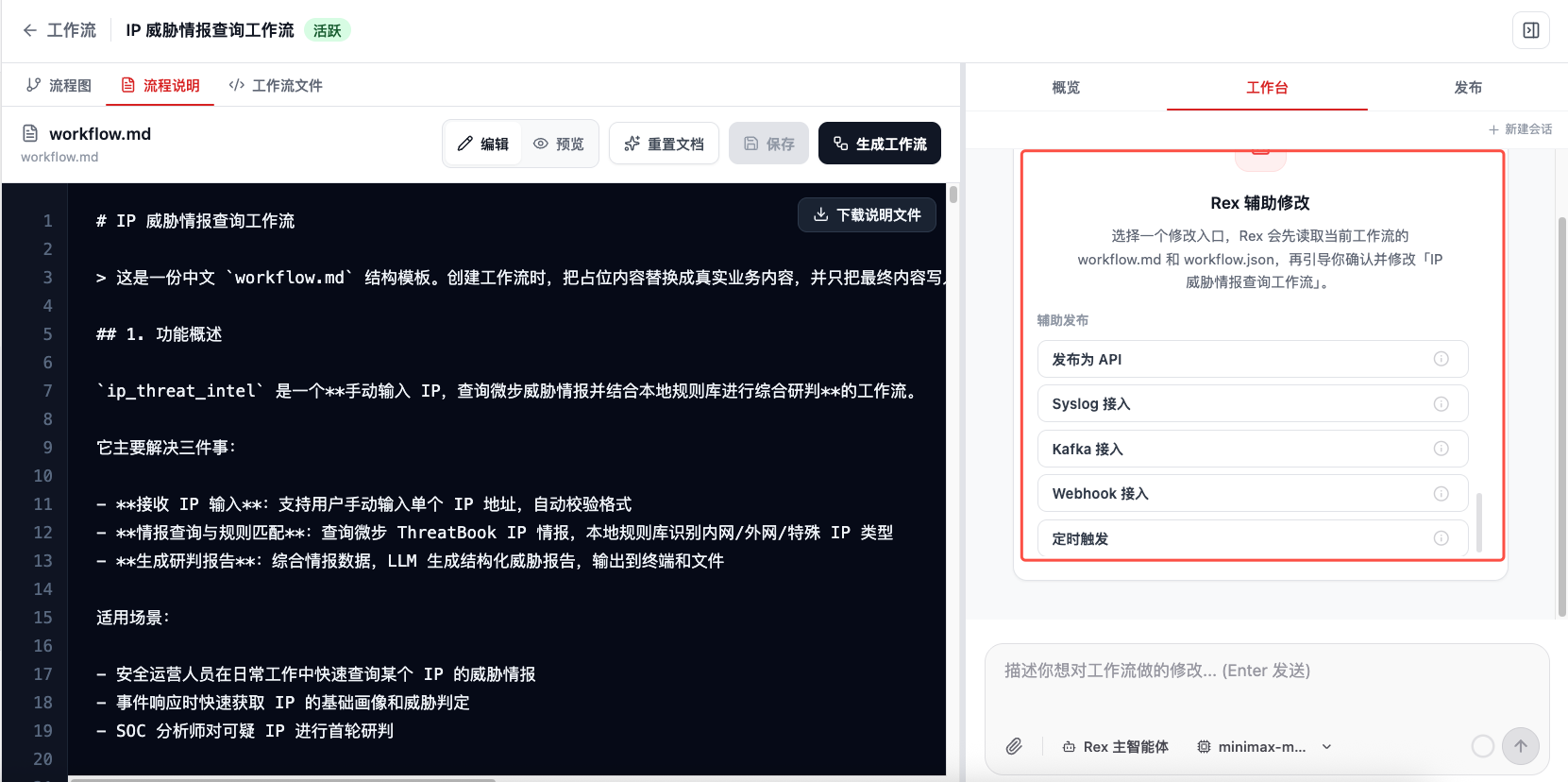
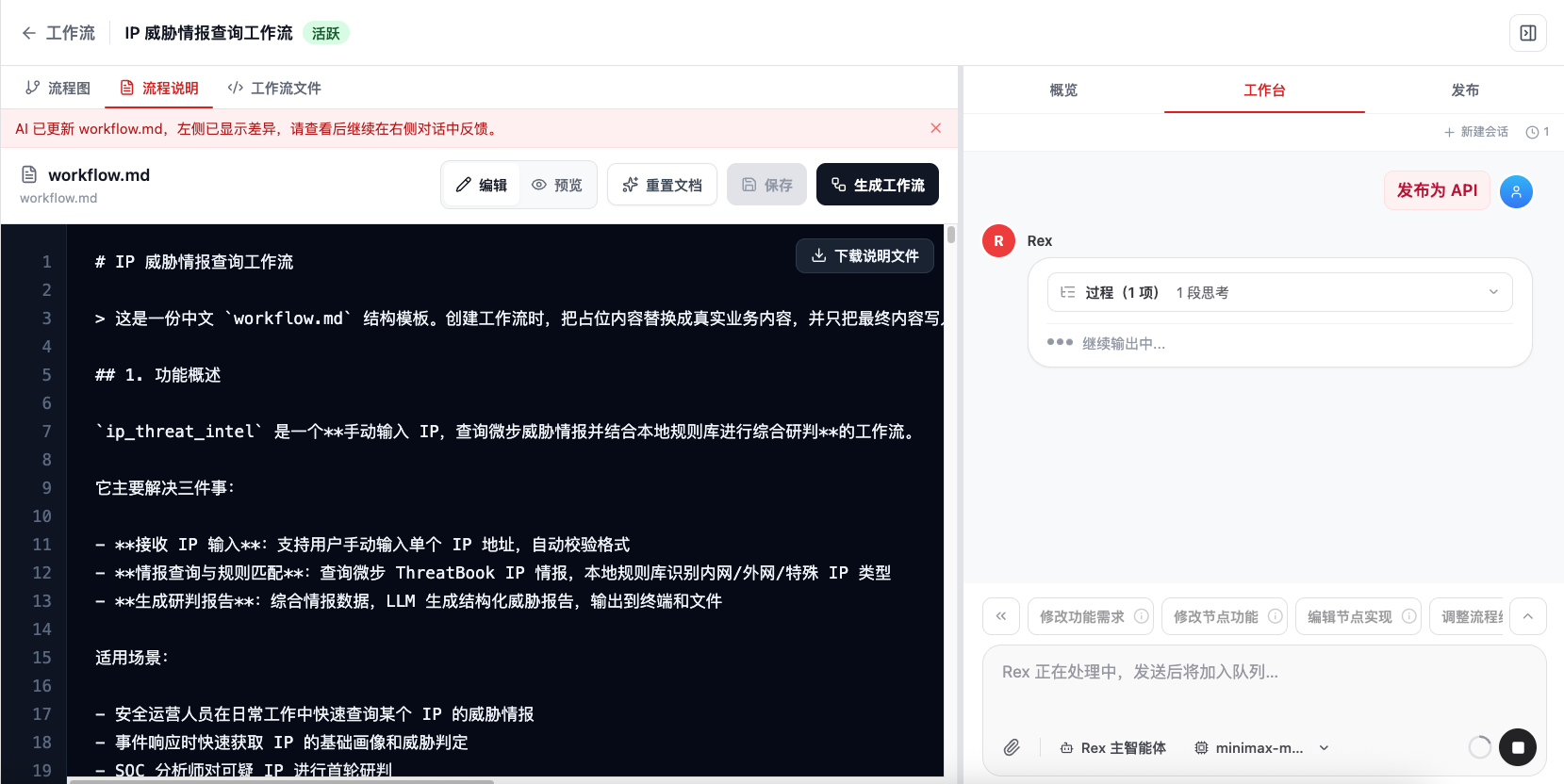
After entering assisted configuration, Rex shows the process in the workbench. Users can add configuration requirements based on the prompts, such as "publish it as a local API service," "use the alert field in the Webhook payload as workflow input," or "consume Kafka topic security-alerts." After confirmation, Flocks generates or modifies publishing configuration.
1.2 Manual Publishing Configuration
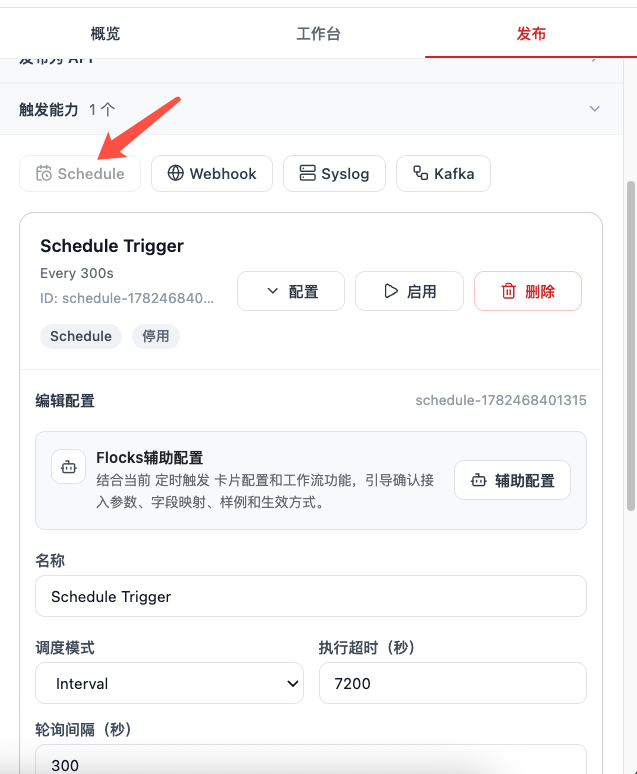
If Flocks assistance is not needed, configure directly on the Publish subpage. Click Publish as API to expand the manual configuration area for API services. Click Schedule, Webhook, Syslog, or Kafka to expand the corresponding trigger's manual configuration area.
Manual configuration is suitable when service name, authentication, listener address, topic, field mapping, or schedule expression is already clear. After configuration, use the page buttons to publish, enable, or save the trigger.
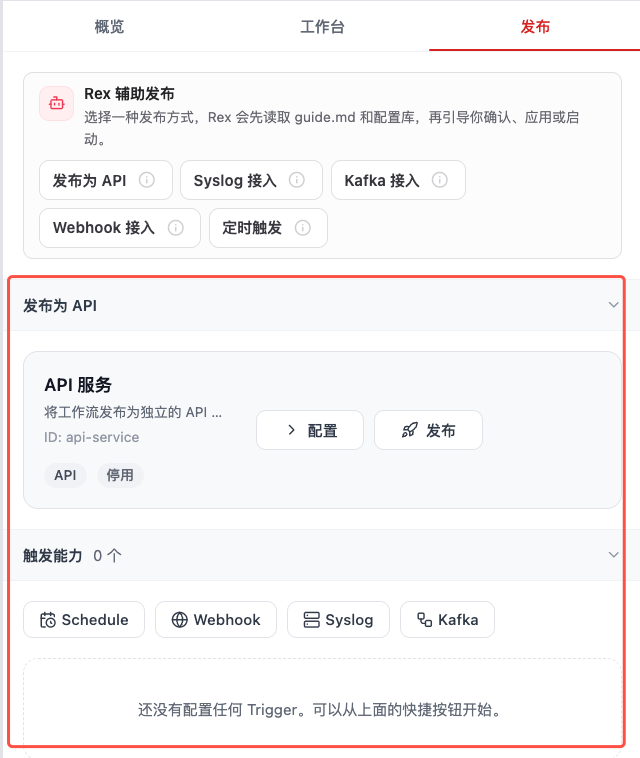
2. Publish as API
After publishing a Workflow as an API, external systems can actively invoke it through HTTP requests. This is suitable for SOAR, ticketing systems, alert platforms, scripts, or internal business systems that need on-demand triggers.
Publishing as API supports Flocks-assisted configuration. Rex confirms service name, runtime mode, authentication strategy, input fields, return format, and whether to enable immediately through Q&A.
Typical flow:
- Click Publish as API on the Publish subpage, or choose Publish as API in Workbench for Flocks-assisted configuration.
- Configure API service name, authentication method, request input fields, and return result format.
- Publish and enable the API service.
- External systems call the provided address, authentication information, and JSON input shown on the page.
- Flocks receives the request, maps the request body to workflow inputs, and starts one workflow run.
Suitable scenarios:
- External platforms need synchronous calls to a stable security operations process.
- Scripts or automation platforms need to submit structured data such as IPs, domains, file hashes, or raw alerts to a workflow.
- A unified entry point, unified authentication, and unified return format are required.
When publishing as API, choose a runtime mode:
- Local process: the recommended choice for most deployments. It starts quickly, requires less configuration, and is easy to debug. It suits local development, single-machine deployments, quick validation, and most regular workflows.
- Docker container: suitable when dependency isolation, a fixed runtime environment, or avoiding conflicts with local Python / system dependencies is required. Before choosing container process, confirm Docker availability and plan images, ports, environment variables, mount directories, and resource limits. Its startup and maintenance cost is usually higher than local process, but isolation is better.
If there is no special isolation requirement, use local process. If the workflow has complex dependencies, conflicts with the host environment, or should run isolated from the Flocks main process, choose Docker container. After API publishing, the page shows a service card where you can continue to Configure, Start, Stop, or Delete.
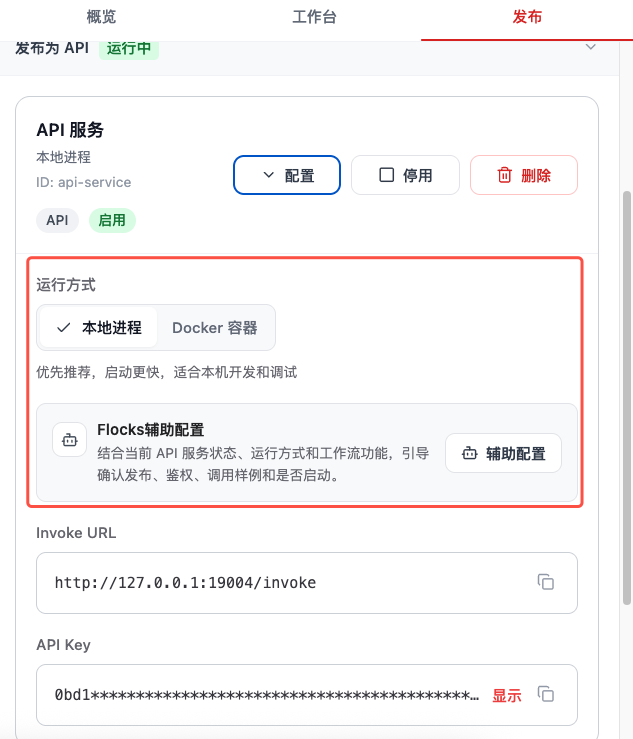
3. Publish as Webhook
Webhook integration is suitable for receiving events pushed proactively by third-party systems. Like API invocation, Webhook is triggered by an external HTTP request, but it is more oriented toward event callbacks, alert pushes, and system notifications.
Webhook integration supports Flocks-assisted configuration. Rex confirms request method, path, authentication method, payload field mapping, and sample data through Q&A.
Typical flow:
- Click Webhook integration on the Publish subpage, or choose Webhook integration in Workbench for Flocks-assisted configuration.
- Configure Webhook address, authentication strategy, request method, and payload field mapping.
- Configure the generated Webhook address in the external system.
- When the external system produces an event, it pushes data to the Webhook address.
- Flocks parses the payload, writes fields into workflow inputs, and automatically triggers the workflow.
Suitable scenarios:
- Alert systems, scanners, CI/CD, or asset platforms push events to Flocks.
- Events should immediately start triage, enrichment, notification, or handling processes.
- The external system is only responsible for pushing, while the workflow handles subsequent logic.
Webhook trigger configuration parameters usually include:
- Name: identifies this Webhook trigger on the publish page.
- Method: HTTP method used by the external system when calling the Webhook, commonly
POST. - Logical path: path segment used to identify the source. The actual server entry is generated in a fixed way and should not be changed casually.
- Actual call address: the final Webhook URL that the external system needs to configure.
- Authentication method: choose no authentication, API Key, Secret reference, or another method as needed.
- Inputs JSON: defines how request body fields map to workflow inputs.
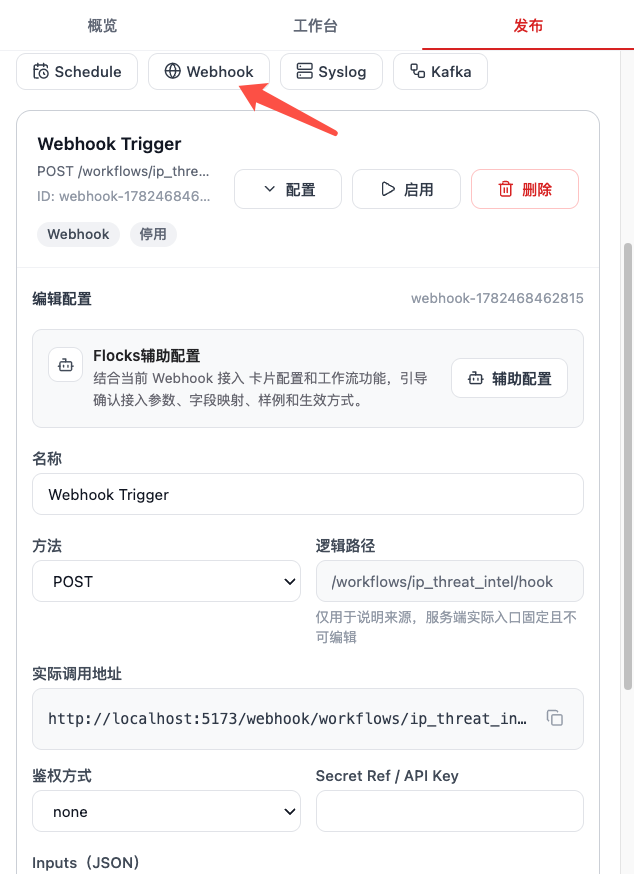
4. Automatically Invoke Workflow from Syslog Data
Syslog integration is suitable for continuously receiving logs from security devices, log platforms, or gateway devices. After configuration, Flocks listens to the specified Syslog input and triggers the workflow according to configuration when logs arrive.
Syslog integration supports Flocks-assisted configuration. Rex confirms protocol, format, listener address, port, input field, and sample log through Q&A.
Typical flow:
- Click Syslog integration on the Publish subpage, or choose Syslog integration in Workbench for Flocks-assisted configuration.
- Configure listener protocol, address, port, and parsing format.
- Configure field mapping to write Syslog content into workflow inputs.
- Set the Syslog destination in the device or log platform to the Flocks listener address.
- After receiving logs, Flocks parses them automatically and triggers the corresponding workflow.
Suitable scenarios:
- Devices such as NDR, IDS, WAF, firewalls, and EDR continuously send alerts or logs.
- Alert triage, deduplication, enrichment, grading, or report generation should start as soon as logs arrive.
- The workflow should continuously listen to a data source without manual startup each time.
Syslog trigger configuration parameters usually include:
- Name: identifies this Syslog trigger on the publish page.
- Protocol:
TCPorUDP; keep it consistent with the sending device or log platform. - Format:
rfc5424,rfc3164, orauto. If the device format is uncertain, chooseautofor automatic recognition. - Host: listener address.
0.0.0.0means listening on all local network interfaces. - Port: listener port, which must match the target port configured by the sender.
- Input Key: specifies which workflow input field receives the raw or parsed Syslog content.
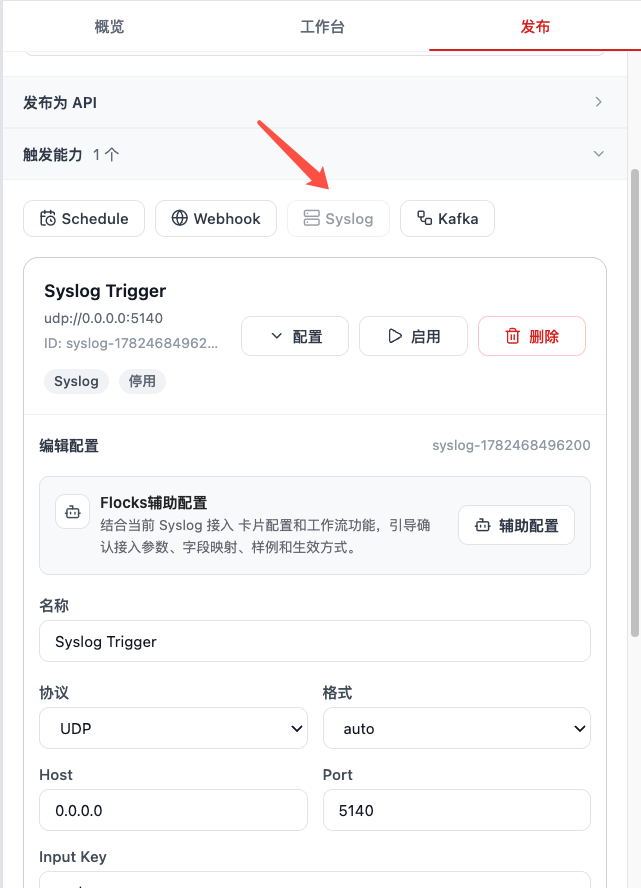
4.1 Configure Syslog Output with TDP as an Example
Using TDP as an example, configure the device-side Syslog output target as the machine where Flocks runs. The configuration entry is usually Platform Management -> Device Configuration -> Data Output -> External Syslog Output.
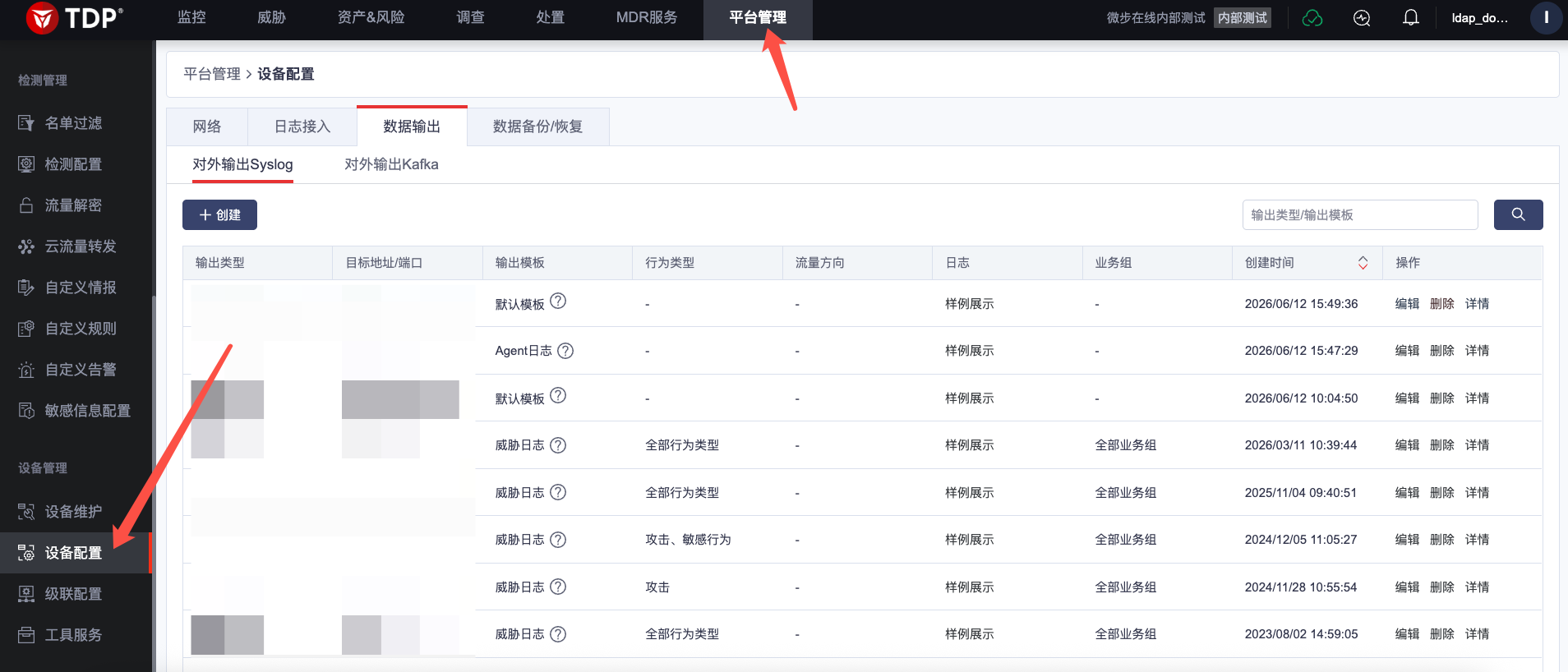
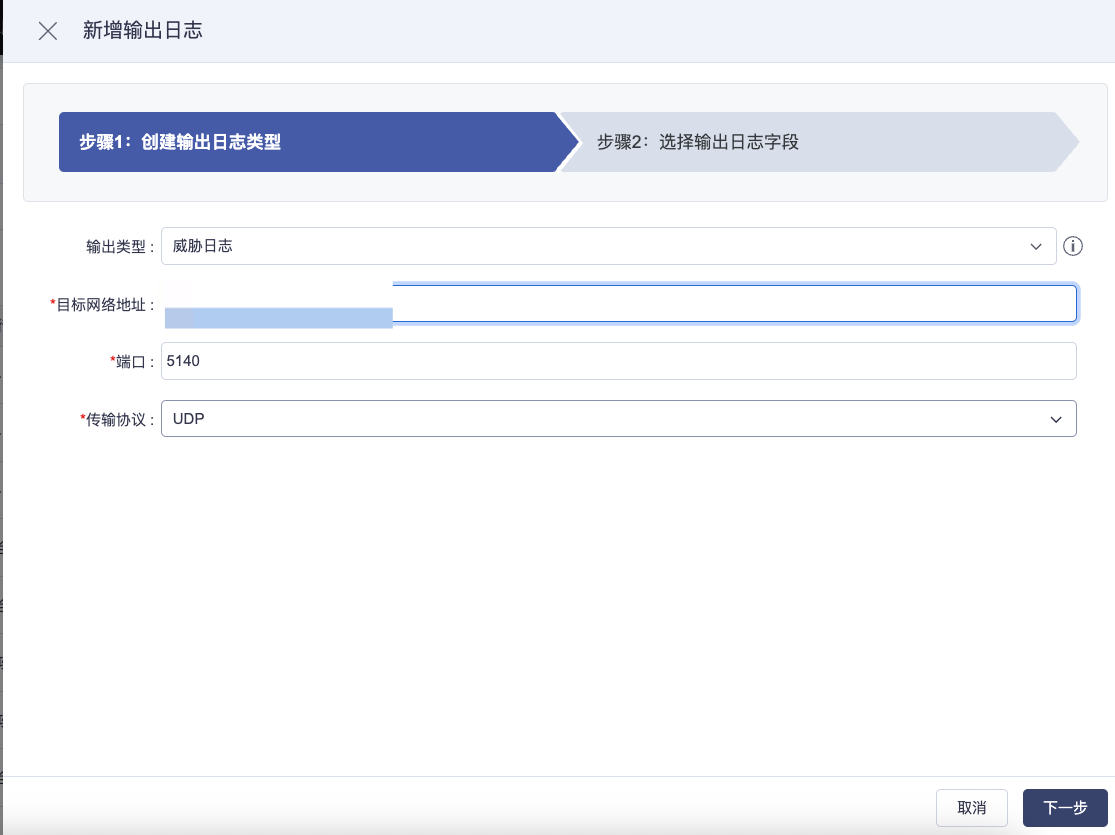
When creating an output log, first configure the output target:
- Output type: select the log type to push, such as threat logs.
- Target network address: enter the IP address of the server where Flocks runs.
- Port: enter the port listened to by the Flocks Syslog trigger, for example
5140. - Transport protocol: keep it consistent with the Flocks Syslog trigger, such as
UDPorTCP.
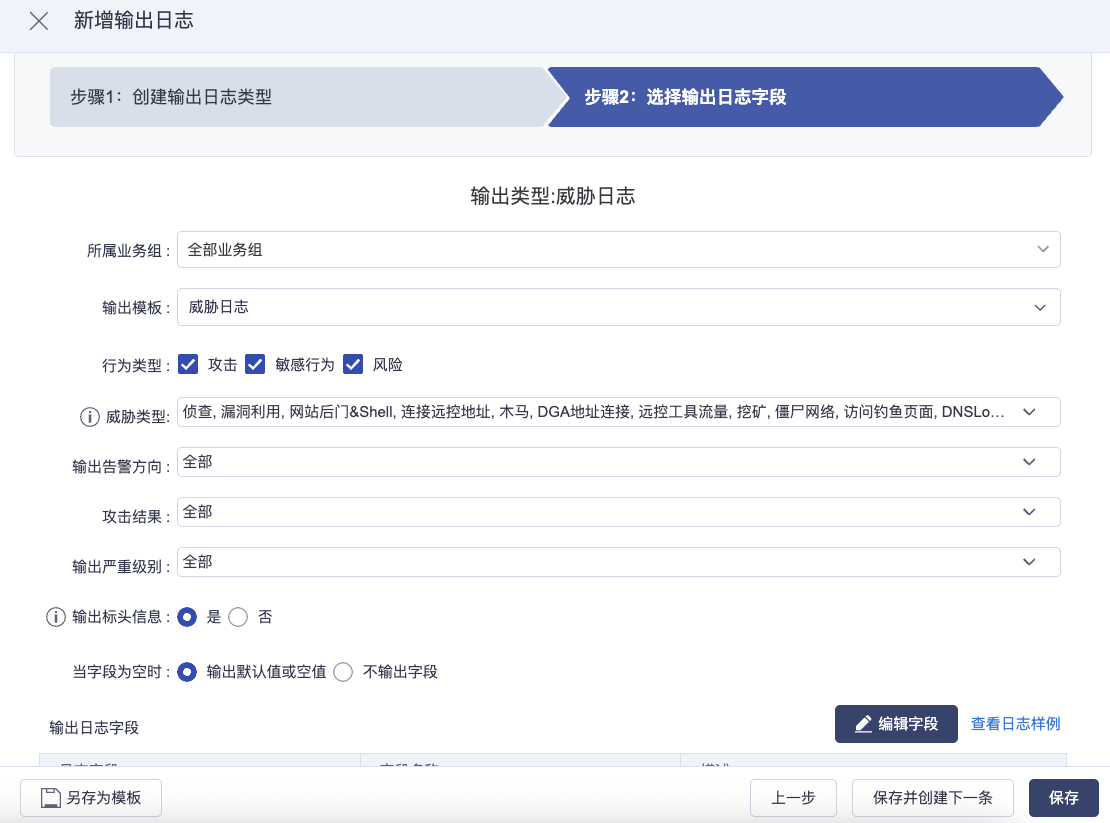
Then select the content, type, and format of the sent data:
- Business group: select all business groups or specific groups as needed.
- Output template: select a template such as threat log, ensuring fields can be mapped by Flocks to workflow inputs.
- Behavior type / threat type / attack result / severity: select log types to output based on the denoising scope.
- Output header information: choose whether to output based on receiver parsing needs.
- When fields are empty: output default values, output empty values, or omit fields.
- Output log fields: select fields actually sent to Flocks. Keep key fields such as time, source / destination address, domain, URL, HTTP method, status code, rule name, alert level, and raw log content.
After saving, TDP sends matching logs to the Flocks Syslog listener address. After receiving logs, Flocks writes them into workflow inputs according to the Syslog trigger configuration and triggers the corresponding workflow.
5. Automatically Invoke Workflow from Kafka Data
Kafka integration is suitable for continuously consuming alerts, logs, asset changes, or other event streams from a message queue. Flocks acts as a consumer, reads messages, and maps message content into workflow inputs.
Kafka integration supports Flocks-assisted configuration. Rex confirms broker, topic, consumer group, offset strategy, input fields, and message samples through Q&A.
Typical flow:
- Click Kafka integration on the Publish subpage, or choose Kafka integration in Workbench for Flocks-assisted configuration.
- Configure broker, topic, consumer group, and authentication information.
- Configure message parsing and mappings from key, headers, and value to workflow inputs.
- Enable the Kafka trigger.
- When a new message appears in the Kafka topic, Flocks consumes it and automatically triggers the workflow.
Suitable scenarios:
- Security data already enters Kafka, and the workflow needs to continuously consume by topic.
- Traffic smoothing, asynchronous processing, or high-frequency event streams are required.
- Multiple systems are decoupled through Kafka, and Flocks is only responsible for consuming and executing the security operations process.
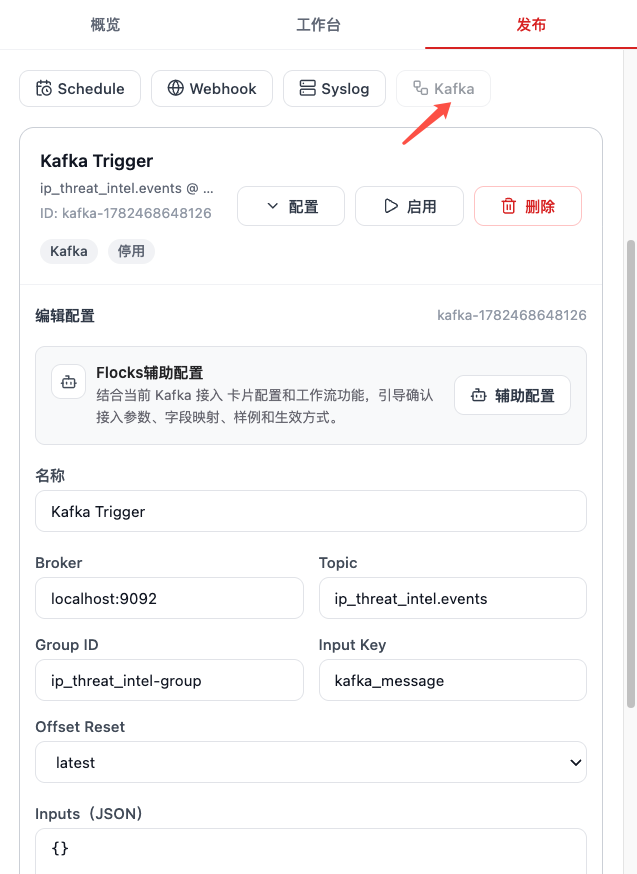
Kafka trigger configuration parameters usually include:
- Name: identifies this Kafka trigger on the publish page.
- Broker: Kafka broker address, for example
localhost:9092. - Topic: topic name to consume.
- Group ID: consumer group ID, used to control consumption offset and multi-instance coordination.
- Input Key: specifies which workflow input field receives the Kafka message.
- Offset Reset: where to start when there is no committed offset, commonly
latestorearliest. - Inputs JSON: defines fixed inputs or supplementary fields, which enter the workflow together with message content when triggered.
6. Proactively Trigger Workflow with Scheduled Tasks
Scheduled triggers are suitable for workflows that do not depend on external events and should run proactively at fixed times. They are usually used for inspections, daily reports, periodic pulls, batch verification, and repeated operations tasks.
Scheduled triggers support Flocks-assisted configuration. Rex confirms scheduling mode, execution period, timeout, default inputs, and whether to enable through Q&A.
Typical flow:
- Click scheduled trigger on the Publish subpage, or choose scheduled trigger in Workbench for Flocks-assisted configuration.
- Configure execution period, such as fixed interval, daily time, or cron expression.
- Configure default inputs, such as query scope, asset list, time window, or report parameters.
- Enable the scheduled task.
- When the execution time arrives, Flocks automatically starts the workflow.
Suitable scenarios:
- Generate daily security reports or weekly inspection reports.
- Periodically pull vulnerabilities, assets, alerts, or intelligence data.
- Periodically check device status, service connectivity, or exposed risk surface.
Scheduled trigger configuration parameters usually include:
- Name: identifies this scheduled trigger on the publish page.
- Schedule mode: determines the trigger strategy, such as
Intervalfor fixed-interval execution or an expression-based schedule. - Execution timeout (seconds): maximum allowed duration for one workflow run. After exceeding it, the run should be treated as timed out and stopped or marked failed.
- Polling interval (seconds): in
Intervalmode, how many seconds between workflow triggers. - Default input: if the workflow needs fixed parameters, add default inputs in configuration; they are automatically included when triggered.
7. Pre-Invocation Checks
Before publishing, confirm:
workflow.mddescribes inputs, outputs, node flow, and exception handling.workflow.jsonhas been generated, and flowchart nodes, connections, and triggers match expectations.- At least one sample run has completed, confirming stable input and output formats.
- Authentication, field mapping, enable/disable state, and failure handling are clear.
- An appropriate runtime mode has been selected: generally prefer local process, and choose Docker container only when dependency isolation or a fixed environment is needed.
- For continuous Syslog, Kafka, and scheduled triggers, log, alert, and runtime metric viewing methods have been planned.
Related Resources: Workflow · Create Workflow · Modify Workflow