Operations and Troubleshooting
This page is for users who have already started Flocks, or who are encountering issues during installation or upgrade. The overall approach is simple: find logs and artifacts first, distinguish installation issues from runtime or upgrade issues, then restore the service through the shortest path.
Viewing Logs and Results
When troubleshooting, the first thing to check is not scattered files, but the unified log entry:
flocks logsIt is best for quickly confirming:
- Whether the service actually started
- Whether the frontend or backend reports errors
- Whether model calls or tool calls show obvious exceptions
For deeper investigation, the common local log location is:
~/.flocks/logs/backend.logWhere Results and Artifacts Usually Are
According to the FAQ and Workflow demos, Flocks analysis results usually land in the Workspace or the corresponding output directory, and Workflow creation and debugging also generate intermediate artifacts. When searching in practice, check these locations together:
- Current Workspace or session output directory
- Log and configuration directories under
~/.flocks - Docker mount directories
artifactsor result files generated by the Workflow runtime
If the system says "report saved" but you cannot find it in the current shell directory, the most common cause is usually not that the file was not generated. Instead:
- The file was written to the Workspace or mount directory.
- You are looking at a directory other than the actual runtime directory.
- The file was generated inside the Docker container but not mapped to the host.
Check the Task Center Before Logs
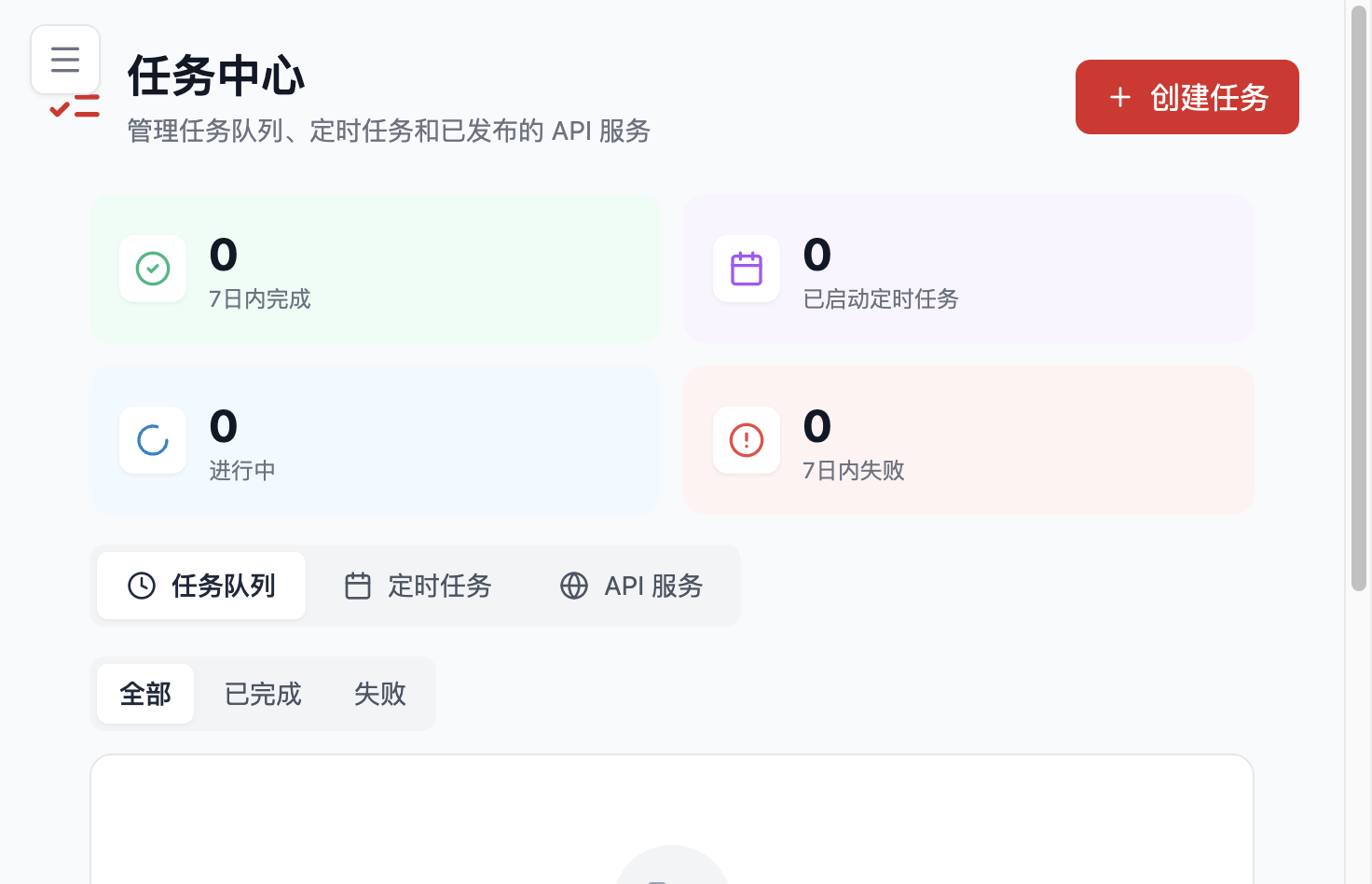
For scheduled tasks, batch analysis, or Workflow execution scenarios, first check task status in Task Center, then combine that with logs. Task Center is better for answering "did it run, and where did it get to"; logs are better for answering "why did it fail".
Installation Troubleshooting
Keep the installation troubleshooting order consistent:
- Check base dependencies first.
- Confirm the installation script completed fully.
- Confirm the
flockscommand is available. - Finally decide whether to switch installation method.
Dependencies to Confirm Before Installation
Key dependencies include:
uvNode.js 22+(npmis installed with Node.js)agent-browserbun(optional, used for TUI installation)
The installation script tries to install these dependencies automatically where possible. Many cases of "installation succeeded but service cannot start" are not caused by Python itself, but by incomplete frontend or browser dependencies. If automatic npm installation fails during setup, manually install a compatible Node.js and npm, then retry.
Frequent Installation Issues
Node.js / npm Installation Fails
Common symptoms:
- One-click installation gets stuck during frontend dependency installation
- WebUI build fails
- Frontend rebuild fails during update
In this case, manually install a compatible Node.js and npm first, then rerun the installation flow.
flocks Command Is Unavailable
This usually means a key installation step did not actually complete. Instead of patching locally step by step, the more reliable approach is usually to enter the source directory and rerun the installation script.
Browser Dependency Failure
Do not treat this as "only the browser feature is unavailable". The existing FAQ clearly notes that these failures can sometimes affect whether the entire installation chain is complete.
When to Switch Installation Method
Use this rule of thumb:
- Need full interactive capability and web login: prefer command-line installation or source installation.
- One-click installation fails repeatedly: prefer switching to source installation.
- Windows x64 users who want graphical installation: prefer the Windows EXE installer.
- Windows environments that need controllable troubleshooting: prefer source installation or Docker.
- Standardized server deployment: prefer Docker.
Platform and Permission Notes
Stability differs noticeably by platform:
- Linux / macOS: usually closest to the official main path.
- Windows: more dependent on administrator privileges, with more upgrade and environment issues.
- WSL: more likely to encounter Node or update-chain issues.
- ARM: Docker is recommended first.
If you use Docker, also confirm mount directory permissions and port mapping.
Upgrade Methods
Flocks upgrades can be roughly divided into three categories: page upgrade, manual source upgrade, and Docker image upgrade.
One-click Page Upgrade
Suitable for:
- Linux or macOS
- Current version has no known upgrade compatibility issue
- Installation method is relatively standard
It is the easiest path for ordinary users, but it does not apply to every environment.
Manual Source Upgrade
If you want the most controllable upgrade method, or have already encountered page-upgrade failure, manual source upgrade is usually the most reliable:
flocks stop
git pull
./scripts/install.sh
flocks restart
On Windows, use install.ps1, preferably from an administrator PowerShell.
Docker Upgrade
Docker users have a more direct upgrade path:
- Pull the new image.
- Recreate or restart the container.
- Confirm the mounted directories are still preserved.
If your goal is standardized operations, Docker upgrades are usually more controllable than page upgrades.
Handling Upgrade Exceptions
After an upgrade, the most common issue is not "everything is broken", but "it looks upgraded, yet the state is wrong". Treat this separately from installation failure.
Common Symptoms
Upgrade Is Stuck for a Long Time
If new output is still appearing, it may simply be slow. If there is no new output for a long time, it usually has already failed. In that case, it is better to stop the service and switch to manual upgrade instead of continuing to wait.
The Page Still Says an Upgrade Is Available
Common causes include:
- Page cache has not refreshed.
- Version marker has not updated in time.
- You upgraded across a historically problematic version.
First refresh the page, restart the service, and then confirm the version state again.
Listen Address Looks Reset After Upgrade
The current flocks restart tries to reuse the running listen address and port. If the upgrade crosses the old service model, runtime state records are lost, or old processes do not exit cleanly, it may still fall back to the default 127.0.0.1:5173. After upgrade, check the unified service address with flocks status; if needed, explicitly run flocks restart --host <host_ip> --port <port>.
Page Opens, But Features Do Not Work as Expected
Common directions to check:
- Default model was not restored.
- Frontend cache is still affecting state.
- The actual upgrade did not complete fully.
- Old processes did not exit, causing incomplete file replacement.
Recommended Recovery Order
flocks statusflocks logs- Confirm whether old processes have exited.
- Confirm whether the current startup command includes the original parameters.
- Check whether default model and messaging integrations are still usable.
If page upgrade has failed multiple times, or the current platform is Windows, it is usually faster to abandon page upgrade and return to manual source upgrade.
Permissions and Monitoring
Permissions and monitoring are not emphasized in the WebUI main navigation, but they remain important governance capabilities. Compared with daily interaction, these pages are more about keeping the platform running in a long-term and controlled way.
Permissions
Permissions decide how capabilities are called and within what scope they execute. In real use, focus mainly on these layers:
- Tools and MCP layer: which tools can be called directly by Agents, and which commands in host inspection scenarios must go through allowlists, blocklists, or manual confirmation. See Host Forensics.
- Sandbox layer: the
sandboxsection inflocks.jsoncontrols runtime isolation policy, including scope, Workspace access permissions, image, network, memory, and CPU limits. - Channels and outbound layer: which channels are allowed to receive results, and whether public exposure is narrowed through the unified entry point, authentication, and network rules. See Public Exposure Notes.
- Data layer: whether highly sensitive data should use internal-network or private models. See Data and Desensitization.
As a principle: use APIs instead of raw accounts when possible, use allowlists instead of opening broad blocklists, and keep services local instead of exposing them externally when local use is enough.
Monitoring
Monitoring helps you judge platform state, execution progress, and overall health. Common entries include:
- CLI:
flocks status/flocks logsfor processes and logs - Task center: scheduled task runtime status, success rate, and historical artifacts. See Task Center.
- Backend logs:
~/.flocks/logs/backend.logfor tool calls, model calls, and session exceptions - Workspace artifacts: intermediate results left by Workflows and Agents under
outputs/, which are often more direct than logs for locating "did it run, and where did it get to"
Recommended Order for Runtime Governance
- When an issue occurs, run
flocks statusfirst, thenflocks logs. - For scheduled tasks, check Task Center status first.
- For tools or MCP, check the configuration and test results in Tool List.
- For model errors, follow Model Error Troubleshooting.
- If the issue is still unclear, inspect backend logs and Workspace artifacts.
Following these steps from top to bottom usually identifies ownership for most runtime issues within 10 minutes.