Modify Workflow
When modifying a Workflow, the key is not to directly change a specific node first. Review whether workflow.md accurately expresses the requirement, then let Rex synchronize workflow.json, node implementations, and publishing configuration based on the confirmed description.
1. Modification Entry
Click a workflow card in the workflow list to open its detail page. The detail page contains flow viewing, running and publishing, and modification entry points.
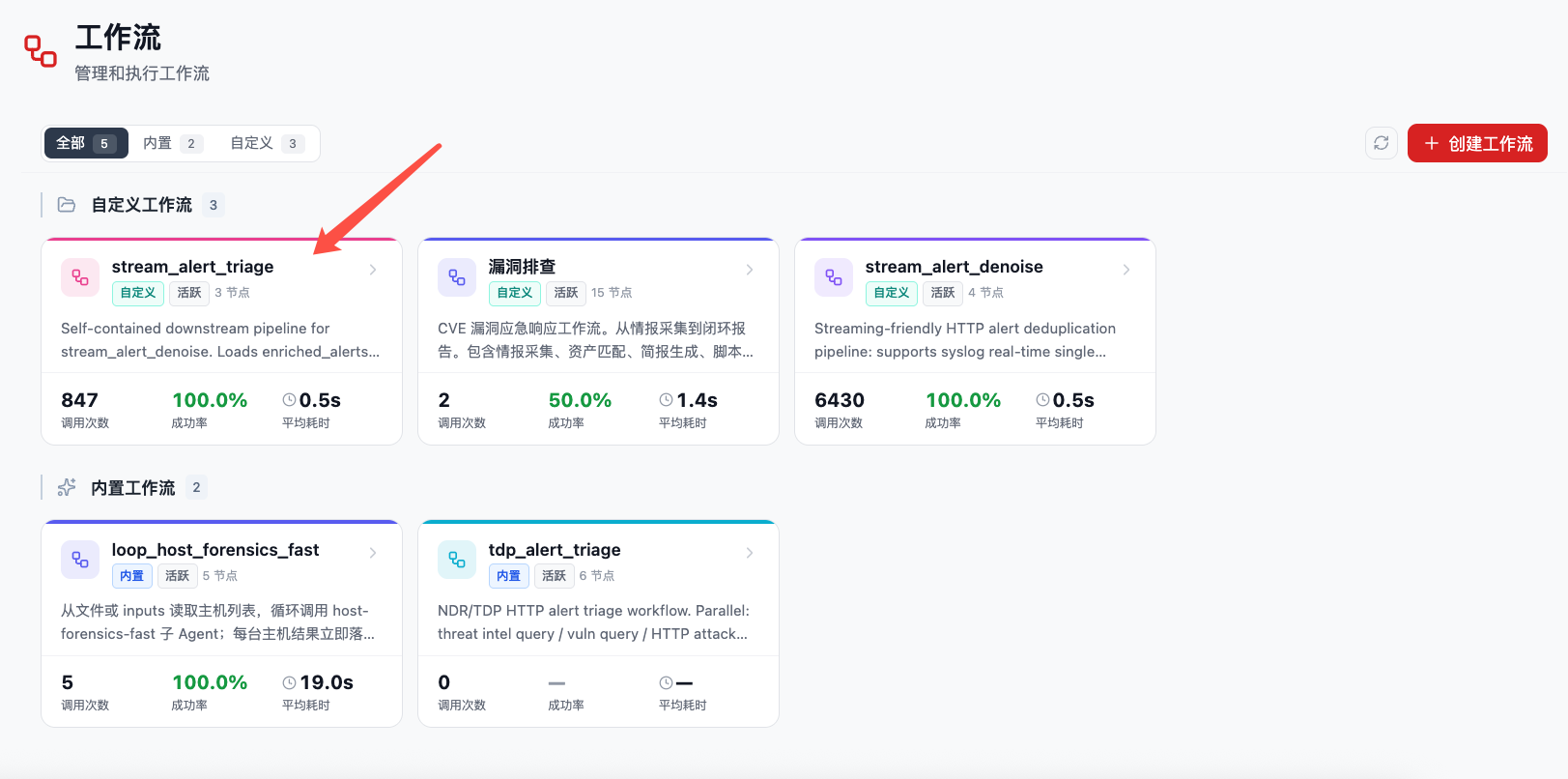
After entering a workflow detail page, the left side has Flowchart / Process Description / Workflow File, and the right side has Overview / Workbench / Publish. There are two common modification entry points:
- Click Rex guidance from the flowchart: click Let Rex configure and edit the workflow for you in the upper-left corner of the flowchart. The page switches to the
workflow.mdediting view and opens Workbench on the right. - Enter Workbench directly: switch to Workbench on the right and describe the change in natural language, such as "add a reputation score field to the intelligence enrichment node" or "add a branch to ignore low-risk alerts."
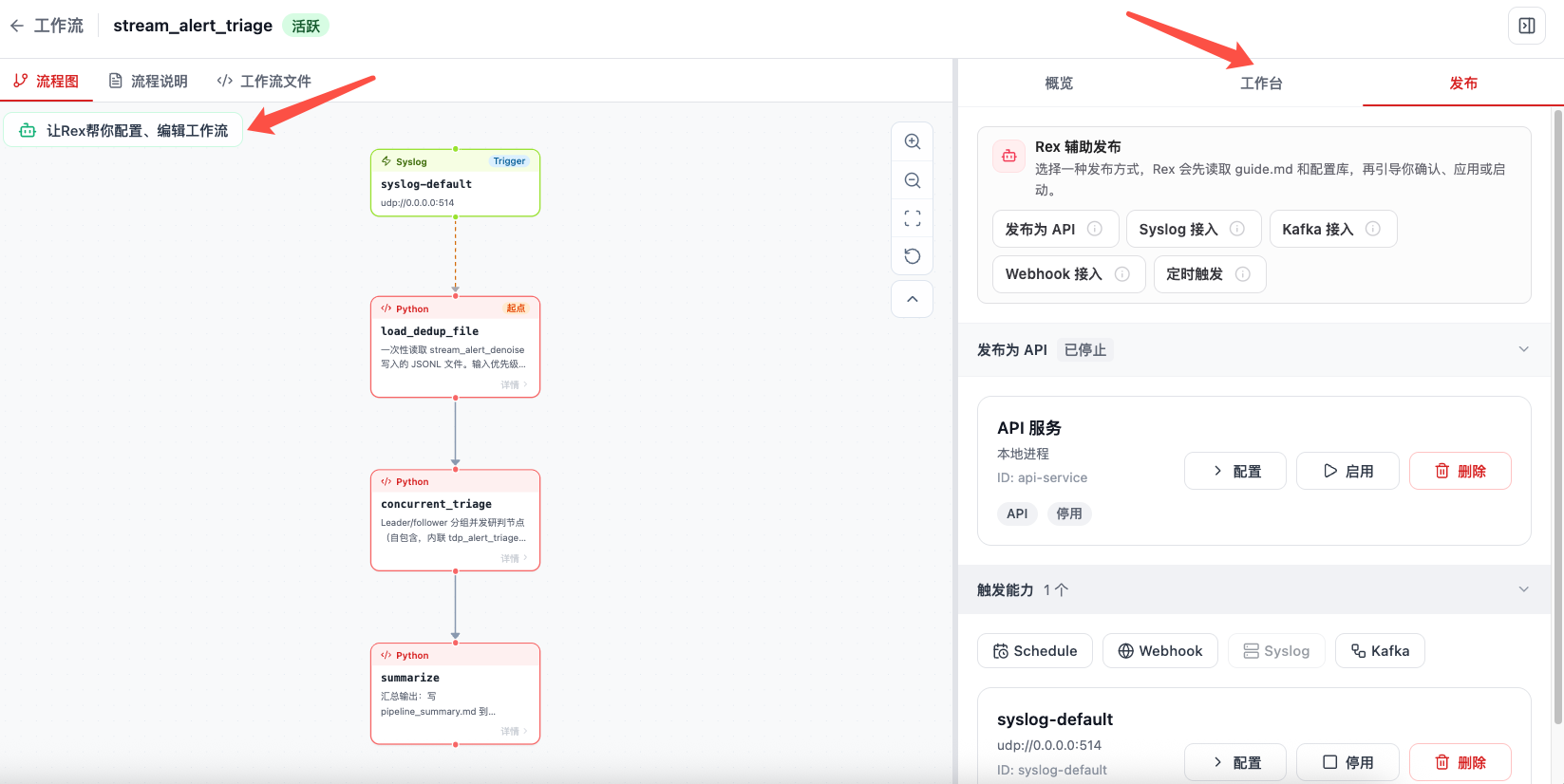
If you already know which node to change, you can first click the node in the flowchart to view node information, then describe the change in the right-side workbench.
2. Workbench Context
The detail page workbench gives Rex the current workflow context, including:
- Workflow ID, name, and category.
- Workflow directory.
workflow.mdprocess description file.workflow.jsonmachine definition file.guide.mdconfiguration guide file.- APIs related to publishing, triggering, and configuration.
This lets Rex read files first, then decide whether to change the requirement description, machine definition, configuration guide, or runtime publishing settings.
3. Modification Guidance
Guides in the detail page workbench mainly fall into three categories.
| Type | Entry | Suitable For |
|---|---|---|
| Assisted modification | Modify functional requirements, modify node function, edit node implementation, adjust flow structure, generate workflow | Change business goals, node responsibilities, code, field mappings, edge relationships, or the overall process. |
| Assisted configuration | Smart configuration, check current configuration, configure input method, confirm source data, set output destination, adjust filtering rules, validate sample data, apply configuration plan | Clarify inputs and outputs, filtering rules, sample validation, and configuration templates. |
| Assisted publishing | API services, event triggers, and scheduled triggers | Configure how the workflow is called by external systems or triggered continuously. |
After clicking a guide button, Rex automatically carries the corresponding intent. When entering natural-language requirements directly in the workbench, also state the modification target, impact scope, and acceptance criteria clearly.
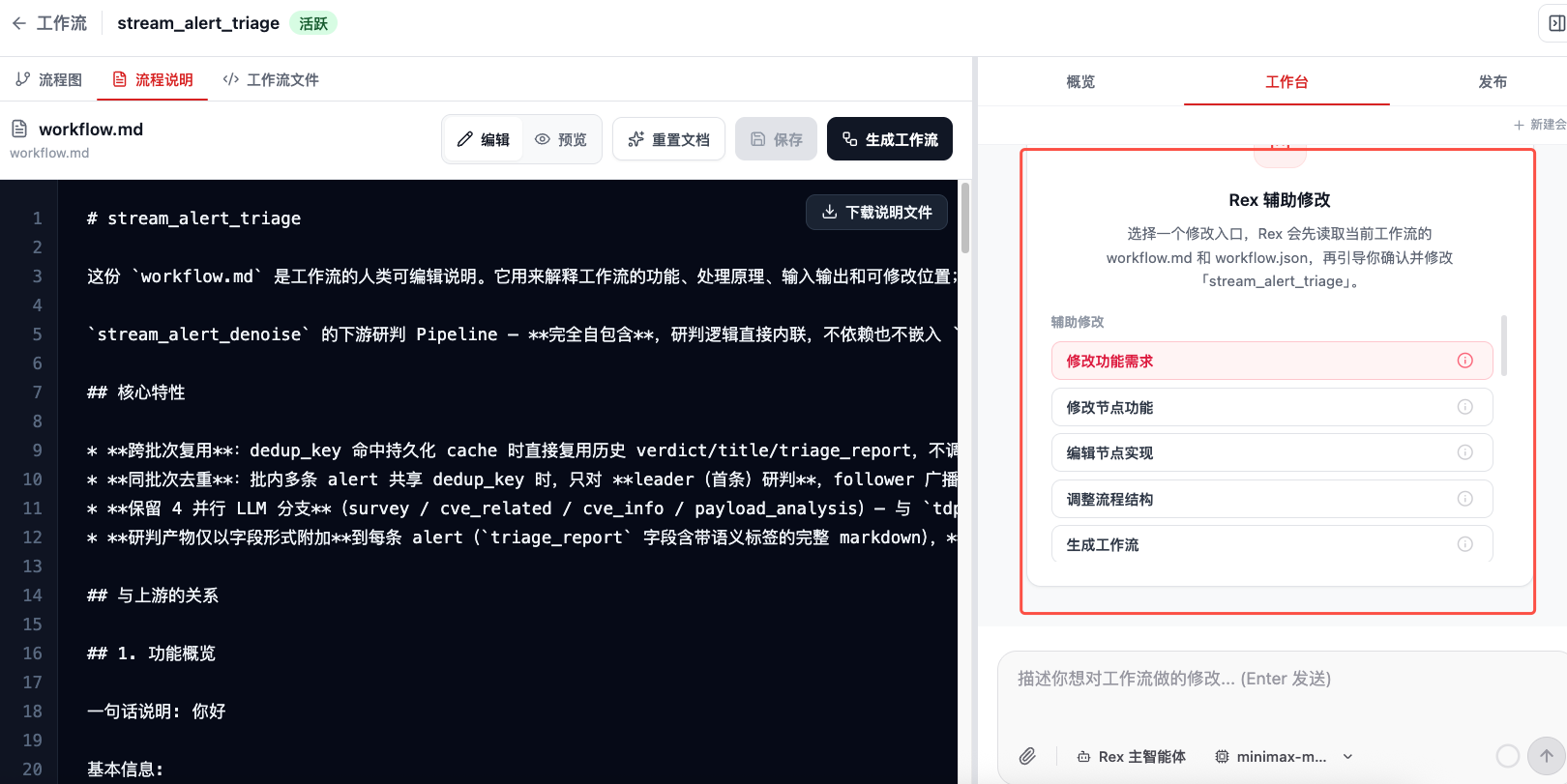
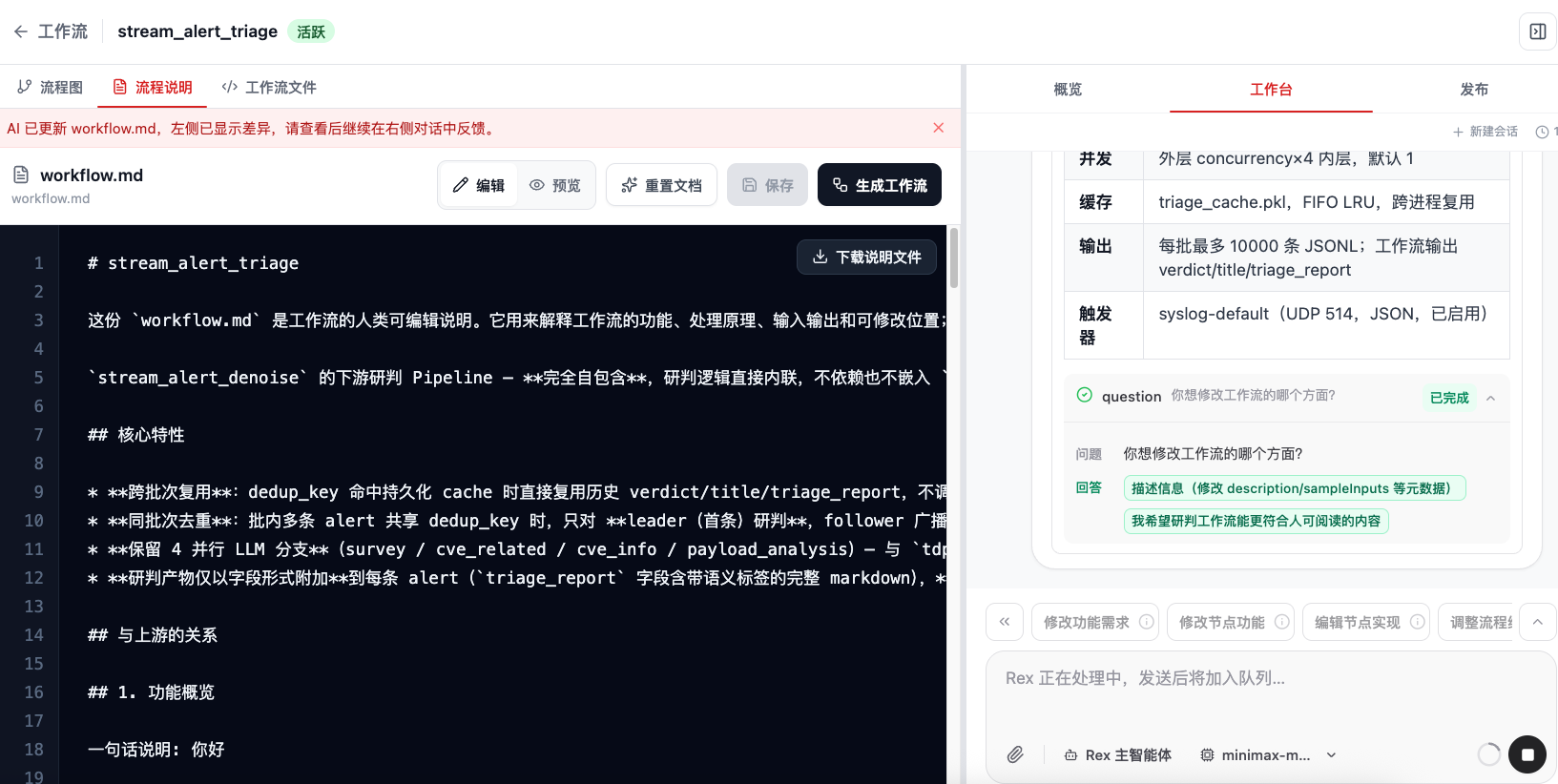
After clicking assisted modification entries such as Modify functional requirements, Modify node function, Edit node implementation, or Adjust flow structure, Flocks does not rewrite files directly. Instead, it helps modify the workflow by asking about the user's intent. Rex combines the current workflow.md, workflow.json, and workflow context, then first confirms what needs to change, such as functional logic, input/output fields, flow structure, trigger configuration, or descriptive information.
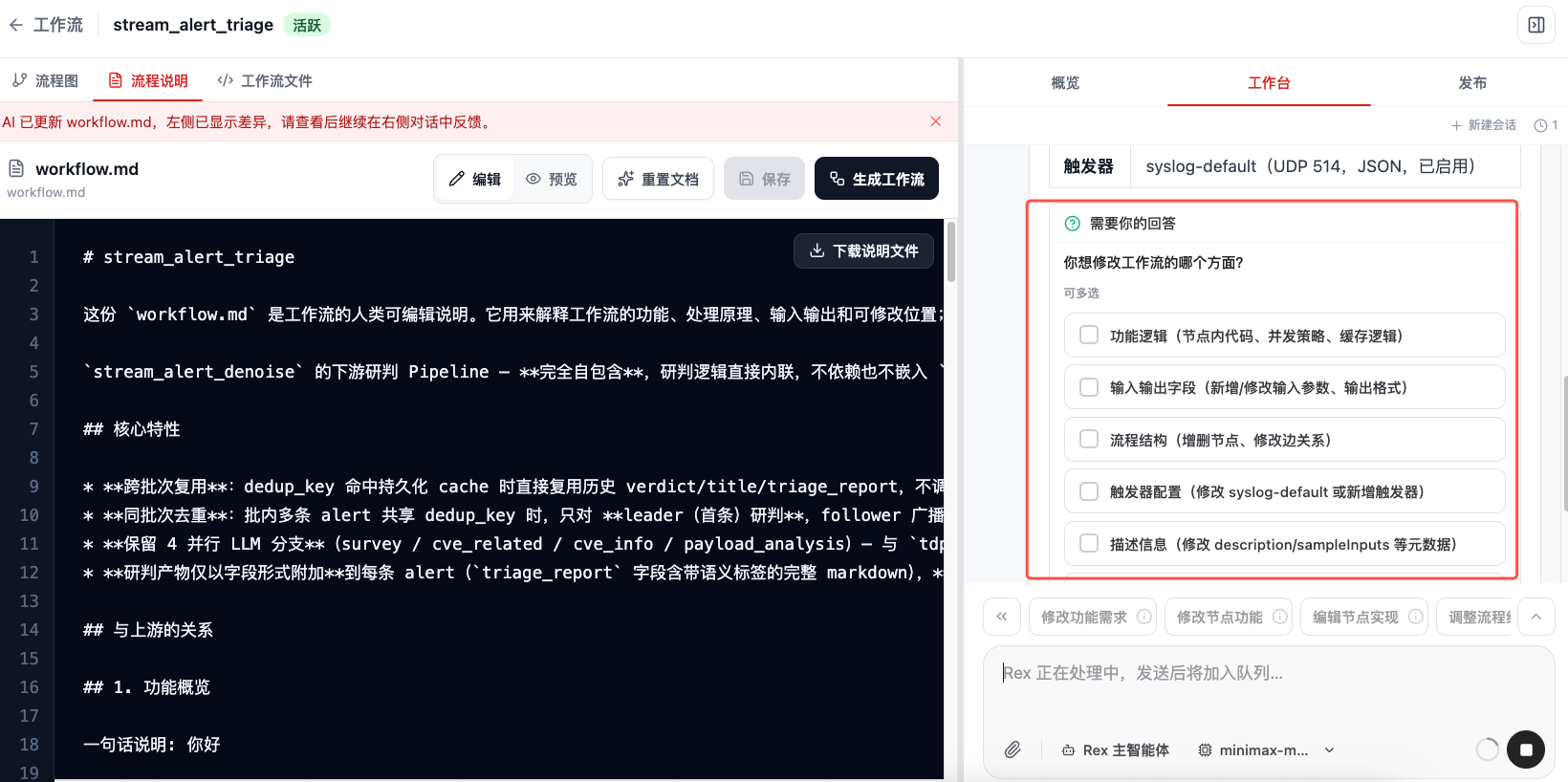
After the user answers, Rex uses the answer as the basis for later modifications, continues analyzing the current workflow, and shows the process in the workbench. This confirms the modification scope and acceptance direction before file updates.
4. Recommended Modification Flow
- Review
workflow.mdin Process Description on the left and confirm the current goal, inputs and outputs, node flow, and acceptance criteria. - Describe what to change in Workbench on the right. If you entered through a guide button, Rex automatically carries the corresponding intent.
- Rex should first read
workflow.mdandworkflow.json, summarize the current implementation, then use the question tool to confirm modification scope, affected nodes, upstream and downstream schemas, samples, and acceptance criteria. - When changes are needed, update the human-readable requirements in
workflow.mdfirst and show a diff. The user can accept all diffs or accept/reject by block. - After
workflow.mdis confirmed, click the top Generate Workflow button. Flocks generates new workflow code files based on the confirmed description, includingworkflow.json, node implementations, and related configuration. - After generation, the workflow engine loads the latest modified code files, so later runs execute the new version.
- Finally, rerun single-node tests and integration tests to confirm that the flowchart, JSON definition, and runtime results are consistent.
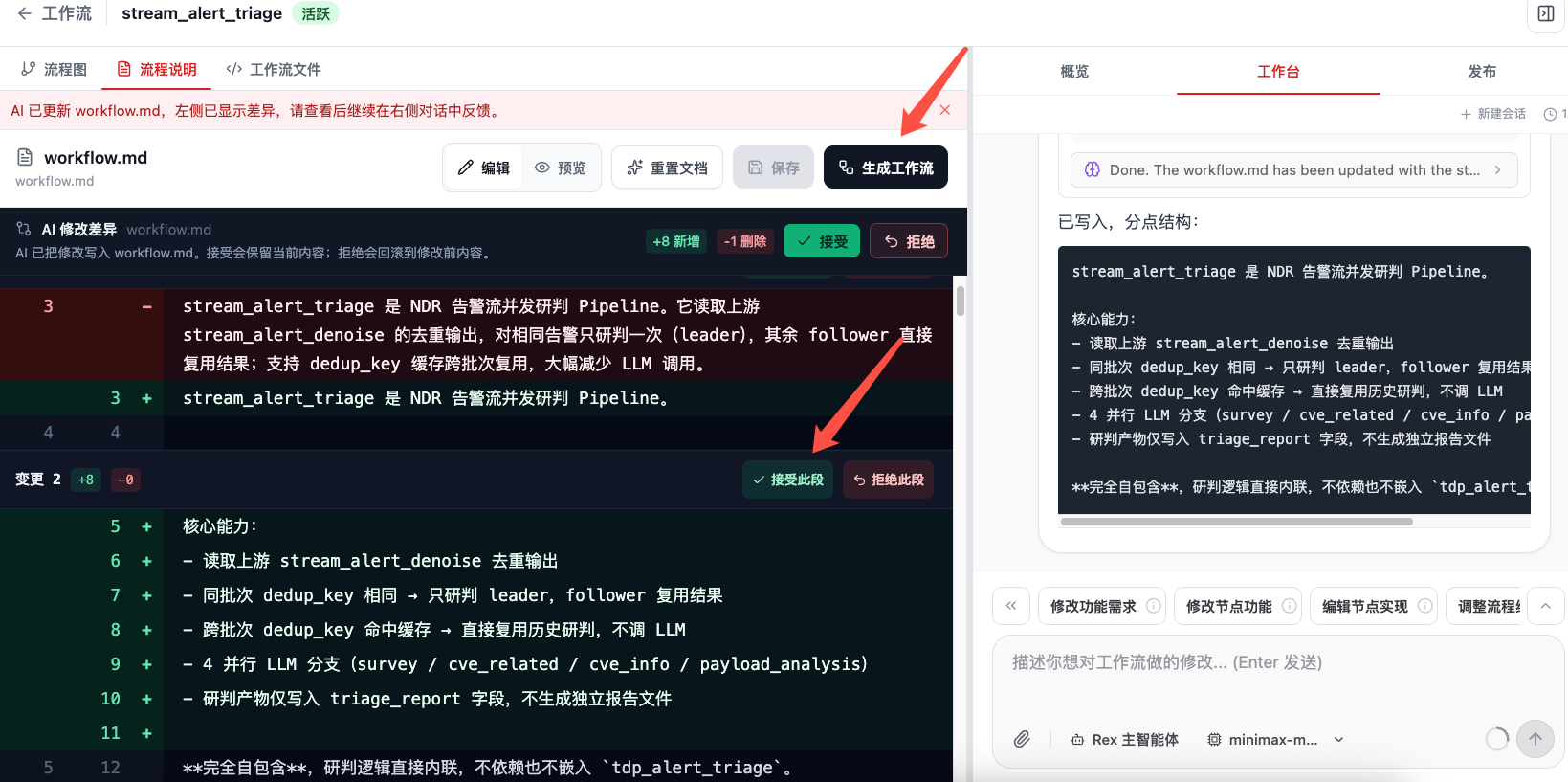
After Flocks assists in modifying workflow.md, the left side shows AI modification diffs. Review each addition, deletion, and rewrite first, confirming that the requirement description is readable, complete, and expected. Then click Generate Workflow to synchronize the description file into executable workflow definitions and node code.
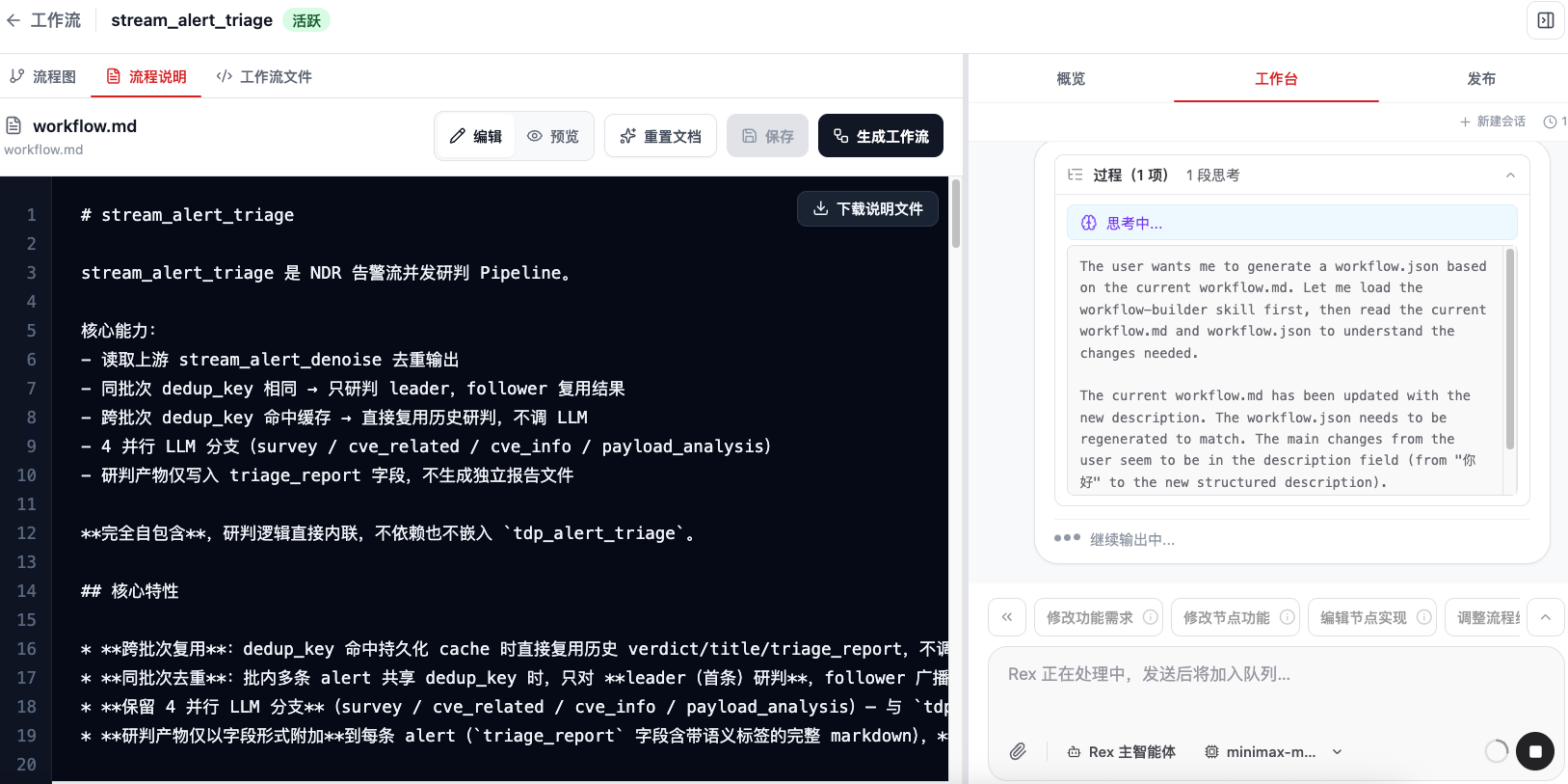
After clicking Generate Workflow, Rex reads the current workflow.md, calls workflow-builder capabilities, and combines the existing workflow.json to determine what needs to be rebuilt or updated. The right-side workbench shows the generation process, including reasoning, file reads, and tool call status.
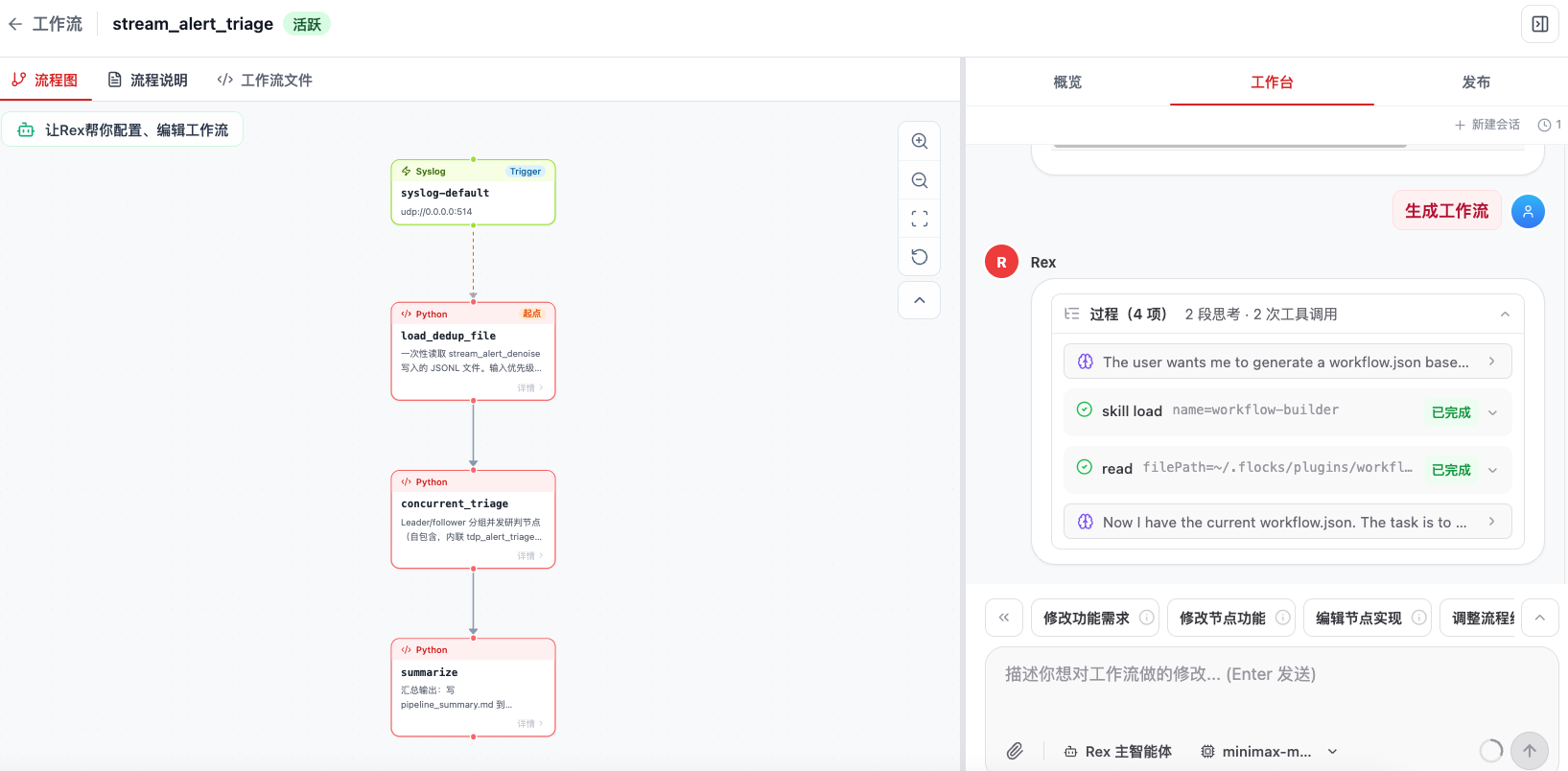
After generation, switch back to Flowchart to view the result. The flowchart shows the latest triggers, nodes, and connections. The workflow engine also loads the latest generated code files, and subsequent runs execute based on this generated version.
5. Review Requirements with workflow.md
workflow.md is the best file for human review. When creating or modifying workflows, review with this checklist:
- Business goal: what problem the workflow solves, when it should run, and when it should not.
- Input contract: trigger method, input JSON fields, sample data, required / optional fields, and source system.
- Output contract: final returned JSON, Markdown report, outbound channel, file outputs, or downstream workflow input.
- Node flow: each node's responsibility, input, output, tool / API / Agent dependency, and branch, loop, and merge logic.
- Exception paths: how to handle missing fields, external API failures, unstable model output, low-confidence conclusions, human confirmation, and similar cases.
- Configuration and publishing impact: whether the change affects API, Syslog, Kafka, Webhook, scheduled tasks, or configuration guide
guide.md. - Acceptance method: minimum samples, boundary samples, single-node tests, full-flow tests, and whether results meet team format.
If a requirement is not written into workflow.md, the later generated workflow.json can easily miss it. If workflow.md and workflow.json are inconsistent, first correct workflow.md, then regenerate or repair workflow.json based on it.
6. Validation After Modification
After modification, do at least three things:
- View Flowchart and confirm that node additions, deletions, movement, branches, loops, and merge relationships match expectations.
- View Workflow File and confirm that
workflow.jsonis valid JSON and that nodes and edges form a complete flow. - Rerun single-node tests and full-flow tests with sample data to confirm that inputs and outputs, exception paths, and final reports have not drifted.
If the modification affects publishing mode, return to the Publish tab and check whether API, Syslog, Kafka, Webhook, or scheduled trigger configuration is still valid.
Related Resources: Workflow · Create Workflow · Invoke Workflow