Task Center
Task Center keeps proven capabilities running on a defined schedule. Workflow defines the process, Agent defines the execution role, Workspace stores the outputs, and Task Center manages when a task runs, how it runs, how failures are handled, and where results are delivered.
Task Center is designed to turn a proven session, Agent, or Workflow into an ongoing security operations routine. The platform no longer acts only after receiving instructions; it can keep working around inspection, triage, reporting, monitoring, and notification goals.
1. Purpose
1.1 What Task Center Solves
Task Center carries Flocks' scheduled and continuous operations capabilities. It currently covers:
- Task queue: queue one-off tasks, with priority, status tracking, cancellation, retry, and rerun support.
- Scheduled tasks: trigger Agents / Workflows at a single scheduled run time or on a recurring Cron schedule.
- API services: centrally view API services published from Workflows.
- Execution records: keep the input snapshot, status, duration, result summary, and error information for each run.
- Recovery and troubleshooting: restore queue state after service restarts, making it easier to determine whether a task ran, where it stopped, and why it failed.
You can think of Task Center as Flocks' built-in "lightweight SOAR scheduler": pair a usable Workflow or mature Agent with trigger rules, and you get an automated routine that can run continuously.
1.2 Relationship with Other Modules
| Module | Relationship |
|---|---|
| Session Management | Users can ask Rex in a session to create, adjust, trigger, or troubleshoot tasks. |
| Agent | Tasks can call a specified Agent, suitable for recurring work with flexible steps and expert judgment. |
| Workflow | Tasks can call a specified Workflow, suitable for recurring work with fixed processes and stable inputs and outputs. |
| Workspace | Task input snapshots, intermediate data, reports, and final outputs usually land in the current Workspace outputs/. |
| Channel Management | Task results, failure notifications, and summaries can be pushed to WeCom, Feishu, DingTalk, IM, and other channels. |
| Flocks CLI | flocks task ... can be used from the command line to create, view, cancel, and rerun tasks. |
| Flocks / Slash Commands | Supports task management in sessions through /tasks and /queue. |
2. Use Cases
2.1 Good Fits for Task Center
- Periodic inspection: inspect devices every day at 08:00 and output a summary plus exception list.
- Scheduled triage: pull the latest NDR / EDR / HIDS alerts every hour and triage them automatically.
- Daily and weekly reports: regularly summarize alerts, assets, vulnerabilities, tickets, or channel messages and generate reports.
- Batch processing: add a batch of IOCs, assets, or alerts to the queue for Agents / Workflows to process in batches.
- Continuous monitoring: keep running and notify duty staff when failures, anomalies, or high-risk results appear.
- API service operations: view and stop API services published by Workflows.
2.2 Poor Fits for Task Center
If a task is still exploratory, the execution method is unstable, or it requires repeated follow-up questions from the user, first run it once with Rex in a session. Move it into Task Center after the inputs, outputs, tool dependencies, and acceptance criteria are clear.
Simple rules:
- If the process is most fixed, create a Workflow first, then configure a task.
- If the task is flexible but belongs to a stable problem domain, specify an Agent first, then configure a task.
- If it is only one exploratory run, execute it directly in a session.
3. Ways to Create Tasks
3.1 Option 1: Create with Natural Language in a Session
The most common approach is to tell Rex directly in a session:
Configure the NDR alert triage workflow from just now as a scheduled task:
- Run every hour
- Push execution results through the WeCom channel
- Target the duty operations group
- If it fails, also send the error summary
Or:
Configure the device inspection Agent to run every day at 08:00 and send results to the Feishu operations group.Rex parses the execution target, trigger type, output channel, task notes, and failure-handling strategy, then creates the task in Task Center.
3.2 Option 2: Promote a Successful Run
If Rex has already completed a task successfully in a session, you can continue:
Create a daily task from the inspection process just now.
Before execution, pull the latest device status again; after execution, push the summary to the duty group.
This is suitable for "do it once -> make it routine": first verify that the Agent / Workflow / toolchain works, then let Task Center schedule it long term.
3.3 Option 3: Create from the Task Center Page
Go to AI Workspace -> Task Center from the sidebar and click create task. The page asks for:
- Title and description: make the task goal easy to understand.
- Type: task queue, immediate execution, one-time scheduled task, or recurring scheduled task.
- Execution mode: Agent or Workflow.
- Execution target: Agent name or Workflow ID.
- Schedule rule: execution time, Cron expression, time zone, and recurrence description.
- Priority: urgent, high, normal, or low.
- Task notes: specific instructions passed to Rex / Agent during execution.
- Workflow parameters: when the execution target is a Workflow, provide workflow inputs as a JSON object.
Scheduled task execution creates a new Rex session and no longer inherits the parent session from task creation. Therefore, the task description and notes should be as self-contained as possible. Write the data sources, filters, output format, channel target, and exception handling clearly.
3.4 Option 4: Create and Manage through CLI
The command line is suitable for batch operations, scripted operations, or situations where WebUI access is inconvenient:
flocks task dashboard
flocks task list --status running
flocks task create "Daily inspection" --type scheduled --cron "0 8 * * *" --prompt "Run device inspection and send a summary"
flocks task create "Alert triage" --mode workflow --workflow ndr-alert-triage --prompt "Process this batch of alerts"
flocks task retry <taskID>
flocks task rerun <taskID>
For full commands, see Flocks CLI. For /tasks and /queue in sessions, see Flocks Slash Commands.
4. WebUI Flow
4.1 Confirm There Is a Runnable Target
Task Center assumes there is an Agent or Workflow that can run stably:
- The Workflow to run has passed single-node tests and full integration tests in Workflow.
- The Agent to run has been manually verified once in Agent.
- Dependencies such as models, tools, devices, and channels have been configured.
- Output locations, push targets, and failure notification rules are clear.
4.2 Open Task Center
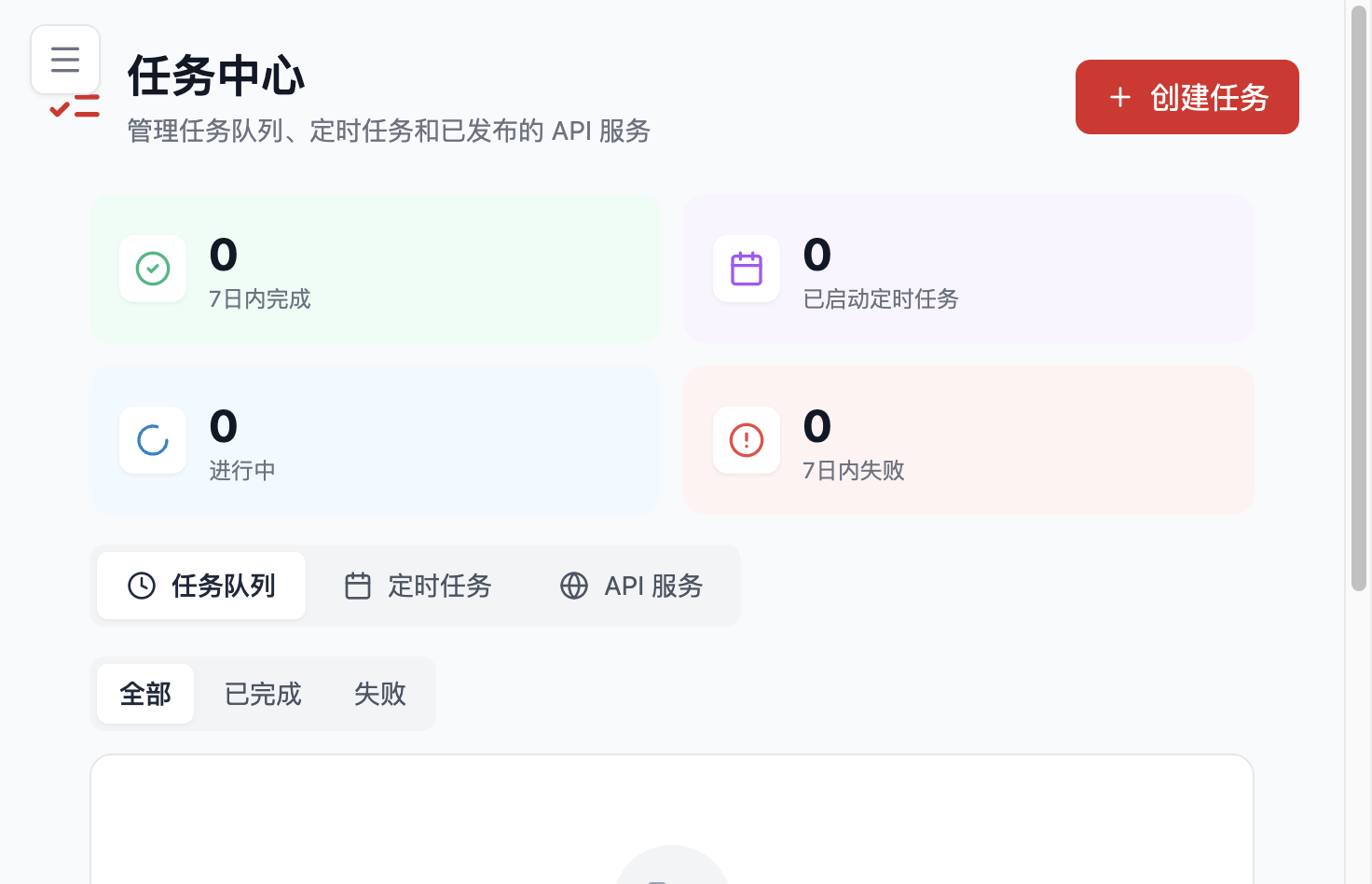
Go to AI Workspace -> Task Center from the sidebar. The page usually contains three tabs:
- Task Queue: view one-off tasks, queued tasks, running tasks, failed tasks, and execution history.
- Scheduled Tasks: view recurring tasks, one-time scheduled tasks, next run time, enablement status, and recent runs.
- API Services: view API services published from Workflows, service status, API Key, and quick call examples.
4.3 View the Task Queue
The task queue is used to observe current and historical execution. Common operations include:
- Filter by status: all, completed, failed, and so on.
- View task source: user session, scheduled trigger, or system-generated.
- View execution mode: Agent or Workflow.
- Cancel running or queued tasks.
- Retry failed tasks.
- Rerun historical tasks.
- Cancel or delete in batches.
Task details show the Workflow ID, input parameters, execution result, error information, execution time, and run status. For troubleshooting, checking task details is usually more efficient than going straight to logs.
4.4 Configure Scheduled Tasks
Scheduled tasks support one-time and recurring runs:
- Run immediately: add to the queue right after creation.
- Run once at a specified time: schedule a run for a specific moment.
- Run repeatedly: suitable for daily reports, hourly alert triage, weekday inspections, and similar scenarios.
- Custom Cron: suitable for complex schedules, such as the first day of each month, weekdays at 09:00, every 15 minutes, and so on.
Set the time zone when configuring schedules. Domestic deployments in China usually use Asia/Shanghai.
4.5 Configure the Execution Target
Tasks support two execution modes:
| Execution Mode | Configuration | Good For |
|---|---|---|
| Agent | Agent name, task notes, optional Skills | Inspection, investigation, analysis, report generation, and other tasks that require flexible judgment. |
| Workflow | Workflow ID, Workflow parameter JSON | Fixed processes, structured inputs and outputs, tasks that need testing and publishing. |
If the execution target is a Workflow, Workflow parameters must be a valid JSON object and are passed as workflow inputs.
4.6 View API Services
After a Workflow is published as an API, it can be viewed centrally in the API Services tab of Task Center. You can usually see:
- Service name and runtime status.
- Publish time.
- API Key show / hide.
- Quick
curlexample. - Stop service entry point.
The API service publishing process is completed in Workflow. Task Center is responsible for centralized operations and viewing.
4.7 Adjust, Disable, and Rerun
Tasks can still be adjusted after creation:
- Edit title, description, priority, execution target, Cron, notes, and other fields on the Task Center page.
- Enable, disable, run once immediately, or delete scheduled tasks.
- Cancel, retry, rerun, or delete task execution records.
- You can also tell Rex directly in a session: "Change the alert triage task to run every 30 minutes."
5. Runtime Mechanism
5.1 Task Scheduling and Execution Records
Task Center separates "task definition" from "execution record":
- Task definition: stores task title, description, execution mode, trigger rule, execution target, priority, and Workspace directory.
- Execution record: stores the status of one run, input snapshot, session_id, result summary, error information, and duration.
The same scheduled task produces multiple execution records. When troubleshooting, start with the details of the most recent failed run.
5.2 Task Queue and Priority
The task queue schedules by priority and creation time. Priorities include urgent, high, normal, and low. High priority is suitable for incident response, important inspections, or tasks that need results quickly. Normal priority is suitable for routine daily reports, weekly reports, and non-urgent batch processing.
The queue can be paused and resumed. After pausing, new tasks can still enter the queue, but they will not be scheduled for execution. After resuming, the queue rules apply again.
5.3 Task Recovery and Failure Handling
Task Center maintains runtime state and can recover queued tasks after a service restart. Failed tasks do not automatically become successful; users need to inspect the failure reason and then retry or rerun them.
Common failure sources include:
- The default model is unavailable or times out.
- Workflow parameters are not valid JSON.
- Agent name or Workflow ID is incorrect.
- Tool, MCP, device, or third-party API credentials have expired.
- Channel target is unreachable.
- Workspace directory permissions or Docker mounts are abnormal.
5.4 Connecting with session_id and Channels
Task results often need to be pushed to a fixed IM conversation. Each IM conversation has a corresponding session_id in Flocks. You can first ask in the target IM conversation:
What is your session_id?Then specify it when creating the task:
Push the result to session_id: *******This works well for multiple groups, multiple channels, and scheduled tasks. Compared with describing the target conversation again in each task, using Flocks' session_id directly is easier to pass across WebUI, Task Center, Workflow, and IM sessions.
5.5 Connecting with Workspace
During task execution, input snapshots, intermediate data, reports, and final outputs are usually written to the current Workspace's outputs/. For recurring tasks, archive by date, task name, or execution ID to make comparison and auditing easier later.
In Pro multi-account environments, each user has a private Workspace directory. During task execution, check whether the creator, executor, and target Workspace match expectations.
6. CLI and Session Commands
6.1 Common CLI Commands
| Command | Purpose |
|---|---|
flocks task | Show the Task Center overview. |
flocks task dashboard | View Task Center statistics. |
flocks task list | List task executions or schedules. |
flocks task show <taskID> | View task details. |
flocks task create <title> | Create a task. |
flocks task queue | View or control the task queue. |
flocks task scheduled | List scheduled tasks. |
flocks task cancel <taskID> | Cancel a task. |
flocks task retry <taskID> | Retry a failed task. |
flocks task rerun <taskID> | Rerun a task. |
6.2 / Commands in Sessions
| Command | Purpose |
|---|---|
/tasks | View the Task Center overview. |
/queue | View task queue status. |
/help | View / commands available in the current session. |
/new | Clear the current conversation history and start a new conversation. |
Different Workspaces, custom commands, and MCP Prompts may provide more / commands. Use the actual output of /help as the source of truth.
7. Run, Verify, and Adjust
7.1 Test Run Before Creation
Before creating a scheduled task, have Rex run the complete flow once in a session. Confirm:
- The data source can return sample data.
- The Agent / Workflow can complete the task independently.
- The result format matches expectations.
- Outputs can be written to Workspace.
- The channel can receive the summary or failure notification.
7.2 Acceptance After the First Run
After task creation, run it immediately or wait for the first scheduled trigger, then check:
- The execution status is successful.
- The duration is acceptable.
- The input snapshot is correct.
- The result summary is clear.
- Workspace outputs are complete.
- The channel push reached the correct
session_id.
7.3 Failure Troubleshooting Order
The following order is usually fastest:
- View the latest execution details in Task Center.
- Check the Agent name, Workflow ID, and Workflow parameter JSON.
- Confirm that the default model and any separately specified model are available.
- Check tools, devices, MCP, third-party APIs, and messaging integrations.
- Check the Workspace path and Docker mounts.
- Run
flocks statusif needed and inspect backend logs.
7.4 Continuously Improve Tasks
Tasks are not frozen after creation. If the results are not ideal, tell Rex clearly in a session:
Optimize the daily device inspection task:
- Add checks for exposed high-risk ports
- Put changed items first in the report
- On failure, push only the error summary, not the full log
Based on historical executions, task definitions, outputs, and error information, Rex can help adjust the Agent Prompt, Workflow nodes, task notes, or scheduling strategy.
8. Real Example: Hourly NDR Alert Triage Task
8.1 One-Off Run
The user first enters in a session:
Fetch the latest 5 alerts from NDR, triage them one by one, produce JSON output, and send a summary to the WeCom duty group.Rex completes:
- Fetch raw alerts and write them to Workspace
outputs/. - Delegate to the alert triage Agent or run the NDR alert triage Workflow.
- Output structured JSON and a Markdown summary.
- Push the summary to the target
session_idthrough the WeCom channel.
8.2 Convert to a Scheduled Task
Continue in the same session:
Configure this alert triage process as a scheduled task that runs every hour.
Send results to the WeCom duty group from just now, and send an error summary on failure.
Rex creates in Task Center:
- Execution mode: Workflow or Agent.
- Schedule rule: hourly.
- Result location: current Workspace
outputs/. - Notification target: the
session_idcorresponding to the WeCom duty group.
8.3 Ongoing Operations Effect
Manual triggering is no longer required. Every hour, the platform automatically pulls alerts, completes triage, writes JSON to disk, and pushes a summary. Later, if you want to summarize hourly results into a daily report, create another daily report task that reads the day's Workspace outputs.
9. FAQ
9.1 What If a Task Does Not Run on Time?
First check the Task Center page: whether the task is enabled, whether the next run time is correct, whether the latest run failed, and whether the queue is paused. Then check flocks status, models, tools, channels, and Workspace permissions.
9.2 Where Are Task Outputs?
Usually under outputs/ in Workspace. If the task runs a Workflow, outputs follow that Workflow's output conventions. If it runs an Agent, the Agent usually selects and writes to an output file location based on task context.
9.3 Does One Failed Task Affect Other Tasks?
Tasks are scheduled independently. However, if multiple tasks depend on the same model, channel, tool, or device configuration, one dependency failure may cause several tasks to fail at the same time.
9.4 Can a Task Be Triggered Manually Once?
Yes. Click "run once" in the scheduled task list, or tell Rex in a session, "Help me manually run task X once."
9.5 Does Task Execution Inherit the Session History from Task Creation?
No. Scheduled task execution creates a new Rex session, so the task description must be self-contained. Do not rely on context that exists only in the creation session, such as "the data from just now."
9.6 Can I Be Notified Automatically When a Task Fails?
Yes. Specify the failure notification rule when creating the task, for example, "If execution fails, send the error summary to a specific session_id."
10. Related Modules
- Session Management: Tasks are usually promoted from a successful session.
- Workflow: The most common execution target for recurring tasks.
- Agent: The execution target when task steps are more flexible.
- Workspace: Storage location for task outputs, input snapshots, and reports.
- Channel Management: Outbound channels for task results and failure notifications.
- Flocks CLI: Terminal CLI for task operations.
- Flocks / Slash Commands: Task-related
/commands.