SOC Workspace Scenario Suite
The SOC workspace scenario suite installs the pages, tools, and workflows required for alert operations in one step. It is not a single Workflow, but a combined capability package: after installation, Flocks gains the SOC workspace page, the SOC workspace operations tool, and two workflows for alert denoising and alert triage.
This suite is designed for teams that want to quickly enable closed-loop alert operations: first filter duplicate and low-value alerts through the alert denoising Workflow, then produce structured conclusions through the triage Workflow, and finally view, operate, and maintain the process in the SOC workspace.
Suite Components
| Capability | Plugin ID | Type | Purpose |
|---|---|---|---|
| SOC workspace UI | soc_ui | WebUI | Provides the SOC workspace page for viewing alert operations results and status. |
| SOC workspace operations tool | soc_workspace_query | Tool | Allows Rex, Workflow, and other capabilities to query and operate on SOC workspace data. |
| Alert denoising Workflow | stream_alert_denoise | Workflow | Filters, aggregates, and performs initial prioritization on real-time alert streams, HTTP traffic logs, or NDR alerts. |
| Alert triage Workflow | stream_alert_triage | Workflow | Reads alerts or denoising results and generates structured triage reports using intelligence and context. |
The suite ID shown in Flocks Hub is usually soc-workspace. The detail page lists the suite contents, making it easy to confirm what components will be written before installation.
Installation Method 1: Enter Alert Operations from the Session Home Page
This method is suitable when enabling SOC alert operations for the first time from a business entry point. Users do not need to understand Flocks Hub first; they only need to click Alert Operations on the new session home page.
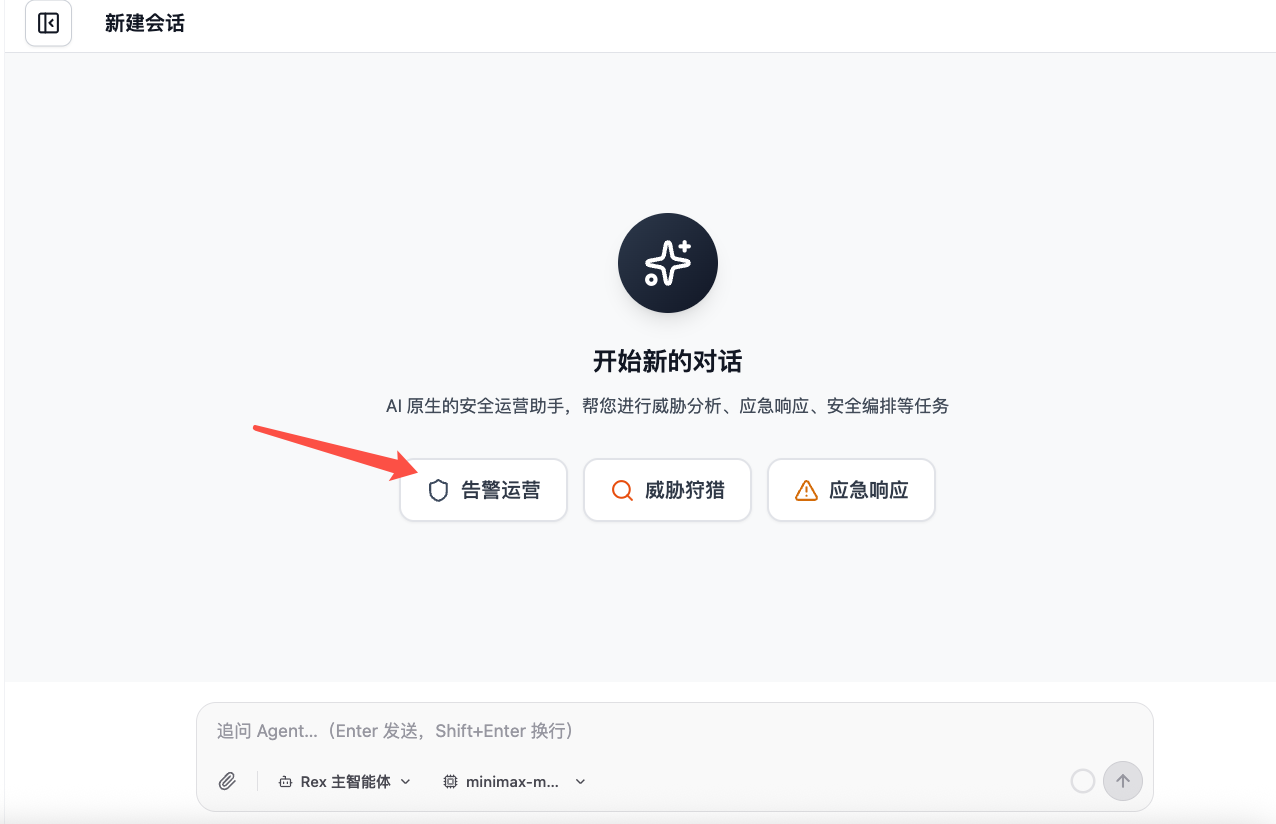
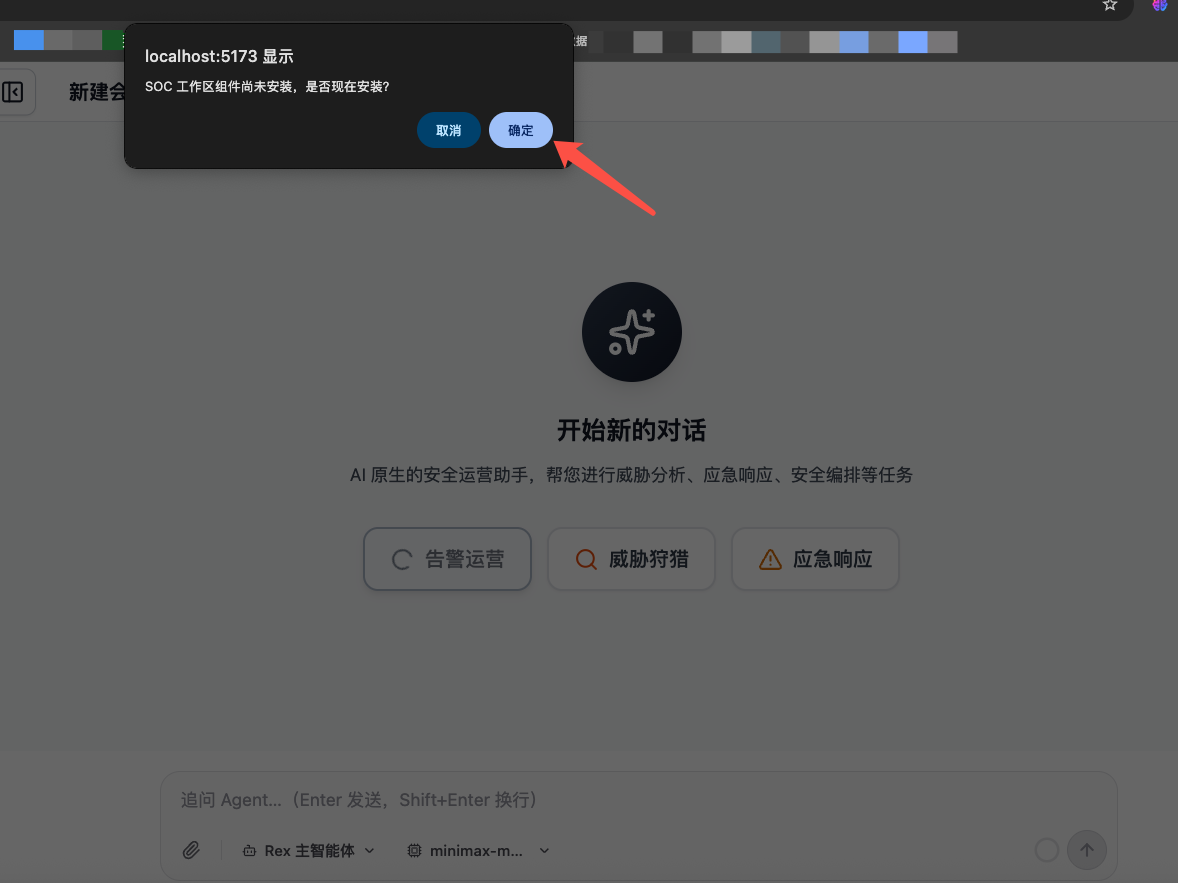
If SOC workspace components are not installed, the page displays an installation confirmation prompt. Click Confirm to start installing the SOC workspace scenario suite in Flocks; click Cancel to skip installation.
After installation is confirmed, Rex enters the Flocks assisted setup flow and checks and configures alert operations capabilities in sequence. This flow first confirms the status of the soc-workspace component, then continues to configure the alert denoising Workflow stream_alert_denoise and the triage Workflow stream_alert_triage.
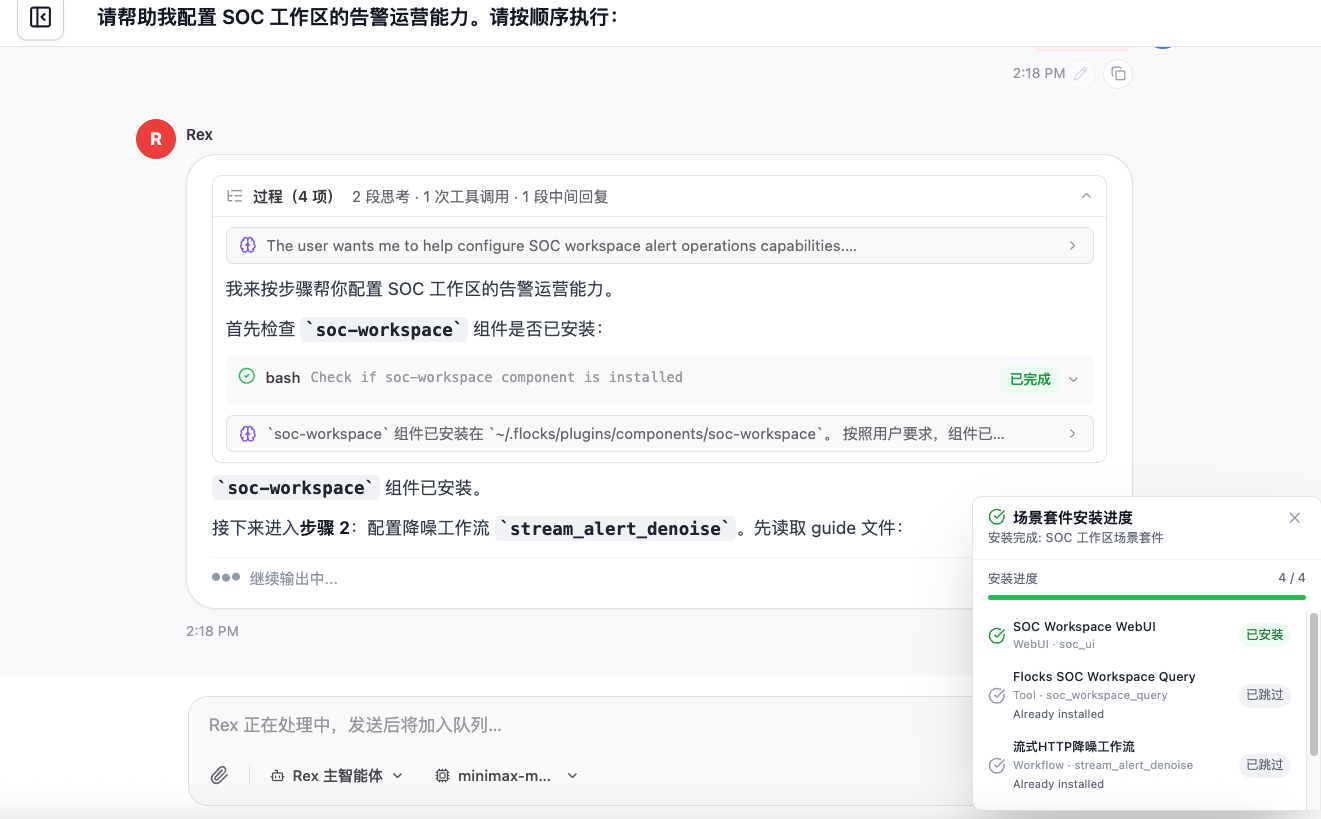
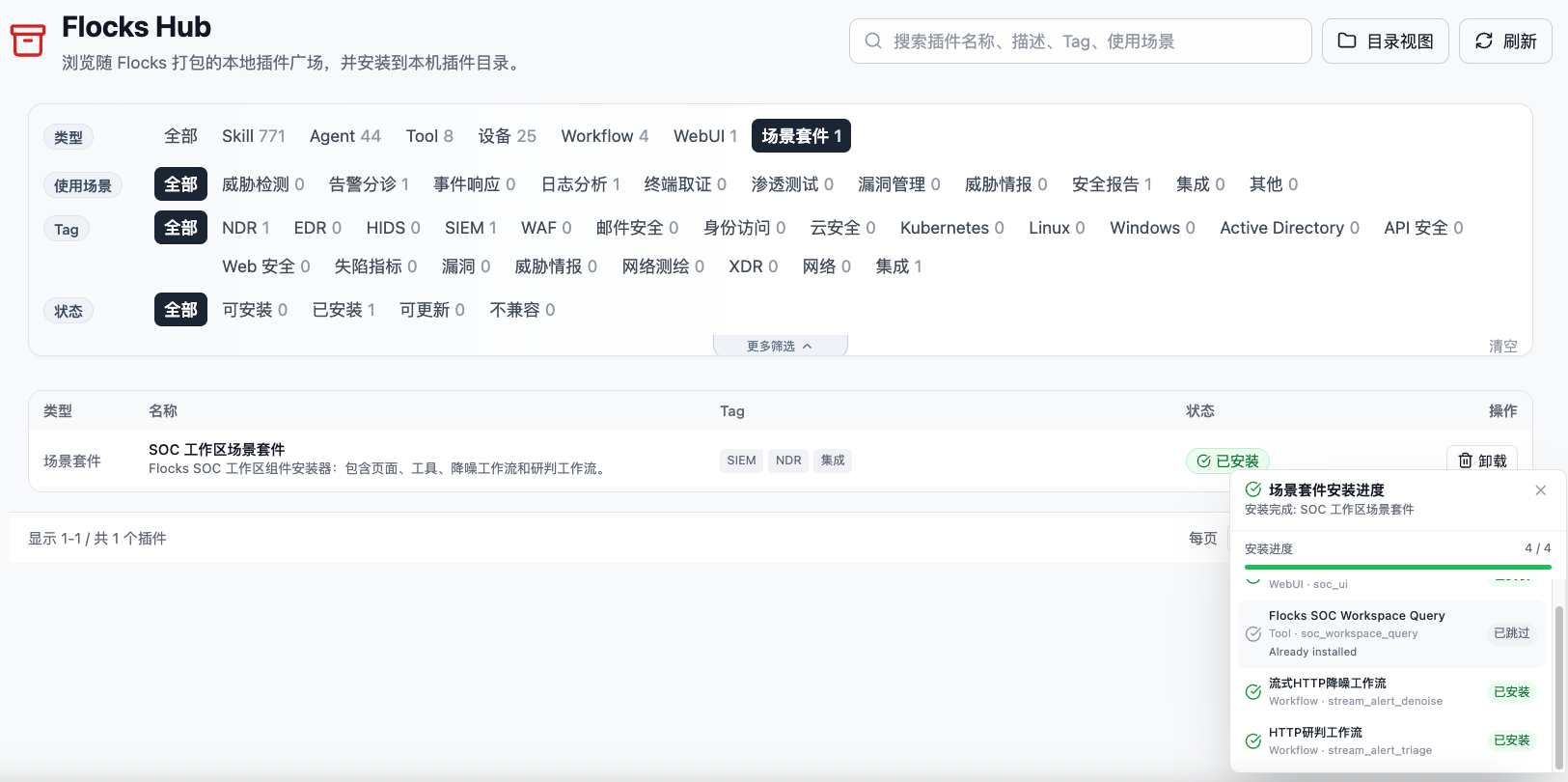
The installation progress shows the processing status of each component in the suite. Already installed components are marked as skipped or installed, and missing components are installed into the local plugin directory before the Flocks runtime is refreshed.
Installation Method 2: Install the Scenario Suite from Flocks Hub
This method is suitable for administrators or platform maintainers who want to install the suite proactively. Go to Agent Studio -> Flocks Hub, select Scenario Suite in the type filter, and find SOC Workspace Scenario Suite.
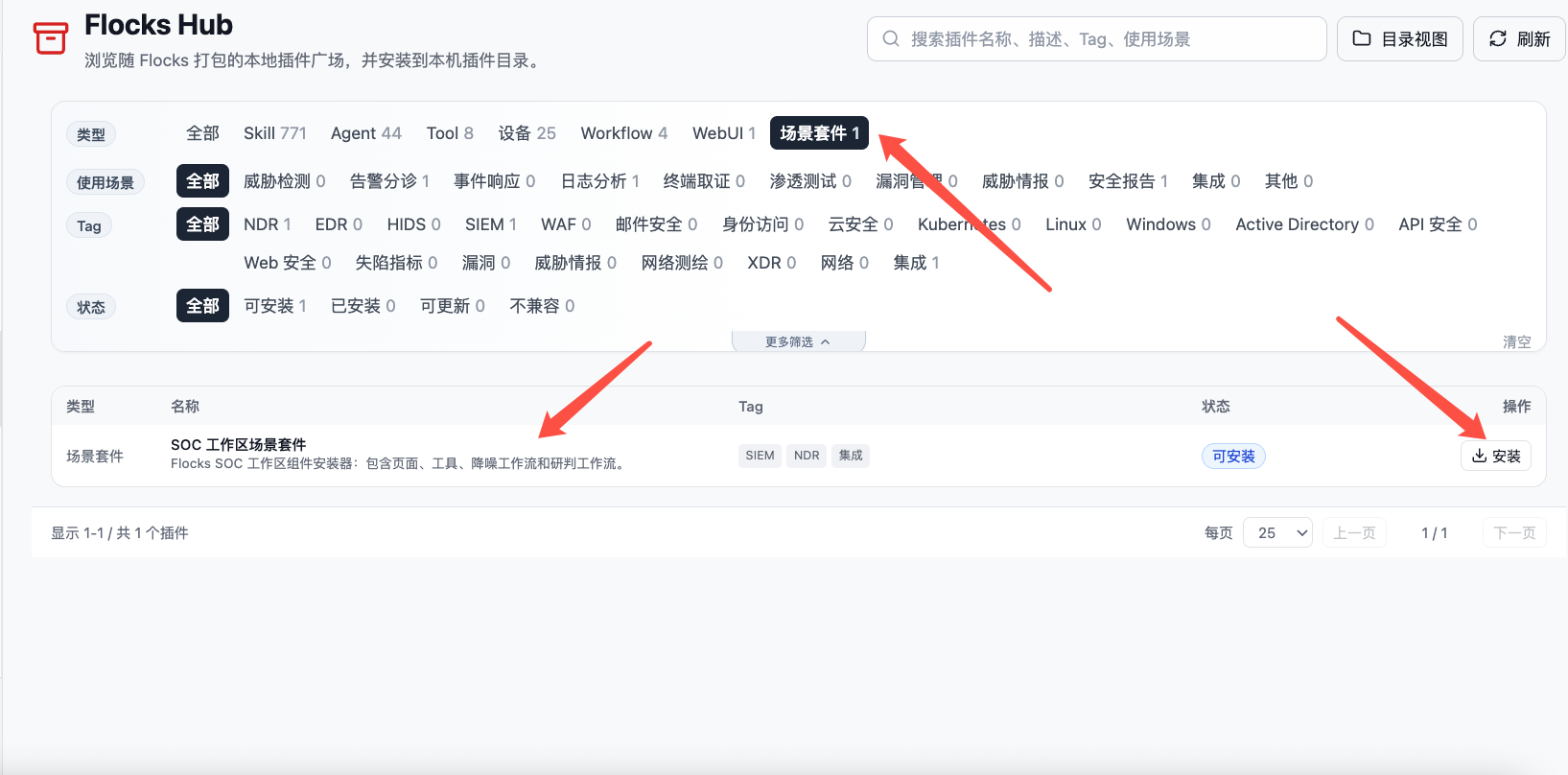
Click the plugin row to open the detail page. Before installation, review the overview and suite contents to confirm that the suite includes soc_ui, soc_workspace_query, stream_alert_denoise, and stream_alert_triage.
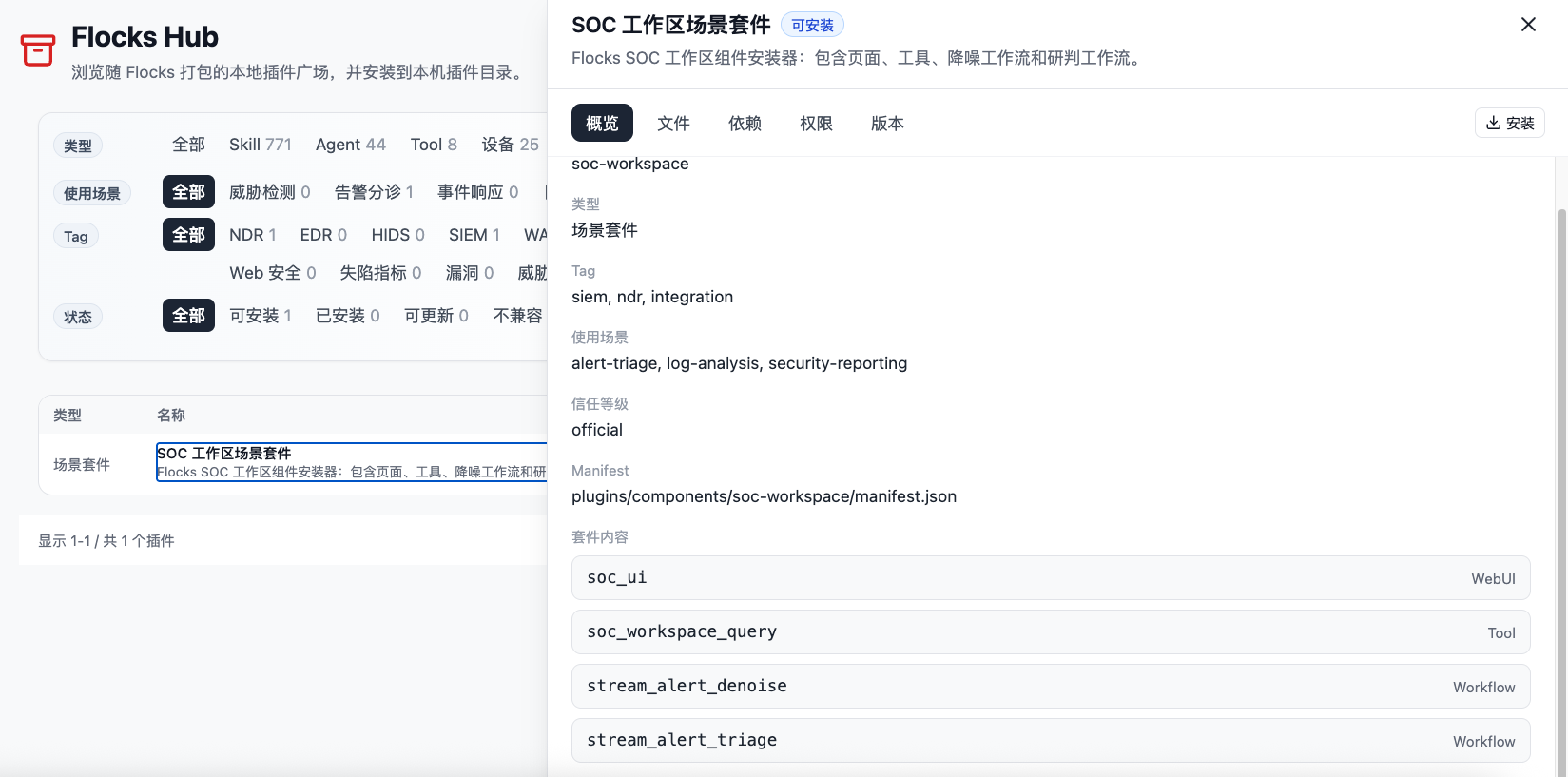
After confirming, click Install. The installation progress is shown component by component; if a component already exists, it is shown as skipped or installed. After installation finishes, the status in the Flocks Hub list changes to Installed.
Subcomponent Capabilities and Configuration
After the SOC workspace scenario suite is installed, its core capabilities are provided by four component types: the workspace page handles viewing and operations, the workspace tool allows Rex to query data in sessions, and the two workflows handle alert denoising and triage respectively.
SOC Workspace UI: View and Operate Alerts
After soc_ui is installed, it provides SOC Workspace under Scenario Workspace in the left navigation. The SOC workspace organizes pages through an expanded sidebar and includes Situation, SOC Overview, Alert Investigation, and Custom Page by default.
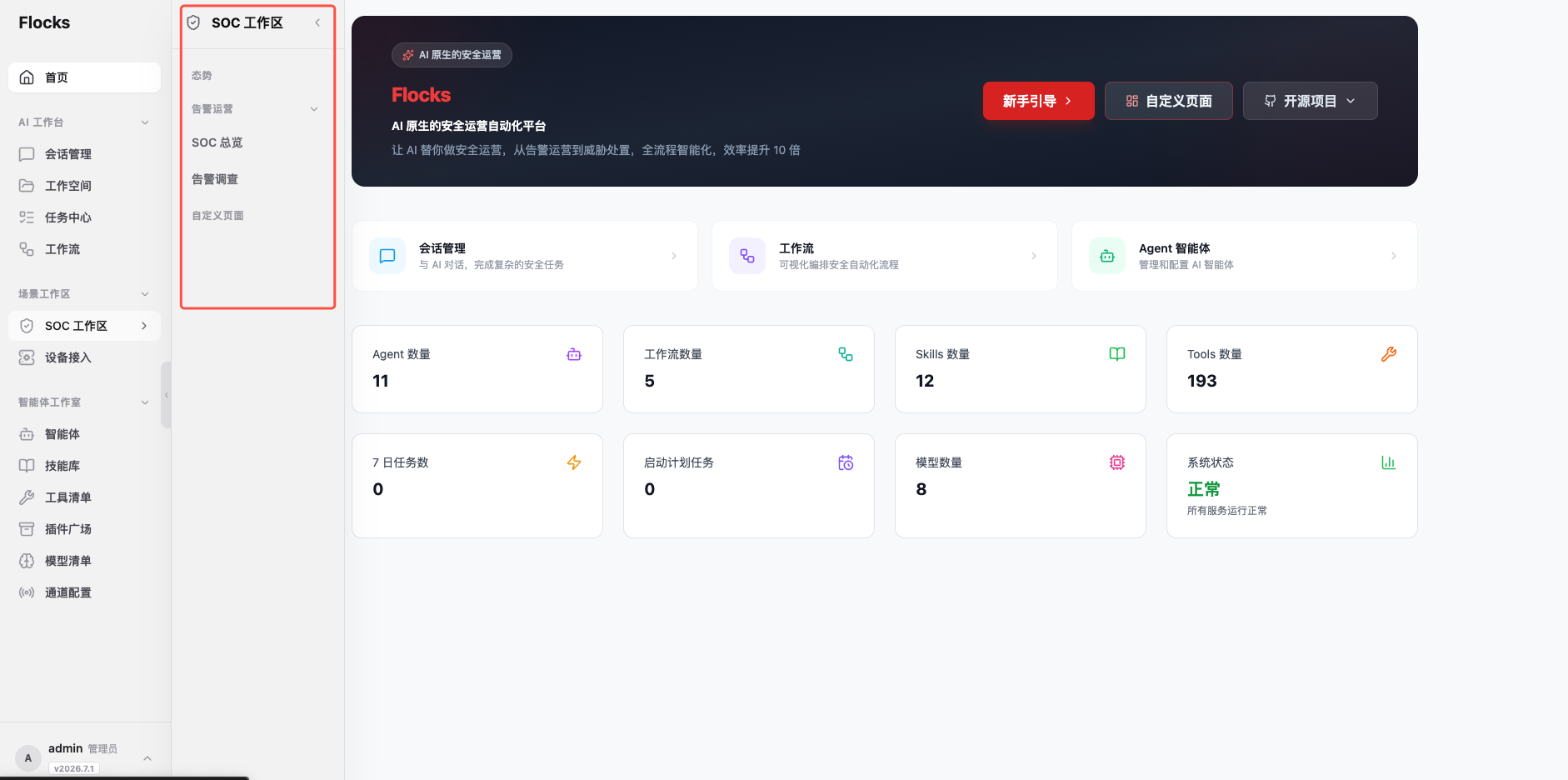
| Page | Capability |
|---|---|
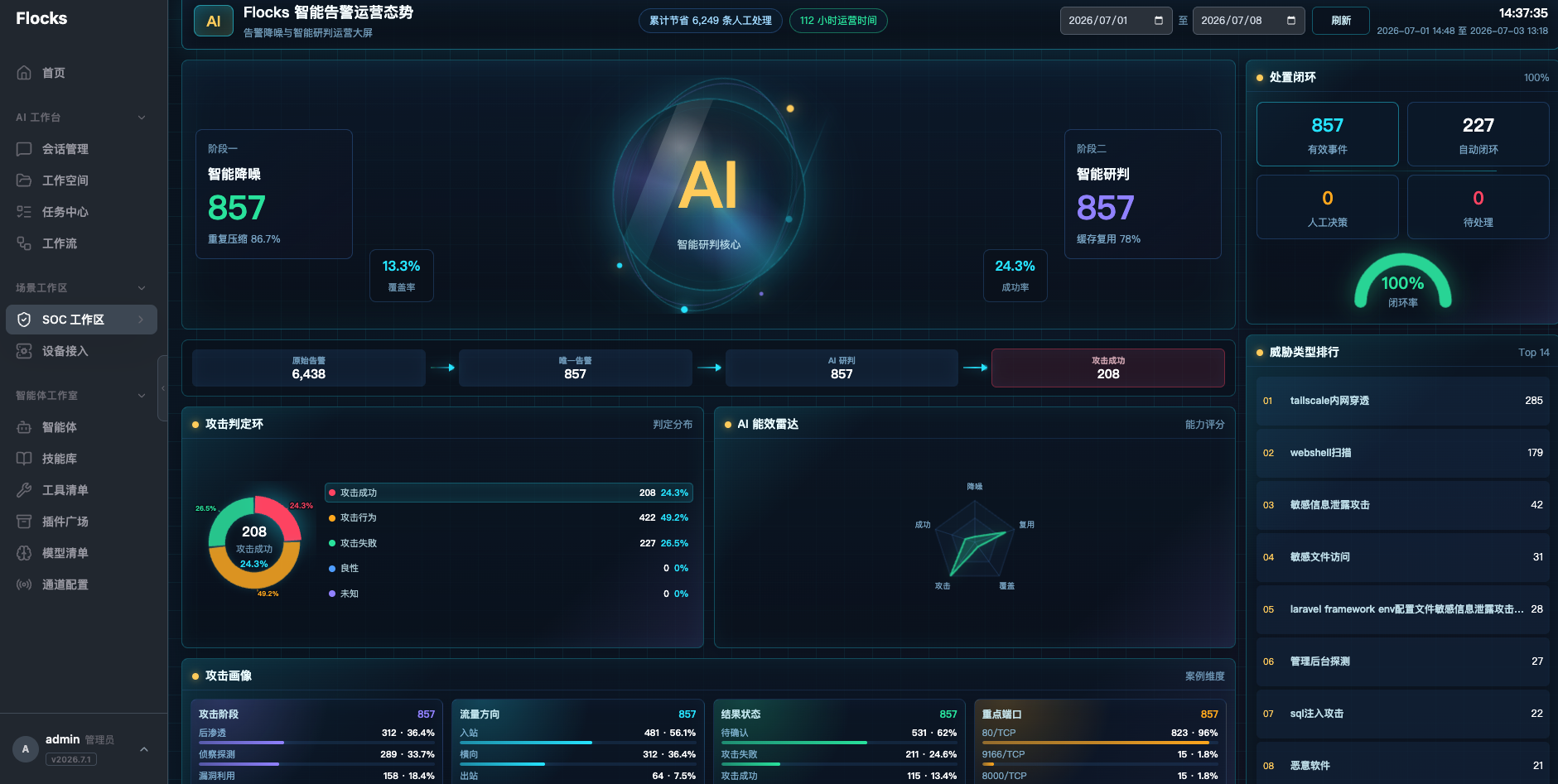
| Security Posture Dashboard | For duty shifts and reporting displays. Aggregates metrics such as alert denoising, AI-assisted triage, closed-loop handling, threat type rankings, and attack profiles. |
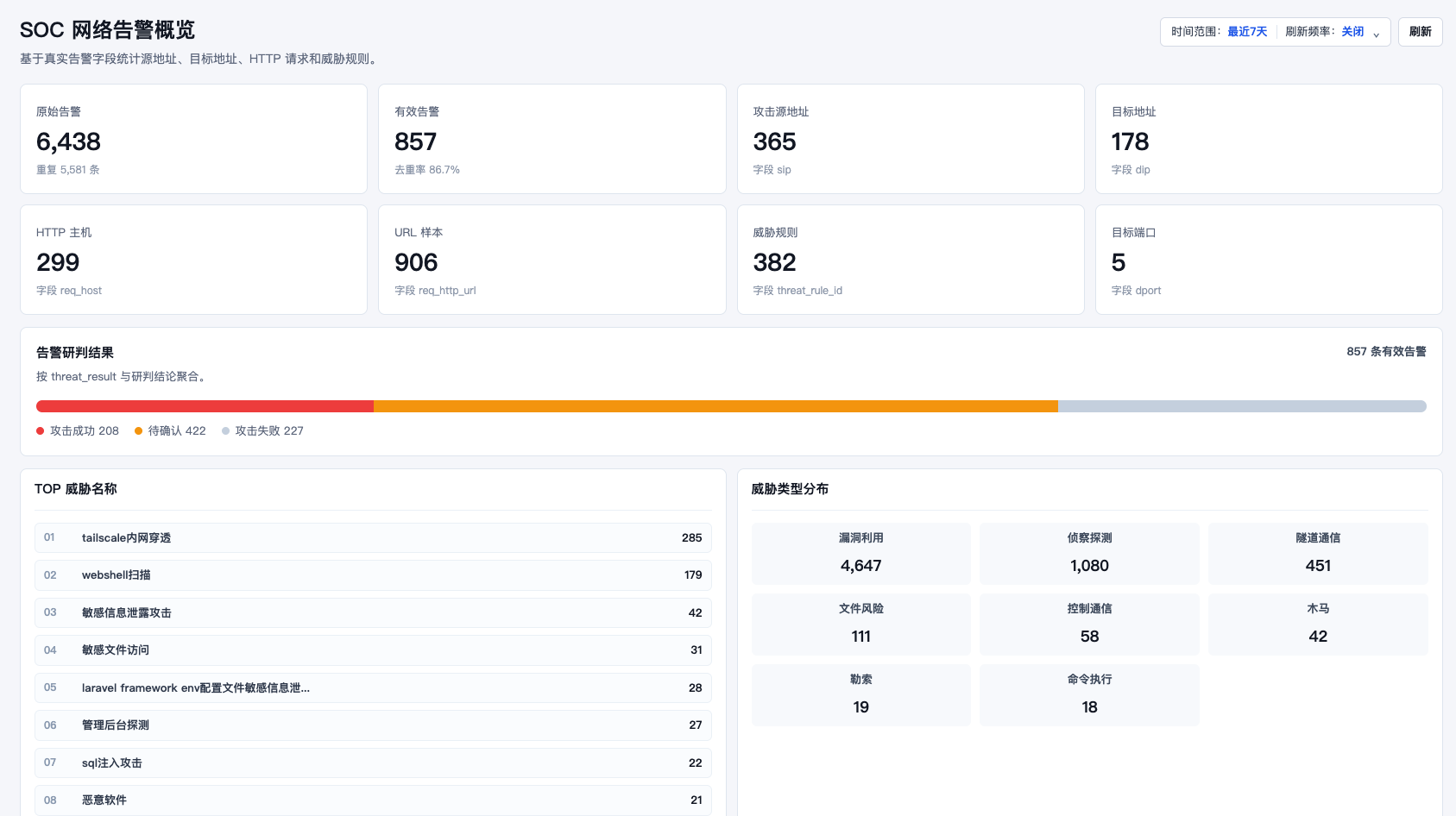
| SOC Overview | For operations analysis. Summarizes raw alerts, effective alerts, attack source addresses, target addresses, HTTP hosts, URL samples, threat rules, and triage results by time range. |
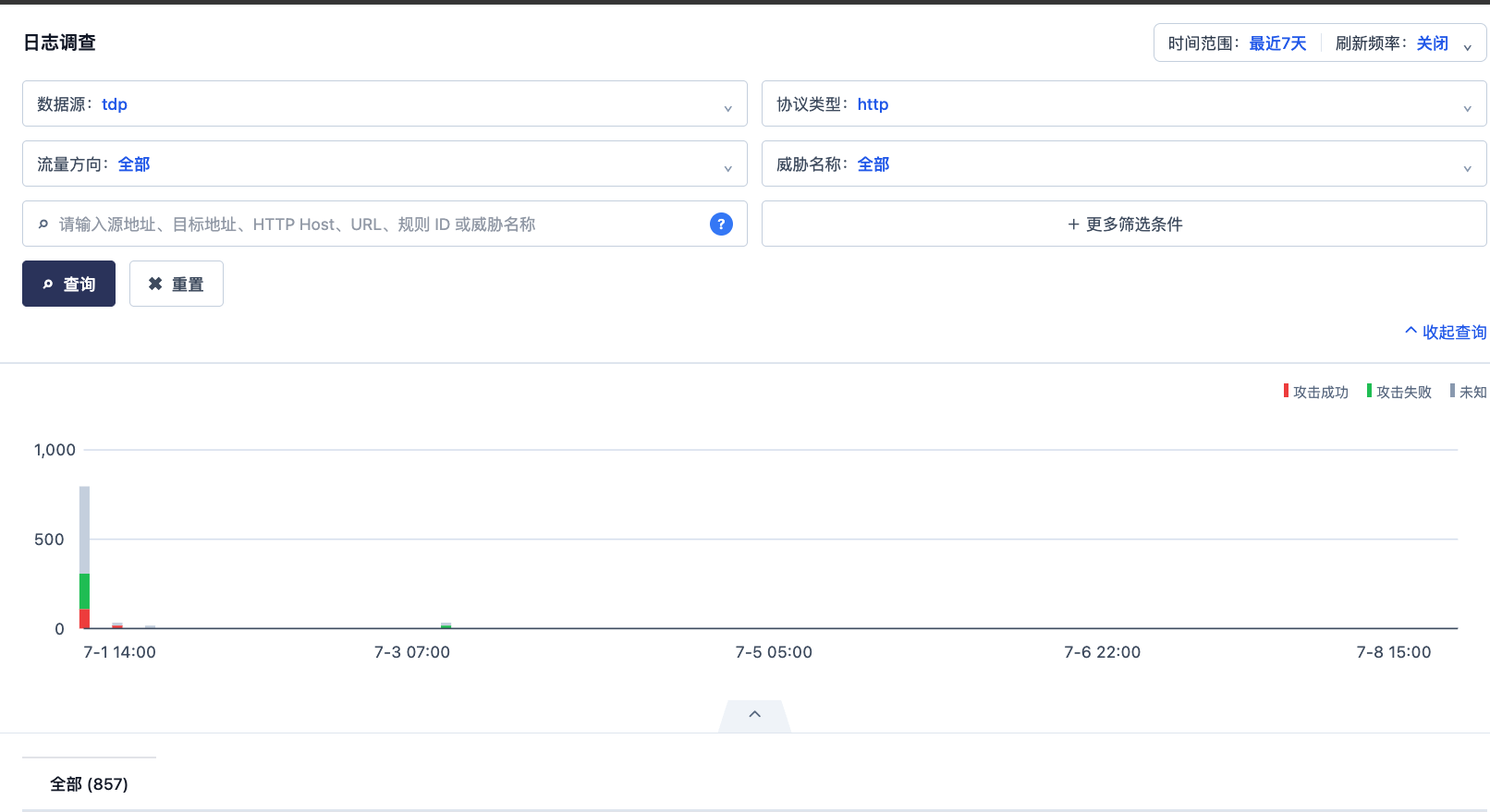
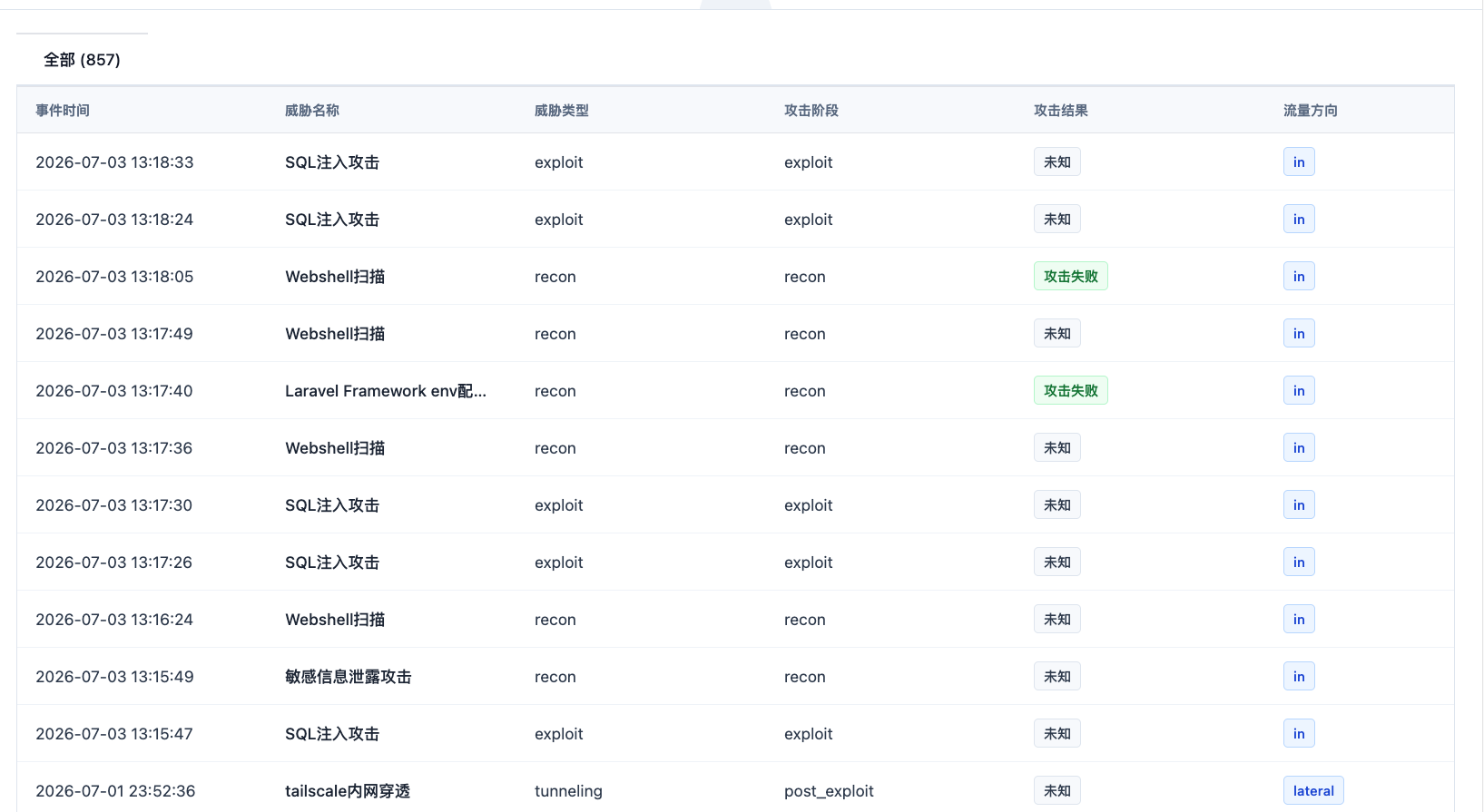
| Alert Investigation | For analyst search. Supports queries by data source, protocol type, traffic direction, threat name, source address, target address, HTTP Host, URL, rule ID, and other criteria. |
| Custom Page | For team-specific dashboards. After clicking it, Flocks provides assisted setup: the user describes the desired page and fields, and Flocks helps create the workspace page. |
The Security Posture Dashboard is suitable for SOC wallboards or duty views to observe the overall effect of alert denoising, AI-assisted triage, and closed-loop handling.
SOC Overview is suited to answering "How have alerts looked recently?" It shows raw and effective alert counts, deduplication rate, key field coverage, top threat names, and threat type distribution, making it easy to assess the current alert surface.
Alert Investigation is suited to answering "I need to look up a certain type of alert, source address, or threat name." Filters and trend charts are at the top, and the alert list is below.
Custom Page enables teams to convert operational views into tailored workspace dashboards. Click Custom Page to enter Flocks assisted setup and describe the page requirements, such as "Create a page that counts successful attacks by attack phase" or "Create a page that only shows attacks against key assets." After the page is generated, you can continue asking Rex in the session to modify pages in the SOC workspace, such as adjusting fields, adding filters, changing aggregation logic, or adding charts.
SOC Workspace Operations Tool: Query Alert Status in Sessions
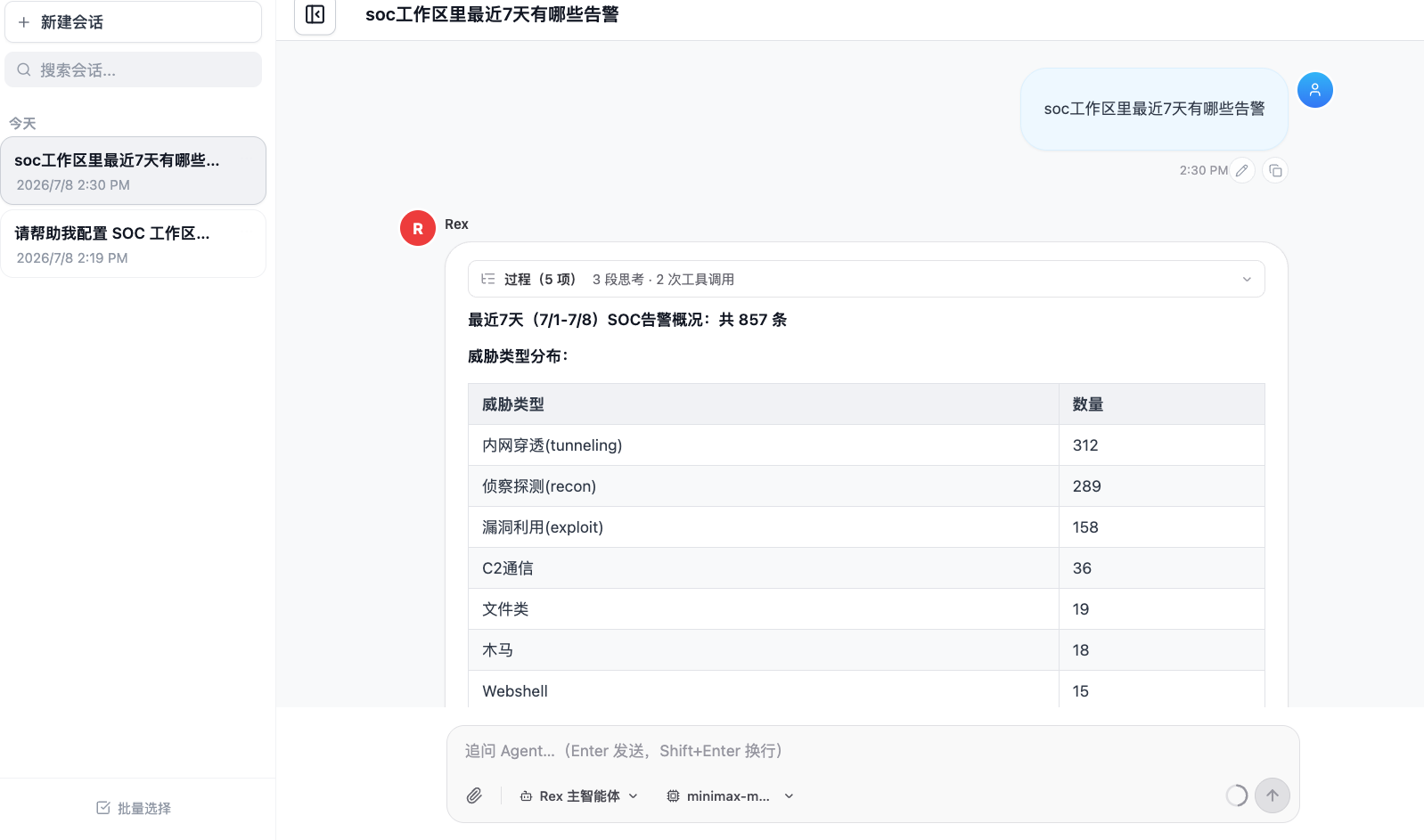
soc_workspace_query exposes SOC workspace data query capabilities to Rex, Workflow, and other Agents. After installation, users can query workspace alert status directly in natural language inside a session, without manually entering the page and applying filters.
Typical questions include:
What alerts are in the SOC workspace from the last 7 days?Check the number of SQL injection attacks in the last 7 days, including attack result and traffic direction.Which alerts were successful attacks in the last 24 hours? Summarize by threat name.Rex calls the workspace query tool, reads alerts, statistics, and triage results from the SOC workspace, and returns a table or summary.
Before using this tool, make sure the SOC workspace already has a data source. In a typical setup, stream_alert_denoise continuously writes denoising results, and stream_alert_triage enriches them with triage fields. If fields or aggregation logic need adjustment, describe the expected logic in the session and let Rex continue modifying based on workspace data and page requirements.
Alert Denoising Workflow: Turn Raw Alerts into Effective Alerts
stream_alert_denoise processes raw alert streams. It deduplicates, filters, aggregates, and performs initial prioritization on HTTP traffic logs and alerts pushed by TDP, SkyEye, or other NDR / traffic devices, blocking high-frequency duplicates and low-value noise before triage.
Common configuration items include:
| Configuration item | Description |
|---|---|
| Data source | TDP, SkyEye, NDR, XDR, or another system that outputs HTTP traffic logs / alerts. |
| Trigger method | Syslog, Kafka, Webhook, or file relay; real-time ingestion usually prioritizes Syslog / Kafka. |
| Field mapping | Source IP, destination IP, URL, HTTP Host, rule name, alert level, timestamp, target port, and similar fields must be mapped consistently. |
| Denoising rules | Allowlists, duplicate windows, static resource filtering, similar event aggregation, and low-confidence noise handling. |
| Output location | Denoising results are usually written to workspace/workflows/stream_alert_denoise/ for the SOC workspace and triage Workflow to read. |
After installing the suite, you can continue configuring this Workflow through the Flocks assisted setup flow in a session. For details, see Real-time NDR Alert Denoising Workflow and Alert Denoising.
Alert Triage Workflow: Add Conclusions to Effective Alerts
stream_alert_triage reads effective alerts after denoising and outputs structured triage conclusions using the model, intelligence, asset data, vulnerability data, and contextual fields. It is suitable for running by time window or scheduled task cycle, moving alerts from "needs attention" to "whether the attack succeeded, what the evidence is, and how to handle it."
Common configuration items include:
| Configuration item | Description |
|---|---|
| Input data | Usually reads the denoising results from stream_alert_denoise; it can also read effective alerts within a specified date or time window. |
| Model configuration | Requires an available default large model; complex triage benefits from a stronger reasoning model. |
| Context enhancement | Optionally connects threat intelligence, asset information, vulnerability information, and discovery results to improve triage quality. |
| Runtime mode | Can be triggered manually in a session or configured in Task Center to run every 2 to 6 hours. |
| Output results | Structured fields, triage report, attack success / failure determination, risk level, and workspace display fields. |
After installing the suite, the Flocks assisted setup flow continues guiding configuration of the triage Workflow. For details, see Batch NDR Triage Workflow and Alert Triage.
Uninstall the Scenario Suite
The SOC workspace scenario suite can also be uninstalled from Flocks Hub. Go to Flocks Hub, filter by Scenario Suite or Installed, find SOC Workspace Scenario Suite, and click Uninstall.
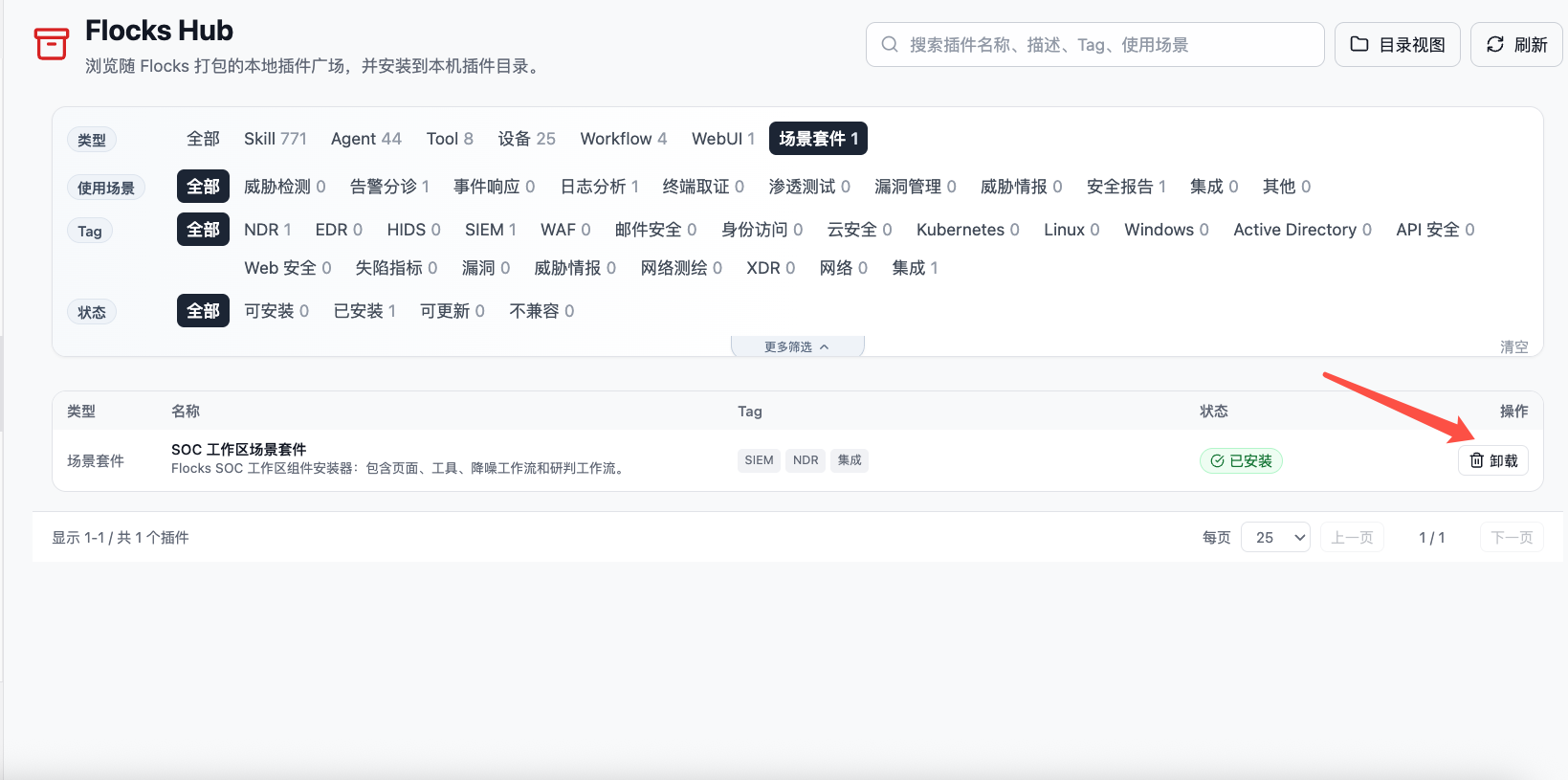
After uninstalling, Flocks removes the components associated with the suite, including the SOC workspace UI, SOC workspace operations tool, alert denoising Workflow, and alert triage Workflow. Before uninstalling, confirm that Task Center, Workflow publishing entries, and the team's daily processes no longer depend on these components.
Post-installation Verification
After installation completes, verify that the suite has taken effect:
- In Flocks Hub, confirm SOC Workspace Scenario Suite is Installed.
- In the left navigation, enter Scenario Workspace -> SOC Workspace and confirm that Security Posture Dashboard, SOC Overview, Alert Investigation, and Custom Page are visible.
- In Workflow, confirm that
stream_alert_denoiseandstream_alert_triageare visible. - In the tool list, confirm that
soc_workspace_queryis visible. - In a session, ask "What alerts are in the SOC workspace from the last 7 days?" and confirm that Rex can query workspace data.
- Return to the new session home page and click Alert Operations again. The not-installed prompt should no longer appear, and you can continue into alert operations setup or usage.
Related Resources: Alert Denoising · Real-time NDR Alert Denoising Workflow · Alert Triage · Batch NDR Triage Workflow · Flocks Hub · Session Management · Workflow