3.3 Messaging & Alerting Integrations
Messaging and alerting integrations connect Flocks to IM platforms, email, and other external contact points. The WebUI supports Feishu, WeCom, Slack, WeChat, WhatsApp, Telegram, DingTalk, mailbox connections, and other integrations, and allows you to manage integration statuses and configuration settings for each platform.
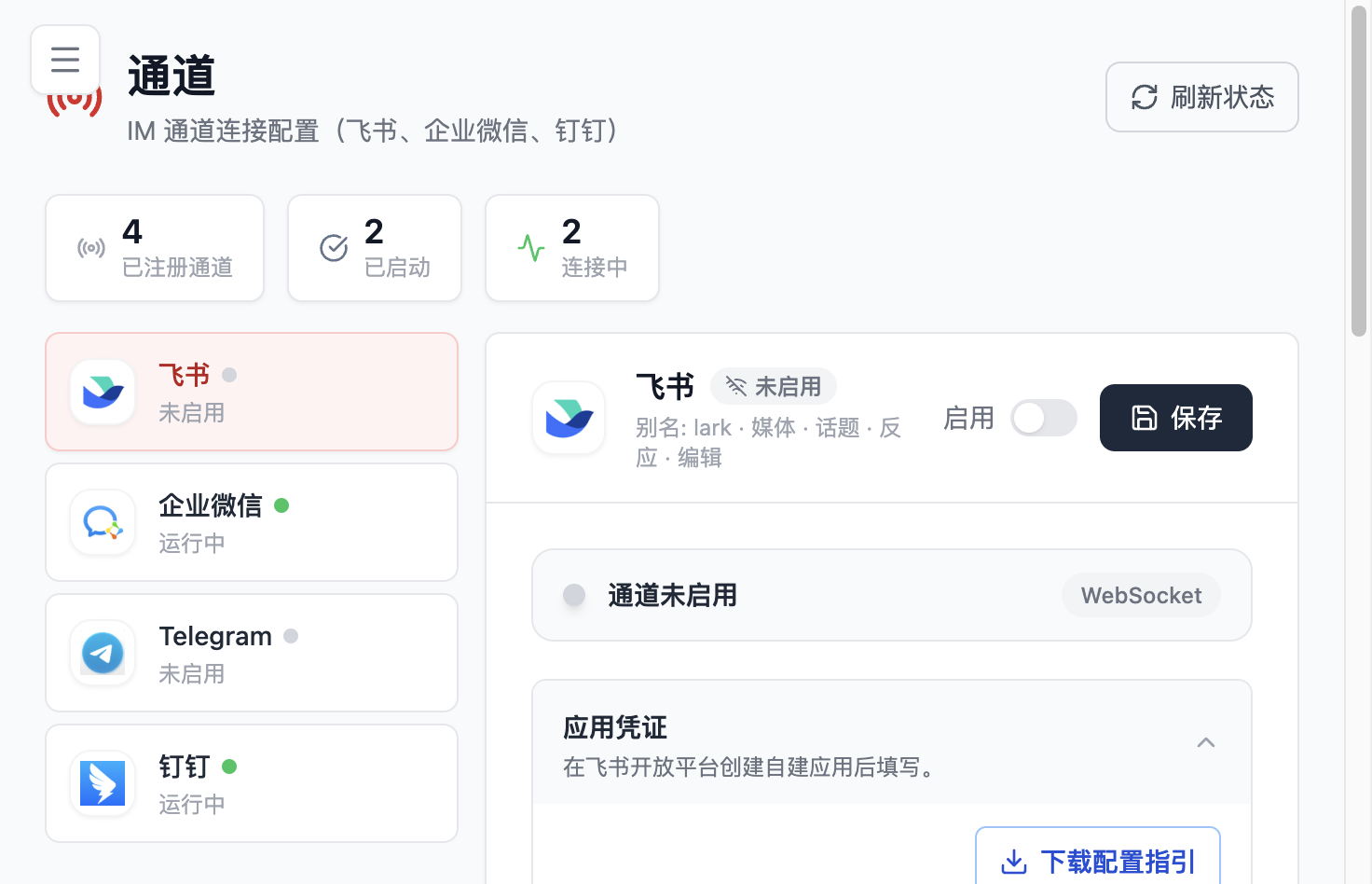
After integrations are configured, Flocks can support these common scenarios:
- Send investigation results directly to configured IM groups or email threads
- Let the bot receive messages in approved chats, groups, channels, or mailboxes
- Push scheduled task results directly to on-call staff or operations teams
3.3.1 Platform Setup Entrypoints
Developer console workflows vary significantly across IM platforms. Flocks separates the integration guides for mainstream platforms into individual pages that you can reference as needed:
- DingTalk integration: internal enterprise app + bot + in-group verification
- Feishu integration: Feishu Open Platform custom app + permissions + App ID / App Secret
- WeCom integration: WeCom admin console + intelligent bot + Bot ID / Secret
- Slack integration: Slack App + Socket Mode + Bot Token / App Token
- Telegram integration: create a bot with BotFather + Bot Token + Polling / Webhook
- WeChat integration: WeChat iLink Bot QR-code login + Token / Account ID
- WhatsApp integration: WhatsApp Linked Devices (QR Code Scan)
- Email integration: dedicated mailbox + IMAP receive + SMTP reply + sender allowlist
Each subpage provides the setup workflow from platform-side preparation to Flocks connection.
For delivery to multiple groups, channels, or threads, configure a stable Session ID for the target conversation:
Slack is best connected through Socket Mode. WeChat and WhatsApp use built-in QR-code login flows in the WebUI. Email integration uses standard IMAP and SMTP mailbox accounts.
3.3.2 Usage
After an integration is configured, you can use Flocks in two ways.
Send Messages Directly from IM or Email
Send a message to the Flocks bot in an IM platform, or send an email to the configured mailbox. Flocks replies in the current chat, channel, or email thread.
Common usage:
- Add the bot to different group chats so each team can use Flocks in its own group
- In a 1:1 chat, users can send messages directly to the bot to trigger a Flocks response
- In group chats, you must
@the bot before sending a message to trigger a Flocks conversation; group messages without an@mention are not sent to Flocks - For email, use a dedicated subject for a new question and restrict who can trigger Flocks through the sender allowlist
Push Results to External Channels
If you want to send results from a Flocks page conversation or scheduled task to an external chat, channel, or email thread, first obtain the Session ID for the target conversation.
To obtain the Session ID:
- Send
What is your session_id?to the bot in the target chat, channel, or email thread. - The bot returns a string similar to:
ses_26fa83663ffef06IFToLN3X7emAfter you get the Session ID, you can specify the delivery target in any Flocks conversation or scheduled task instruction, for example:
Send the analysis result to this session_id: ses_26fa83663ffef06IFToLN3X7emAfter Flocks completes the task, it outputs the result to the corresponding IM conversation or email thread. This method is suitable for scheduled inspections, periodic reports, alert investigation result delivery, on-call notifications, and similar scenarios.