Agent
Agent defines who should handle a task. Tools provide executable actions, Workflow organizes those actions into a process, and Agent selects the role best suited to the task.
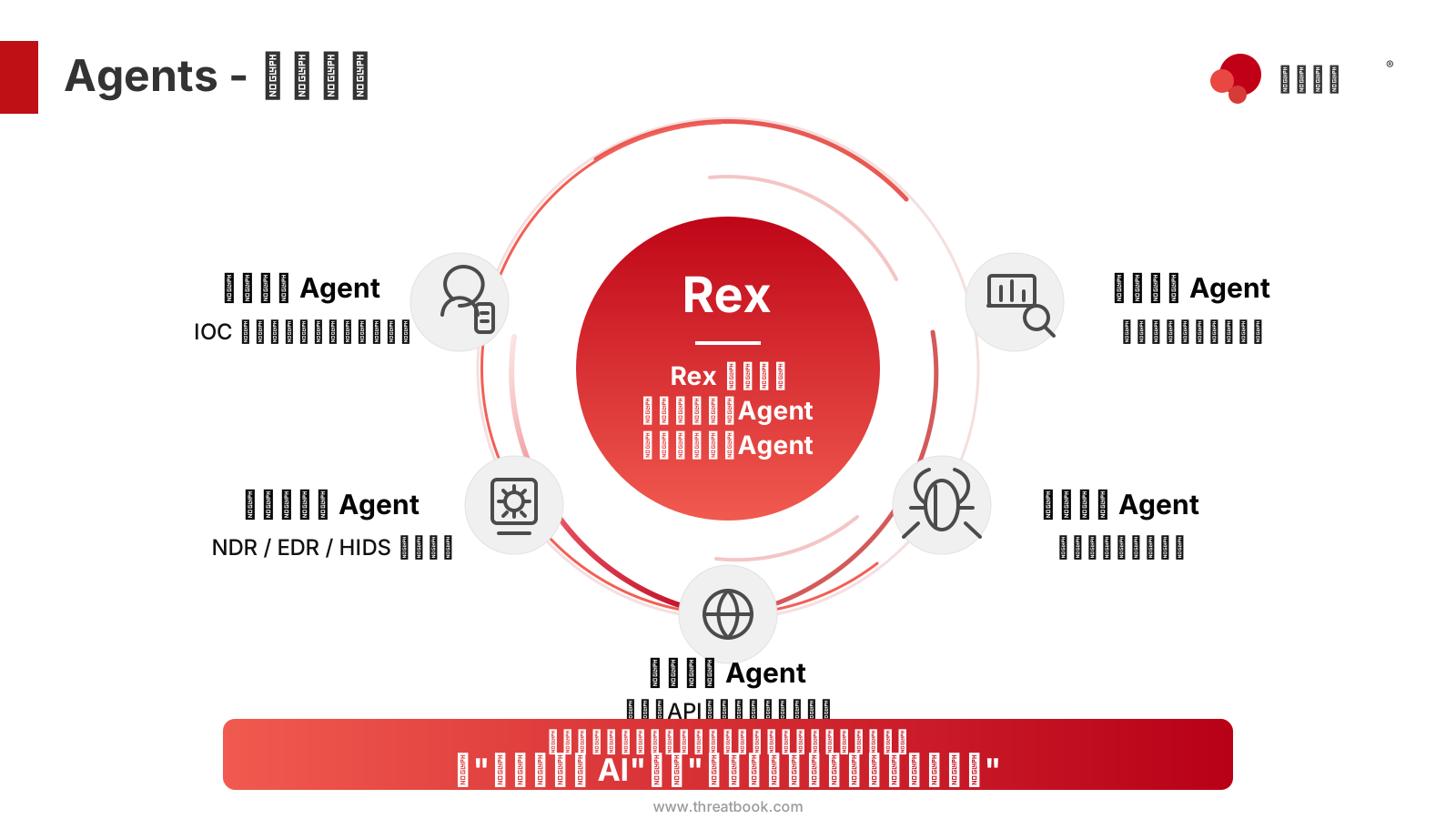
The main Agent in the platform, Rex, is the unified entry point. Rex understands goals, decomposes tasks, schedules capabilities, and summarizes results. Expert Agents provide specialized execution capabilities for specific problem domains, such as intelligence analysis, host inspection, vulnerability triage, web data collection, and device inspection.
1. Purpose
1.1 Agent Roles
- Main Agent Rex: the unified user-facing entry point. Rex understands goals, breaks down tasks, schedules tools, delegates to expert Agents, and summarizes results for the user.
- Expert Agents (sub-agents): focused on a clear class of tasks. They usually include a tool set, a structured System Prompt, and an execution mode such as ReAct.
- Capability relationship: Rex is not an "all-purpose Agent." When a task belongs to a professional problem domain, Rex actively delegates it to the appropriate sub-agent. After the sub-agent finishes, it returns results to Rex for final organization.
1.2 Relationship with Other Modules
| Module | Relationship |
|---|---|
| Tools | Each Agent can configure its own tool allowlist, deciding which tools it can call. |
| Workflow | Agents can be called as Workflow nodes and can also trigger sub-Workflows during execution. |
| Skills | Agents can load Skills to obtain methodologies, standards, and task templates. |
| Task Center | Agents can be turned into recurring or scheduled tasks. |
| Model List | Each Agent can use the system default model or bind to a specific model separately. |
2. Use Cases
2.1 Good Fits for Agent
- Assign a class of tasks to a professional execution role, such as assigning device inspection to the
Security InspectionAgent. - Package a mature investigation routine as a scheduled Agent task, such as intelligence triage, host response, initial alert assessment, and asset verification.
- Separate Rex's control role from expert execution, so Rex focuses on understanding and scheduling while sub-agents focus on professional execution.
- Handle tasks with clear goals but context-dependent execution paths, such as logging in to different dashboards, collecting data based on page results, and adjusting the analysis path during observation.
2.2 When Not to Create a Separate Agent
Simple one-off temporary questions usually do not need an Agent. Ask Rex directly in a session.
If the process is highly fixed, the steps are clear, and reproducibility and auditability are important, prefer Workflow instead of writing the entire fixed process into an Agent.
3. Ways to Create Agents
Flocks supports creating Agents with natural language. You do not need to fill out complex forms or drag nodes manually. As long as you describe the goals, inputs, outputs, tools, and constraints clearly, Rex can generate the Agent.
3.1 Option 1: Describe the Agent to Create
Give structured requirements in a Rex session, for example:
Help me create a "device inspection" sub-agent:

Goal: perform routine inspections for the TDP and OneSec devices
Data sources: collect data, runtime status, and health status from each dashboard
Output: a structured inspection report covering key metrics, threat behaviors, threat events, and health assessment

Tools: file read/write, Bash, web search, web crawler
Execution mode: ReAct
The more structured the Prompt, the more stable the generated Agent. You can also start with a short description, let Rex generate a first version, then iterate on tools, output format, and execution boundaries.
3.2 Option 2: Promote a Successful Task into an Agent
Another common approach is to complete a real task with Rex first, then ask Rex to create an Agent based on the previous execution.
For example, after Rex completes a device inspection, alert triage, or asset verification, continue with:
Based on the execution process just now, help me create a reusable Agent.
Keep the key steps, tool choices, output format, and notes.
This is suitable for preserving experience that has already worked once. Rex refers to the previous goal decomposition, tool calls, observations, and final output, then organizes the reusable parts into Agent configuration and System Prompt.
4. WebUI Flow
4.1 Open Agent Studio
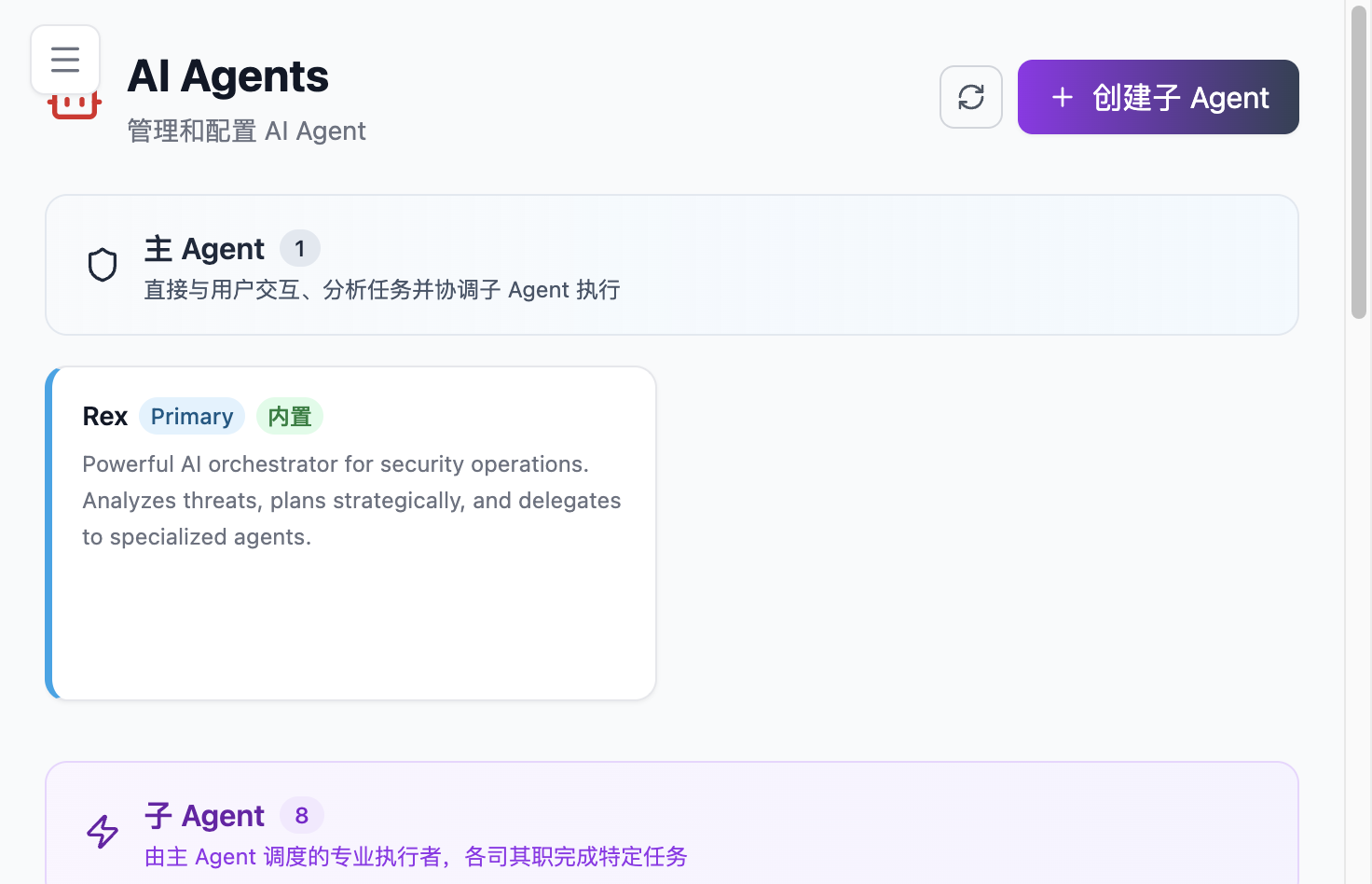
Go to Agent Studio -> Agent from the sidebar. The page shows the Agent list for the current account or workspace, along with the built-in main Agent Rex.
4.2 Trigger Rex to Generate an Agent
After you submit the creation request in a session, Rex usually completes generation within a few minutes. Internally this mainly includes:
- Referencing the directory structure and Prompt templates of existing Agents in the project.
- Creating a new Agent directory.
- Writing the
agent.yamlconfiguration file. - Writing
prompt.mdas the Agent's System Prompt. - Assigning an appropriate tool set.
- Selecting an execution mode. The common default is ReAct.
4.3 View and Adjust Agents
After generation, the new Agent appears in the Agent list. Click the Agent card to view or adjust:
- Agent name.
- Execution mode, such as ReAct, Plan&Execute, and others.
- Assigned tools.
- Current model.
- System Prompt.
- Other configuration items.
5. Agent Model Selection
5.1 Default Model
Each Agent can choose a model. By default, Agents use the system "default model."
The system default model is configured on the Model List page. If an Agent uses "default model," it automatically follows changes to the default model on the model list page.
5.2 Specify a Model for a Single Agent
Click an Agent card on the Agent page to select a model specifically for that Agent.
If you manually select a concrete model for an Agent, later changes to the system default model will not affect that Agent. It continues using the manually specified model until changed again.
5.3 When to Specify a Model Separately
Specify a model separately for an Agent in these scenarios:
- The task is complex and needs stronger reasoning.
- The task volume is large and you want a lower-cost or faster model.
- The Agent depends on stable tool-calling behavior from a specific model.
- You do not want changes to the system default model to affect a critical Agent.
In general, sub-agents can choose mid-sized models around 30B to reduce dependency on very large models.
If there is no clear need, keep "default model" so model configuration remains easier to manage centrally.
6. Agent File Structure and Installation
6.1 Storage Locations
Flocks Agents mainly come from built-in system directories, project-level plugin directories, and user-level plugin directories:
| Type | Storage Location | Description |
|---|---|---|
| Built-in system Agent | flocks/agent/agents/<name>/ inside the Flocks package | Provided with the Flocks package as built-in capabilities. |
| Project-level plugin Agent | .flocks/plugins/agents/<name>/ under the current project or Workspace | Visible only in the current project / Workspace. |
| User-level plugin Agent | ~/.flocks/plugins/agents/<name>/ under the user directory | User-customized Agent reusable in the user's environment. |
6.2 Directory Structure
Each Agent is an independent folder. A typical structure:
agents/
└── security-inspection/
    ├── agent.yaml
    ├── prompt.md
    ├── checklist.md
    └── helper.py
Where:
agent.yamlstores Agent configuration, such as name, description, tools, execution mode, model choice, and so on.prompt.mdstores the Agent's System Prompt and defines its role, goals, inputs and outputs, execution rules, and boundaries.- Other
.mdfiles can store supplementary notes, checklists, operating standards, case templates, and similar material. - Other
.pyfiles can store helper scripts needed by the Agent.
6.3 Install a New Agent
Place a new Agent folder under .flocks/plugins/agents/ in the project directory to install it as a project-level Agent.
The system automatically recognizes agent.yaml and prompt.md in that directory and loads the Agent into the Agent list or runtime.
To use it as a custom Agent for the current user, place it under ~/.flocks/plugins/agents/.
6.4 Common agent.yaml Fields
agent.yaml is the Agent's structured configuration file. Common fields include:
| Field | Description |
|---|---|
name | Agent name. Keep it short, readable, and representative of the domain. |
description / description_cn | Agent description. Rex uses it to judge whether to delegate tasks. |
mode | Agent mode. Common values include primary, subagent, and all. |
tools | Tool allowlist, deciding which tools the Agent can call. |
model | Separately specified model. Empty or default values follow the system default model. |
temperature / topP | Model sampling parameters, affecting output stability and exploration. |
tags | Tags for classification, search, or capability management. |
hidden | Whether to hide the Agent on the page. |
delegatable | Whether Rex is allowed to delegate tasks to this Agent. |
Prompt is not declared in agent.yaml through a prompt field. At runtime, the system first reads prompt.md in the Agent directory as the static System Prompt. If there is no prompt.md, a dynamic Prompt can be provided through prompt_builder.py. native is also not an agent.yaml field. The system determines it automatically from the load directory: package built-in Agents and project-level plugin Agents are treated as native, while user-level plugin Agents are treated as non-native.
mode affects the default behavior of delegatable. Main Agents are usually not delegation targets; sub-agents can usually be scheduled by Rex. For critical Agents, write description, tools, and prompt.md clearly, because they directly affect whether Rex can select the Agent correctly.
7. Run and Verify
7.1 Trigger with Natural Language
In Session conversations, the default selected Agent is currently the main Agent Rex. After creating an Agent, you can state the task goal directly in a session, for example:
Run the device inspection.
The key point: you usually do not need to specify the Agent name explicitly. State the task directly. Rex understands the goal and uses the Agent's name, description, Prompt, and tool scope to find the most suitable sub-agent.
If you want to consistently select a specific Agent, state it clearly in the task description:
Use Security Inspection Agent to complete this device inspection.
Users can also select a specific sub-agent directly in a session. This is useful for debugging an Agent, verifying a Prompt, or bypassing Rex's automatic matching.
7.2 /agents Command in Sessions
In WebUI sessions, TUI, or CLI sessions, use /agents to view Agents that can currently be delegated to:
/agents/agents lists available Agent names, descriptions, and some metadata. It is useful when you do not know which expert Agents are available.
In TUI, you can also reference a sub-agent in the input with @agent-name, for example:
@security-inspection help me review this batch of device inspection results.This form is useful when you explicitly want a sub-agent to participate in a task. In WebUI, you usually select an Agent through the Agent selector or specify "use Agent X to complete the task" in natural language.
7.3 View Execution Outputs
After execution, you can view:
- Result summaries and key metrics in the session.
- The full report output by the Agent.
- Output file locations, usually under the
outputs/directory in Workspace.
7.4 Verify Whether an Agent Meets Expectations
Use 1 to 2 real tasks for validation and focus on:
- Whether Rex can correctly identify and delegate to this Agent.
- Whether the Agent selects appropriate tools.
- Whether the Agent follows the output format and boundaries defined in
prompt.md. - Whether outputs are stable, reusable, and auditable.
If results are unstable, first adjust the goals, inputs and outputs, tool-use rules, and constraints in prompt.md.
7.5 Adjust an Agent
If an Agent's execution results are not ideal, return to a Rex session and clearly state which Agent to optimize and which capability should be improved.
For example:
Help me optimize the report generation capability of Security Inspection Agent.
The health assessment in the current inspection report is too coarse. Add explanations for key metrics, the basis for anomaly judgment, and remediation recommendations.
Rex adjusts the Agent configuration, System Prompt, or related helper files based on your feedback. Describe the issue as concretely as possible: which Agent, which capability, what is wrong with the current result, and what it should become.
8. CLI and TUI Management Entry Points
8.1 TUI / Node CLI
The TUI side provides commands for creating and viewing Agents:
| Command | Purpose |
|---|---|
flocks agent list | List currently available Agents. |
flocks agent create | Create an Agent interactively. |
flocks agent create --description "<desc>" --mode subagent --tools bash,read,write | Create an Agent non-interactively. |
flocks agent create --model provider/model | Specify the model used to generate the Agent at creation time. |
During creation, you can select where the Agent is stored, its description, mode, tool set, and model. TUI also supports switching the primary Agent in a session and referencing sub-agents with @agent-name.
8.2 Agent Tool Debugging
TUI debug commands can show a full Agent configuration and tool switches, and can directly test whether a tool can run on that Agent:
flocks debug agent <agent-name>
flocks debug agent <agent-name> --tool <tool-id> --params '{"key":"value"}'
This entry point is useful for checking:
- Whether an Agent can see a tool.
- Whether the Agent's tool allowlist disables a tool.
- Whether tool parameters can be executed correctly.
8.3 Python CLI Status
../flocks/flocks/cli/commands/agent.py already contains Agent CLI implementations, including list, show, permissions, and other commands for viewing Agents, models, Prompts, and permission rules. However, the current Python CLI main entry point mainly registers command groups such as skills, mcp, task, and session. If flocks agent ... is not visible in a particular installed version, use the actual output of flocks --help as the source of truth.
9. Core Concepts
9.1 ReAct Mode
Most sub-agents use a ReAct (Reason + Act) loop by default:
[Reason] What data is needed now -> [Act] Call a tool -> [Observe] Is the result usable?
       ↑                                                    ↓
       <-------------------------- Continue iterating <--------------------------
This means the Agent does not fix the entire plan upfront. Instead, it adjusts flexibly based on intermediate results. This is especially important in real scenarios such as dashboard login, page data extraction, unstable API responses, and tasks that require multiple probes.
9.2 Delegation Between Agent and Rex
Rex decides in a session whether to delegate to a sub-agent. Common criteria include:
- Whether the task matches a known professional problem domain.
- Whether the sub-agent's tool set is sufficient for the task.
- Whether the capability scope declared in the sub-agent's Prompt matches.
- Whether the sub-agent's current model is suitable for the task.
Even when no sub-agent matches, Rex can handle the task directly with its own toolchain. Sub-agents are more specialized optional execution roles, not mandatory paths.
9.3 Dynamic sub-agent: Rex-junior
In addition to delegating to an existing expert Agent, Rex can call delegate_task(category=..., load_skills=[...]) to let a category executor use specified Skills in an independent subtask. Category delegation is currently executed by Rex-junior.
In implementation, the full SKILL.md content specified by load_skills is appended to the subtask prompt. It does not replace Rex-junior's own System Prompt. Rex-junior is also not a directly selectable subagent_type; choose an appropriate category instead. This mode can reuse methodologies, rules, and task templates preserved in Skills while keeping execution reasonably isolated from the main session.
Typical usage:
Use the vulnerability triage Skill to analyze this CVE and complete the initial impact assessment in an independent category subtask.If a Skill is repeatedly executed through category delegation and its boundaries, tool set, and output format have become stable, consider promoting it further into a formal expert Agent.
9.4 Nested Calls by Sub-agents
During execution, a sub-agent can call Skills, Workflow, or delegate to other sub-agents as needed.
In practice, deeply nested calls are not recommended. Excessive nesting makes debugging harder, consumes context, and increases uncertainty in results. Generally, let Rex handle unified scheduling and keep sub-agent responsibilities clear. Allow sub-agents to call other capabilities only when boundaries are clear and the benefit is obvious.
9.5 Agent Capability Boundaries
Current Flocks Agent capabilities emphasize "organizable + extensible" rather than abstract "general intelligence." In practice, keep each Agent:
- Clear in responsibility, with one Agent handling one problem domain.
- Lean in tool set, avoiding too many tools that increase the chance of wrong selection.
- Structured in Prompt, with explicit goals, inputs, outputs, tools, and constraints.
- Stable in model selection, with critical Agents optionally bound to a specific model.
10. Real Example: Device Inspection Agent
10.1 Background
The task is to create a "machine inspection / device inspection" Agent for two devices, TDP and OneSec, collecting data from their dashboards and generating routine inspection reports.
10.2 Creation Process
In a Rex session, provide requirements and basic information:
- Which two devices to inspect.
- Where to get data.
- What format to output.
- Which tools are needed.
- Which execution mode to use.
After running for a few minutes, Rex generates a sub-agent, for example:
- Name:
Security Inspection. - Execution mode: ReAct.
- Tools: Bash, Write, Read, web search, web crawler.
- Prompt: organized around web information retrieval, metric analysis, and inspection report generation.
10.3 Execution Process
Send a vague instruction in a session:
Run this inspection.
Even without explicitly naming the inspection Agent, Rex selects an appropriate sub-agent based on the task goal. The sub-agent execution may include:
- Logging in to the TDP / OneSec dashboards.
- Collecting key metrics.
- Parsing threat behaviors and threat events.
- Assessing system health.
- Organizing a structured report.
10.4 Output Results
Typical outputs include:
- TDP Inspection report: machine count, key metrics, feature status, system runtime status, component status, CPU usage, and so on.
- OneSec Inspection report: connected device count, online/offline status, threat behaviors, threat event list, health assessment, data collection notes, and so on.
The initial Prompt does not need to be extremely detailed. The Agent can fill in data granularity and report structure around the goal. For long-term reuse, however, write output format, boundary conditions, and success criteria clearly in prompt.md.
11. FAQ
11.1 What If the Agent Is Not Called as Expected?
First make the task goal and desired Agent more explicit. If it still does not trigger, check whether the Agent name, description, and prompt.md can be matched by Rex.
11.2 How Should I Describe Turning a Successful Operation Back into an Agent?
Ask Rex to create an Agent based on the previous execution process, and require it to preserve the target systems, inputs and outputs, key steps, tool choices, constraints, and success criteria. The more structured the description, the more reusable the generated Agent.
11.3 What Is the Difference Between Agent and Skill?
| Dimension | Agent | Skill |
|---|---|---|
| What it is | Role + tool set + Prompt + execution mode | Standard / method / task template |
| Can it execute independently? | Yes, it can have its own ReAct loop | No, it must be loaded by an Agent |
| When to use | When a class of tasks should be handled in a fixed way | When one or more Agents should follow the same method |
11.4 Where Can I View Source Files After Creating an Agent?
Built-in system Agents are located in flocks/agent/agents/<name>/ inside the Flocks package. Project-level plugin Agents are located under .flocks/plugins/agents/<name>/ in the current project or Workspace. User-level plugin Agents are located under ~/.flocks/plugins/agents/<name>/. Each Agent is an independent folder. The core file is agent.yaml, and it usually also contains prompt.md.
11.5 Must I Use ReAct Mode?
No. ReAct is the default choice for most dynamic tasks, but Flocks allows more specialized execution modes. If the business process is fixed enough, prefer Workflow.
11.6 Is It Better for Agents to Use the Default Model or a Specified Model?
The default model is enough for most Agents and makes centralized management easier. For critical tasks, complex tasks, cost-sensitive tasks, or Agents that require stable model behavior, specify a model on the Agent card.
12. Related Modules
- Workflow: Prefer Workflow when the process is fixed and steps are clear.
- Skills: Turn Agent experience into methods that other Agents can load.
- Tools: Source of tools assigned to Agents.
- Model List: Configure the system default model and select available models for Agents.
- Task Center: Turn Agents into recurring scheduled tasks.
- Scenario Practice - Alert Triage: Typical implementation of alert analysis Agents.
- Scenario Practice - Host Inspection: Walkthrough of host inspection Agents in real environments.